MaterialByElement Modifier
The MaterialByElement modifier lets you apply different material IDs to objects containing multiple elements, at random or according to a formula. When animated, this effect is useful for such applications as an office building at night with window illumination turning on and off at random.
- Make a selection. >
 Modify panel > Modifier List > Object-Space Modifiers > MaterialByElement
 - Default menu: Make a selection. > Modifiers menu > Surface > Material By Element
- Alt menu: Make a selection. > Modifiers menu > UVs, Maps and Materials > Material By Element
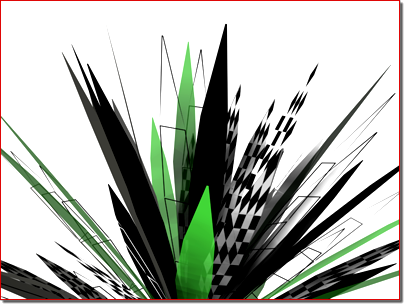
Various materials randomly applied to the leaves of the plant
Procedures
Example: To assign colors randomly in a group of spheres:
Create six spheres.
Combine the spheres into a single editable mesh object.
Right-click a selected sphere and from the Transform (lower-right) quadrant of the quad menu, choose Convert To: > Convert to Editable Mesh. Then click Modify panel > Edit Geometry rollout > Attach List. In the Attach List dialog, click All, and then Attach.
Create a Multi/Sub-Object material with six materials, and specify a different color for each material.
 Assign the material to the object with multiple spheres.
Because sphere primitives are assigned material ID 2 by default, all the spheres now have the color assigned to material number 2 in the multi/sub-object material.
Apply the MaterialByElement modifier to the object.
From the Parameters rollout, turn on Random Distribution.
Because the default ID Count setting is 2, some of the spheres are assigned sub-material #1, and the rest are assigned #2.
Use the spinner to increase the ID Count setting to 3. Also change the Uniqueness group > Seed value.
Now the first three materials are assigned to the spheres at random, although with some Seed settings you might see only two different colors.
Keep increasing the ID Count setting until you see all six colors in the Multi/Sub-Object material. The assignments are random, so it might take a while.
Interface
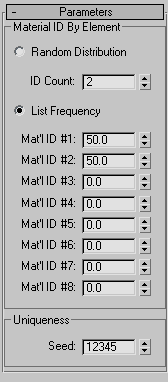
Material ID By Element group
The two choices in this group let you create either a truly random distribution of material IDs or divide the assignments among up to eight materials according to percentages you set.
Random Distribution Assigns the material IDs at random to different elements in the object.
- ID Count The minimum number of material IDs to assign when using the Random Distribution option. Because material ID assignment is random, setting it to the number of materials in the Multi/Sub-Object material or higher doesn't guarantee that all materials get used.
List Frequency Determines an approximate relative weight (percentage) for each of up to eight material IDs, as set by the Mat'l ID #1-8 parameters. The modifier assigns material IDs until the weights total 100.
For example, if you set Mat'l ID #1 to 40, #2 to 35, and #3 to 60, approximately 40 percent of the elements will be assigned material ID 1, 30 percent will be assigned material ID 2, and 25 percent (100 − [40 + 35]) will be assigned material ID 3. Any remaining percentages (as set in Mat'l IDs 4-8) are ignored.
Note: These percentages are approximate. The more elements the object contains, the closer the assigned percentage comes to the set percentage.
Uniqueness group
Seed
Sets the seed value for the (pseudo-)randomization of material ID assignments. Not animatable.