Affect Channel Modifier
The Affect Channel modifier reads, generates, and writes channel data on a Points or 3DGS object using an ordered list of operations. Combine several channel operations in one modifier, like generating a channel from point positions and then using that channel to reposition or recolor points, instead of stacking multiple Affect Channel modifiers.
 Modify panel > Make a selection > Modifier List > Object-Space Modifiers > Affect Channel
- Default menu: Make a selection > Modifiers menu > Point Editing > Affect Channel
Notes
- The Affect Channel modifier works with any object that has points, like a Points object, a 3DGS object, or a primitive.
- Data written to an internal channel (see Output Channel, below) stays local to the modifier and isn't passed up the modifier stack. For example, if you write to an internal channel and add another modifier above Affect Channel, that modifier can't access the internal channel's data.
- An operation that appears in italics in the Operation Stack isn't processing anything. This can happen when the operation has a problem, when it's missing data (for example, its input channel is undefined or it needs a Field helper that isn't assigned), or when its Field helper doesn't overlap any points. The operation's output is unchanged.
Interface
Parameters rollout
Presets
Presets let you save the operations in the modifier and reuse them later. Affect Channel includes several presets for common tasks (see Included presets, below), and you can save your own.
- Preset list: Choose the preset to load.
 Load Preset: Loads the preset chosen in the list. Loading a preset replaces all of the operations currently in the Operation Stack.
 Save Preset: Opens the Save Preset window, where you save the current operations as a preset.
- Name: Enter a name for the preset.
- Make Default: When on, makes this the default preset.
 Delete Preset: Deletes the preset chosen in the list.
Operation Stack
Lists the operations in the modifier, which are evaluated from top to bottom. One operation (Operation 1) is added automatically when you apply the modifier to an object.
Tips:
- Select an operation in the Operation Stack to display and edit its parameters.
- Toggle the checkbox next to an operation's name to enable or disable it without removing it from the list.
- Right-click an operation to Rename, Delete, or Enable/Disable it.
- Drag and drop an operation to reorder it in the list.
- Click Add Operation to add a new operation to the list.
- Click
 to delete the selected operation.
Targeting
Determines the points that the selected operation affects.
From Stack: Uses the point selection passed up the modifier stack. If no selection is being passed up the stack, the operation targets all points.
Selected Points: Uses the current point sub-object selection on the object. If no points are selected, the operation has no effect.
Soft Selected Points: Uses a soft selection passed up the stack. Adjust the Threshold to narrow or expand the selection. A Threshold of 0 treats all points as selected, so the operation affects every point. A Threshold of 1 uses only the selected points, with no soft selection.
All: Targets every point on the object, regardless of any selection.
None: Temporarily turns off the operation without removing it from the Operation Stack.
Named Selection: Targets the points in a named selection set. Choose the set from the NSel list.
Tip: Any selection set you create in the Edit Point Modifier appears in the NSel list. You can find these sets in the Channels & Data rollout of the Edit Point modifier.Point Color: Targets points by color. Use the color swatch to pick a color, then adjust Tolerance to expand or narrow the target.
Invert: Reverses the targeting, so the operation affects the points that aren't targeted by the current setting.
Input Channel
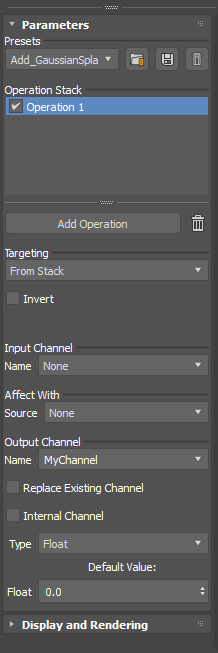
Name: Sets the channel that supplies the operation's input data. The list shows only the channels that currently exist on the object, like Positions, Color, Rotation, Scale, or Selection, or a custom channel created by an earlier operation. Select None if the operation doesn't need an input channel.
Tip: To use a channel that doesn't exist yet, create it with an operation placed earlier in the Operation Stack, using the Affect With parameters to fill in its data.
Affect With
- Source: Sets what additional data is combined with the input channel. The parameters update depending on the selected Source.
- None: No additional data is combined with the input channel.
- Value: Combines the input channel with a fixed value.
- Type: Sets the data type of the value: Float, Integer, Point3, or Solid Color. The parameters available below Type update depending on your selection. If the type doesn't match the data type of the output channel, the data is converted automatically.
- Float: Sets the numeric value. This parameter is only available when Type is set to Float.
- Integer: Sets the whole-number value. This parameter is only available when Type is set to Integer.
- X, Y, Z: Set the value along each axis. These parameters are only available when Type is set to Point3.
- Solid Color: Click the color swatch to pick a color. This parameter is only available when Type is set to Solid Color.
- Operation: Sets how the value is combined with the input channel: Replace, Blend, Add, Subtract, Multiply, Dot Product, or Condition.
- Strength: Scales the effect of the operation. The default value of 1.0 applies the full effect. Values below 1.0 reduce the effect, and values above 1.0 increase it.
- Channel: Combines the input channel with the data from another channel.
- Name: Sets the channel to combine with the input channel. You can choose any channel available to the operation, including an internal channel created by an earlier operation, which is marked with an asterisk (*).
- Operation: Sets how the channel data is combined with the input channel: Replace, Blend, Add, Subtract, Multiply, Dot Product, or Condition.
- Strength: Scales the effect of the operation. The default value of 1.0 applies the full effect. Values below 1.0 reduce the effect, and values above 1.0 increase it.
- Field: Combines the input channel with the output of a Field Helper.
- Operation: Sets how the Field Helper's output is combined with the input channel: Replace, Blend, Add, Subtract, Multiply, Dot Product, or Condition.
- Field: Click the button, then pick a Field Helper in the scene. Right-click the button to clear the field.
- Multiplier: Multiplies the Field Helper's value by this number. This is useful if you want a single helper to affect several operations at the same time, like Positions and Rotation.
Output Channel
- Name: Sets the channel that receives the operation's result. Choose an existing channel name to overwrite it (when Replace Existing Channel is on), or enter a new name to create a channel.
- Replace Existing Channel: When on and Name matches an existing channel, the operation overwrites the channel instead of creating a new one.
- Internal Channel: When on, writes the result to a channel that is available only within the Affect Channel modifier. Modifiers above Affect Channel in the stack can't use it.
- Type: Sets the output channel's data type: Float, Point3, Integer, or Color.
- Default Value: Sets the output channel's starting value, in a field matching the selected Type (for example, a Float field for the Float type).
Display and Rendering rollout
For information about this rollout's parameters, see the Display and Rendering rollout in Edit Point Modifier.
Included presets
Choose a preset from the Presets list and click to load it. Most of these presets use a Field Helper that you add to your scene. After loading one of these presets, pick the helper in the operation's Field setting.
Add Gaussian Splat Channels: Adds the four channels a Points object needs to render as a Gaussian splat: Color, GS-Opacity, GS-Scale, and GS-Orientation.
Color from Field Color: Uses the color defined in a Field Helper to change the color of the points.
Field Disable Points: Disables any point that isn't inside the Field Helper's volume. Use this preset to limit which points or splats display to those inside the volume.
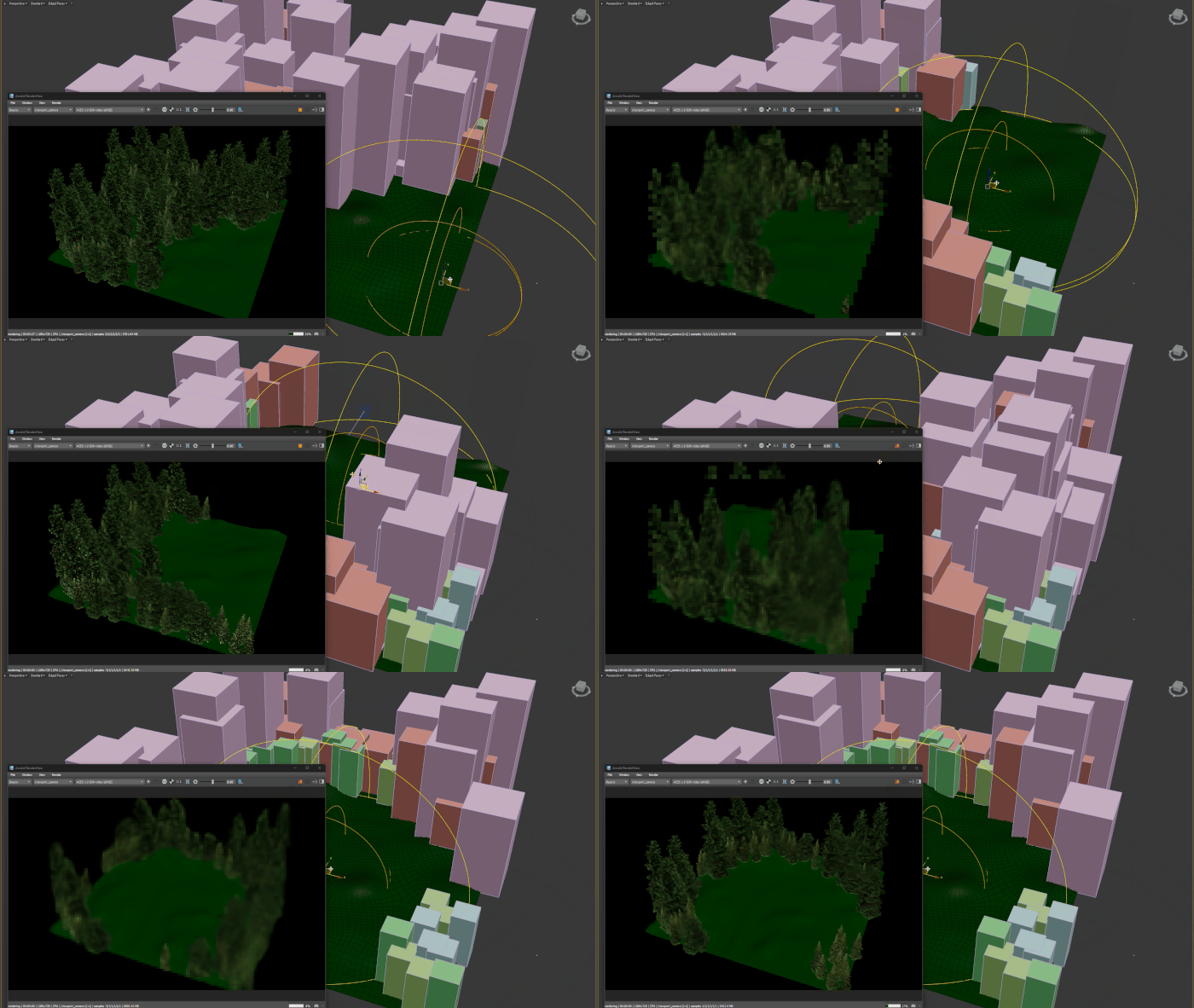
Field Replace GS-Opacity: Makes any point inside the Field Helper's volume invisible by adjusting its opacity value.
Field to Selection change Color: Changes the color of any point inside the Field Helper's volume to the color set in the Affect Channel operation.
Field to Selection shift Points Z: Moves any point inside the Field Helper's volume along the Z axis, using the position offset channel.
Low Opacity Disable: Disables any point with an opacity value lower than the value defined in the operation.
Small Scale Disable: Disables any point with a scale value smaller than the value defined in the operation.
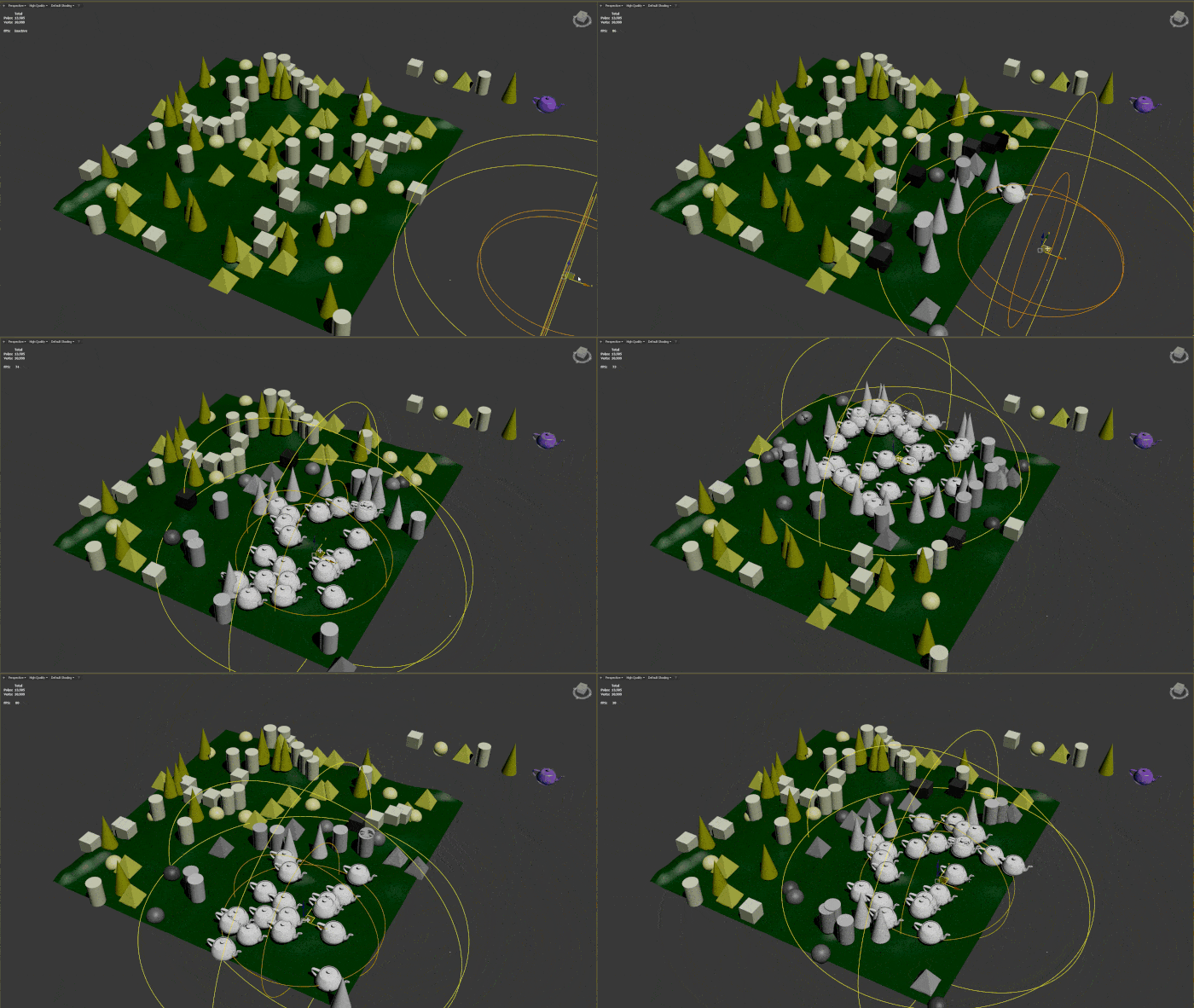
Swap Instance with Field: Switches the InstanceID value of any point inside the Field Helper's volume. Use the Multiplier value in Affect With to adjust how many instances (from 0 to the last) to swap.
Procedure
Example: Generate an internal channel and use it to move points
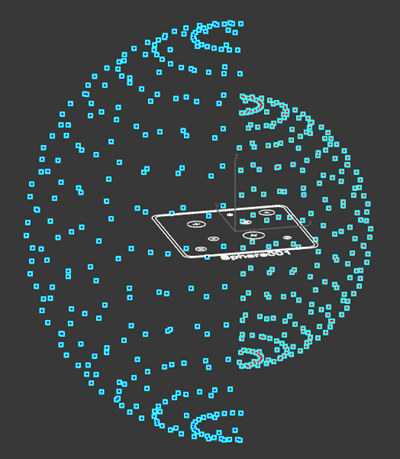
Select some of the points on a Points or 3DGS object. For this example, half the points on a sphere are selected.
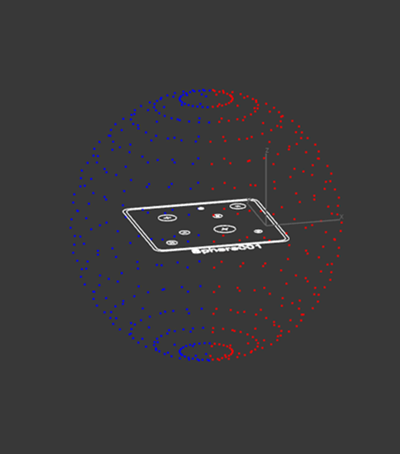
In the Modify panel, select Affect Channel from the Modifier list.
An operation (Operation 1) is added to the Operation Stack.
Select Operation 1 in the Operation Stack.
Set the following Output Channel options:
- Name: Enter the name "Offsets"
- Internal Channel: Turn on
- Type: Select Point3
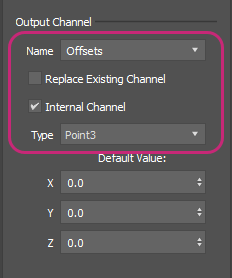 Note: When Internal Channel is on, the Offsets channel is available only inside this Affect Channel modifier. Modifiers above it in the stack can't access it.
Set the following Input Channel parameters, so the operation multiplies each point's normal vector by 15:
- Targeting: All
- Input Channel > Name: InstanceNormal
- Affect With > Source: Value, with Type set to Float and Float set to
15.0 - Affect With > Operation: Multiply
The Offsets channel now holds a displacement vector for every point.
Click Add Operation to add Operation 2.
Select Operation 2 in the Operation Stack.
Set the following parameters so the operation adds the offsets to the point positions:
- Targeting: Selected Points
- Invert: Turn on
- Input Channel > Name: None
- Affect With > Source: Channel
- Affect With > Name: Offsets
- Affect With > Operation: Add
- Output Channel > Name: Positions
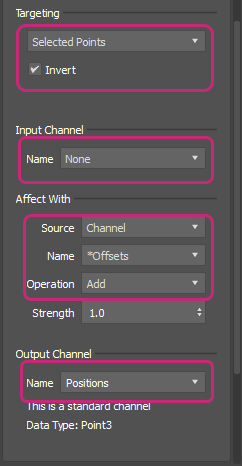
The points you didn't select move away from the object along their normals, and the selected points stay where they are.