USD Layer Editor
The USD Layer Editor is where you manage USD layers. To open the USD Layer Editor, do one of the following:
- Go to Tools > USD > USD Layer Editor
- In the USD Explorer, navigate to Tools > USD Layer Editor
Interface overview
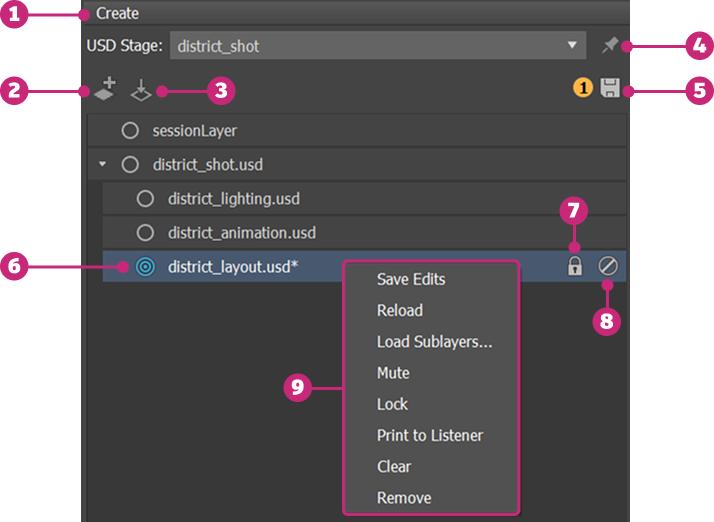
| # | Option | Description |
|---|---|---|
| 1 | Create a stage | Click to create a stage from an existing USD file. The stage object is selected by default when a stage is initially created. |
| 2 | Create an anonymous sublayer | Click to add an anonymous sublayer to either the stage's root layer or the session layer. |
| 3 | Load an existing layer | Click to load an existing layer as a sublayer to the selected layer or the root layer if no layer is selected. |
| 4 | Pin a stage | Click to pin a stage. When pinned, the stage selection in the USD Layer Editor is maintained regardless of the selection made in the Scene Explorer. When unpinned, the stage selection in the USD Layer Editor automatically updates to reflect the stage currently selected in the Scene Explorer. |
| 5 | Save all edits | Click to save a stage and bulk save any unsaved edits on your stage. The number of unsaved edits is displayed beside the save stage icon. This action opens a dialog box for you to confirm all the layers to be overwritten before saving the stage. |
| 6 | Set target layer | Hover next to a layer name and click the grey target icon when it appears. Once a layer is set as the target layer, the highlighted target icon appears next to the layer name, and any scene editing operations are made on this layer. The root layer is set as the target layer by default when a USD stage is created. The target layer setting is maintained when you save and reload a scene. |
| 7 | Lock a Layer | Click to lock a layer. When a layer is locked, you can't target or add sublayers to it. If a locked layer has sublayers, they can't have new parent layers added to them. |
| 8 | Mute a Layer | Click to mute a layer. When a layer is muted, it's ignored by the stage and the contents of the muted layer disappear in the Viewport and Scene Explorer. Muted layers do not participate in value resolution or composition. |
| 9 | Context menu | Access the context menu by right-clicking a layer. |
Read-only USD files are in the system lock state in the USD Layer Editor and cannot be unlocked by standard users. For more information on system lock, visit the official Autodesk 3ds Max USD GitHub community.
Save scene file with edits on layers
When you save a scene file with edits on USD layers, the Save USD Options dialog appears with three options:
- Save the 3ds Max scene file and USD files: Save both the scene file and the USD layers.
- Save all edits (including USD) to the Max scene file: Save all edits, including those on USD layers, to the scene file. When you reopen the scene file, the USD layer edits appear as unsaved edits, and the scene is the same as before.
- Save only the 3ds Max scene file (USD edits will not be saved): Save only the scene file and discard all USD edits.
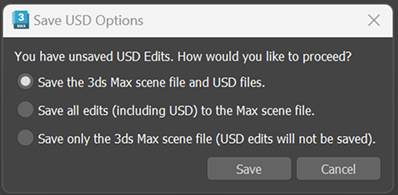
You can save a USD stage with an anonymous root layer inside a 3ds Max scene file, without writing any USD files to disk.
Edit restrictions on weaker layers
Edits performed on weaker layers are blocked because layers with stronger opinions override those edits, which would not have any effect on the composition. This might result in unaware changes made to layers.
For more information on opinions in USD, see LIVRPS strength ordering
Merging Sublayers
The Merge with Sublayers command lets you flatten a layer's sublayer hierarchy by merging the contents of child sublayers into their parent layer. This simplifies your layer stack by consolidating opinions from multiple sublayers into a single layer, reducing complexity when managing USD scenes and assets.
How It Works
When you merge a layer with its sublayers, all USD opinions (attribute values, overrides, relationships, etc.) held in the child sublayers are composed and written into the parent layer. The child sublayers are then removed from the layer stack. The merge respects the standard USD composition strength ordering — stronger opinions take precedence over weaker ones.
Using Merge with Sublayers
- Open the USD Layer Editor
- Right-click a layer that has one or more sublayers.
- Select "Merge with Sublayers" from the context menu
The child sublayer contents are merged into the selected parent layer, and the child sublayers are removed.
Bulk Merge
You can select multiple sibling layers in the Layer Editor. If at least one of the selected layers has child sublayers, the Merge with Sublayers option appears in the context menu. The merge operation is performed on each selected layer stack individually.
Opinions
Layers contain opinions about the prims in the scene. Creating a value for an attribute, metadata or relationship also creates an opinion for the object on the layer. The strengths of the layers in a layer stack determines which opinion is expressed in the scene. One object may be affected by multiple opinions on different layers. In USD, LIVRPS strength ordering provides a framework for the ordering of opinions. For example, if the asset department creates a green teacup. At a later date, the lighting department decides to make the teacup white by adding an opinion on the lighting layer. According to LIVRPS rules, the strongest opinion wins. With the local layer in the layer stack being the strongest, the teacup is rendered white. For more information on LIVRPS strength ordering, visit LIVRPS strength ordering
As a form of best practice, avoid performing edits (either via Manipulators, the Command Panel or the USD Explorer) to weaker layers in your layer stack. Edits performed to weaker layers will be blocked as the USD framework is based on top level layers having stonger opinions that override those of weaker layers in the stack.