Caustic Balloon Effect tutorial
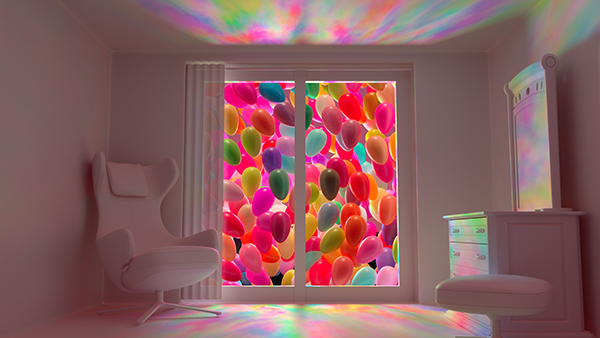
The scene above contains balloons that are flying past a window and filling the room with color. This tutorial will show you how to create this caustic balloon effect using a Gobo light filter connected to a Spot Light pointing through the window. We will also cover the shading steps used for the balloons. Thanks to Slava Sych for this tutorial.
The scene file can be downloaded here.
Lighting
Create a camera and point it towards the window as per the image above. Create a Skydome Light and connect a Physical Sky to its Color attribute.
Skydome Light
The settings for the Skydome Light used in this example are as follows:
- Exposure: 2.
- Samples: 3.
- Shadow Color (HSV): 4.213, 0.785, 0.053.

- Camera Visibility: 0.
- Transmission Visibility: 0.
Physical Sky
The settings for the Physical Sky used in this example are as follows:
- Turbidity: 8.916.
- Elevation: 90.
- Azimuth: 247.229.
- Intensity: 2.
- Sky Tint Color (HSV): 353.299, 0.588, 1.000.

- Sun Tint: 44.261, 0.177, 1.000.

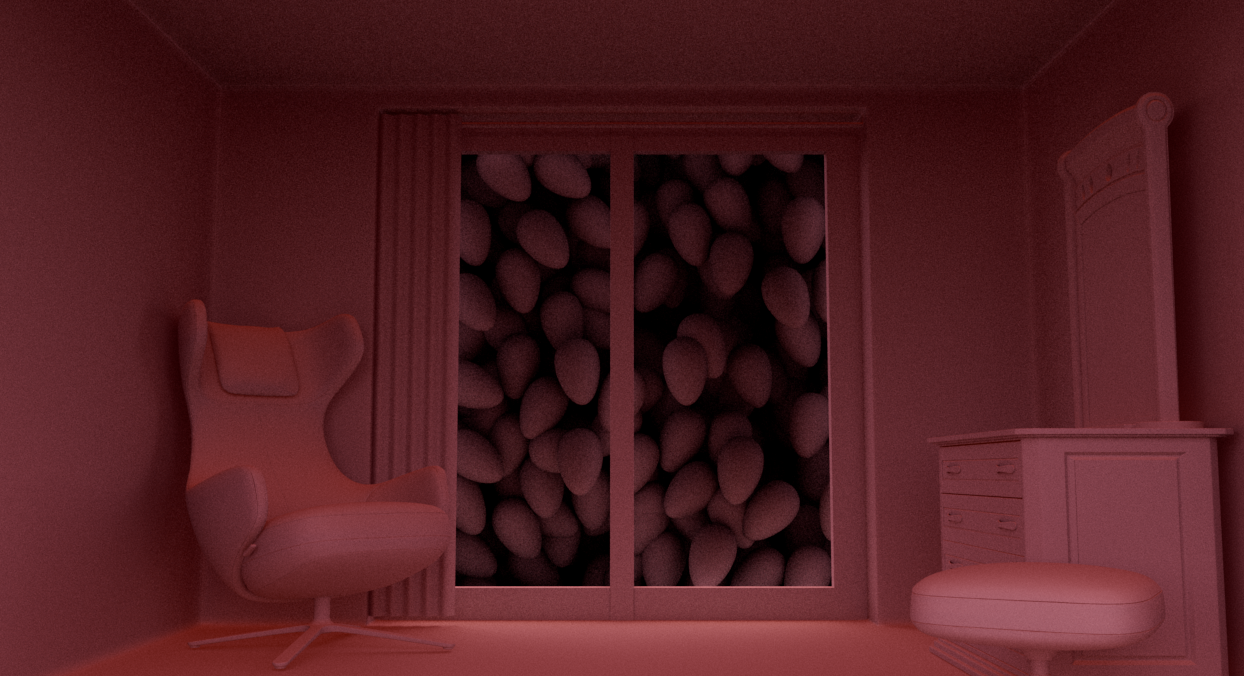
Skydome Light. The window glass is hidden, and shadows are disabled for the balloons.
Spot Light
- Create a Spot Light and place it behind the balloons. Rotate it so that it is pointing through the window.
The settings for the Spot Light used in this example are as follows:
- Cone Angle: 144.213.
- Exposure: 19.
- Samples: 3.
- Radius: 44 (for softer shadows).
- Shadow Color (HSV): 13.230, 0.785, 0.019.

- Specular Visibility (Contribution): 0.1.
- SSS Visibility (Contribution): 0.1.
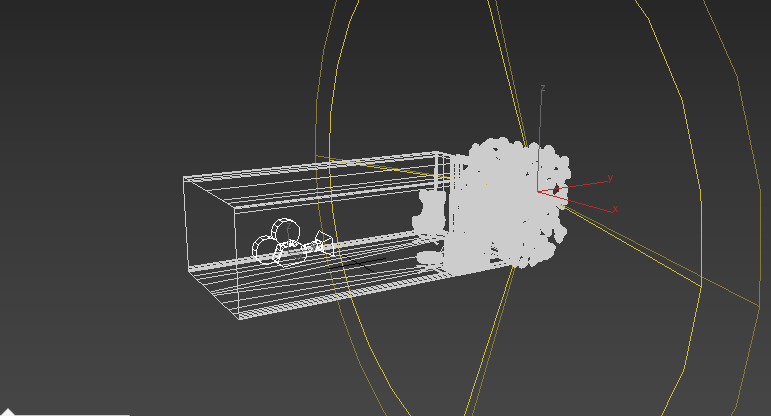
Spot light positioned behind the balloon shapes
Gobo Filter
Connect a Gobo filter to the Spot Light.
- Set the Filter Mode to Mix.
- Increase the Density to 0.65.
- Connect a Noise shader to the Slide Map of the Gobo.
Noise Shader
The settings for the Noise shader used in this example are as follows:
- Octaves: 4.
- Distortion: 1.687.
- Lacunarity: 2.831.
- Scale XYZ: 33 (this value may need to change depending on the size of your scene).
- Coord Space: UV.
- Mode: Vector (for RGB color noise).
To further adjust the effect, you could try inserting a Color Correct shader before the Noise shader. In this case, the Saturation was adjusted to 1.6.
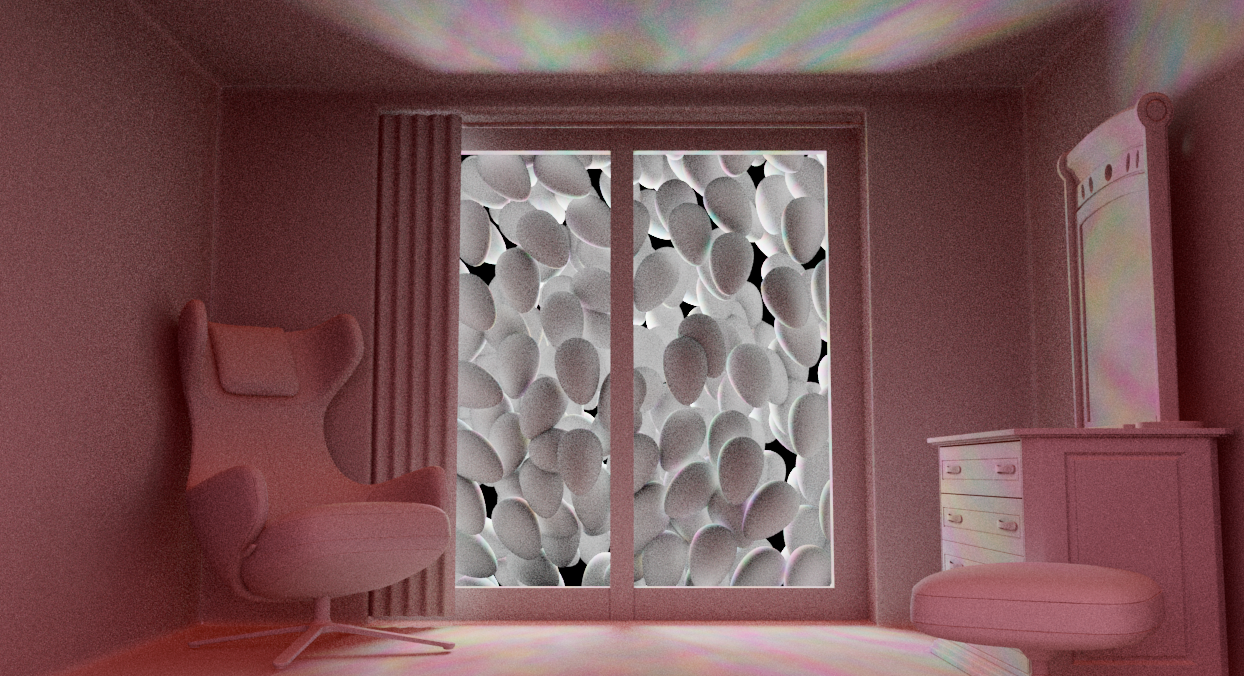
Final results for the Spot Light
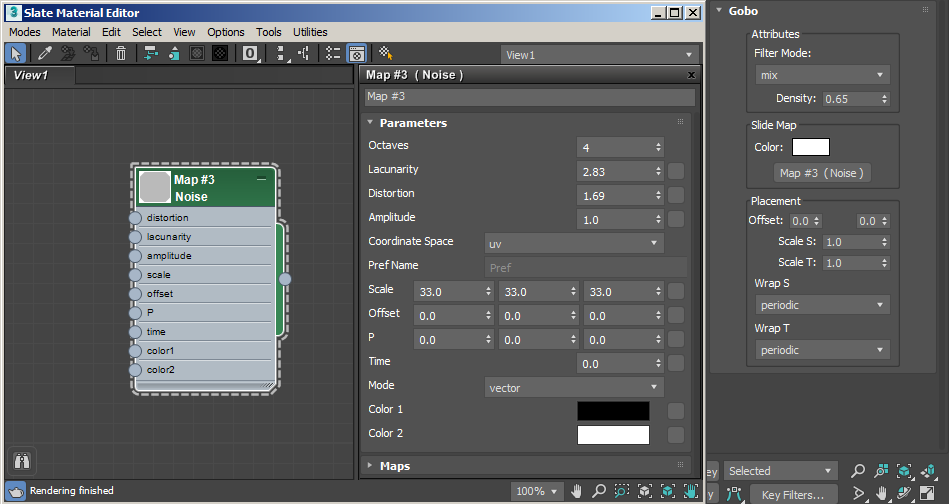
Final setup for Gobo filter
Shading
Assign a Standard Surface to the balloon objects and rename it to BalloonMat.
Balloon Material
The settings for the Balloon material used in this example are as follows:
- Specular Roughness: 0.36.
- Subsurface Weight: 0.5.
- Subsurface Scale: 10.
- Subsurface Type: Randomwalk2.
Create a LayerRGBA shader and connect it to the Base Color, Subsurface Color and Subsurface_radius of the BalloonMat.
LayerRGBA->aiBalloonMat
- Create and connect a Utility shader to input1 of the LayerRGBA.
- Create and connect a Color Jitter shader to Input2 of the LayerRGBA. The Color Jitter will be used to further adjust the variation and color of the balloons.
- In Layer2 of the LayerRGBA, change the Operation to Multiply and the Mix to 0.645.
ColorJitter
The settings for the Color Jitter shader used in this example are as follows:
- Change the Type to Object.
- Gain Max: 4.
- Saturation Min: 0.38.
- Saturation Max: 1.076.
- Seed: 2313.
Utility
The settings for the Utility shader used in this example are as follows:
- Shade Mode: Flat.
- Color Mode: Object. This will give us random colors for each of the balloons.
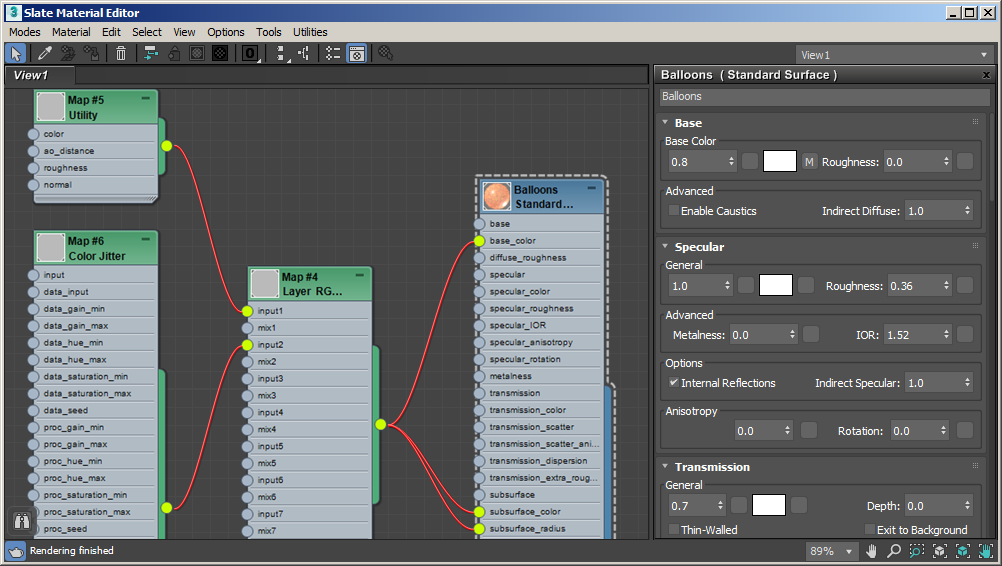
Final shading network for Balloons