Enhanced Graphics Performance optimizes canvas refresh and redraw operations. These changes reduce redraw overhead and improve responsiveness when working with drawings.
Performance improvements may be observed across multiple workflows, including opening and saving drawings, switching visual styles, changing views, switching layouts, and related operations, provided the required prerequisites and workflows are met.
Prerequisites
- Turn on Enhanced Graphics Performance mode by selecting the Enable Enhanced Graphics Performance option in the Options dialog box (AECGRAPHICSPERFORMANCE system variable).
- Turn on the modern 3D graphics system (GSF), which is controlled by the Fast Shaded Mode setting in the Graphics Performance dialog box (FASTSHADEDMODE system variable).
- Use a visual style that utilizes the GSF system.
Workflows that Show Performance Improvements
| Workflow | Description |
|---|---|
| Opening | Opening a drawing with multiple viewports that use GSF visual styles. At least two viewports should share similar view directions or representations. |
| Saving | Saving a drawing with one or multiple viewports. |
| Switching visual styles | Switching between GSF visual styles. (Applies to the AutoCAD MEP toolset only.) |
| Changing views | Switching to and from the same view representation and direction. |
| Switching layouts | Switching between layouts using GSF visual styles. |
| Creating multiple viewports | Creating multiple viewports that use GSF visual styles. |
Enable Enhanced Graphics Performance
Enhanced Graphics Performance is turned on by default and controlled by the Enable Enhanced Graphics Performance in the Options dialog box or with the AECGRAPHICSPERFORMANCE system variable. This system variable determines the state for the next session of the application.
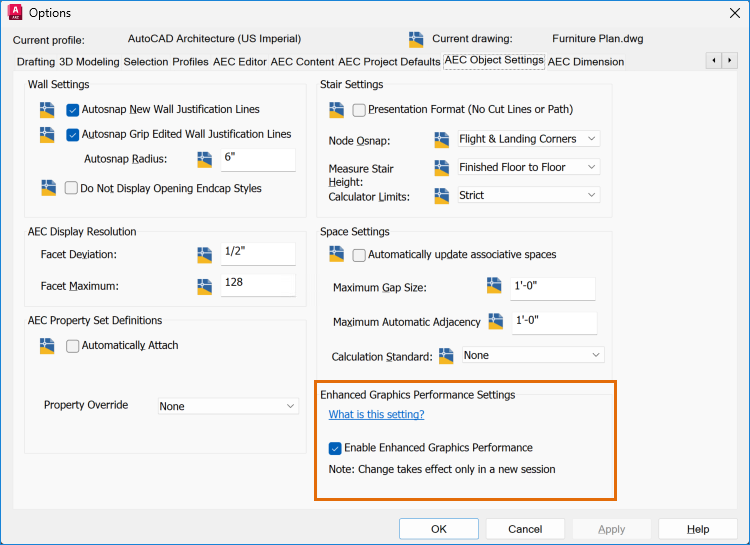
You can run two sessions concurrently, with one session having Enhanced Graphics Performance on and the other off, allowing selective use based on the drawing. Use the AECDPINUSE system variable to check the current session's mode.
When to Turn Off Enhanced Graphics Performance
- If you customize display sets, review the results and consider disabling the system variable.
- If your workflow uses multiple viewports with different display sets, review the results and consider disabling the system variable.
- If you encounter any other issues with visual fidelity or graphical representation, consider disabling the system variable.