Creates, modifies, and organizes tool palettes and tool palette groups. Imports and exports tool palette files.
CUSTOMIZE (Command) Find
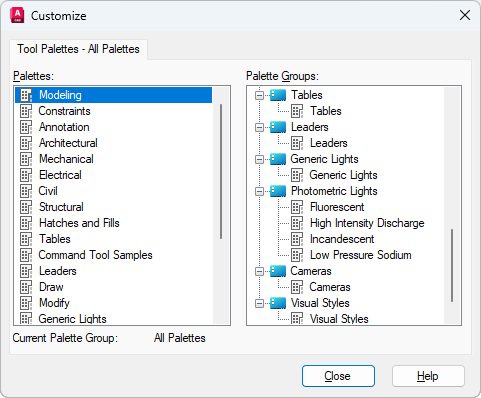
The Tool Palettes window displays all available tool palettes and allows you to create and manage tool palette groups.
In the Customize dialog box, right-click to display shortcut menus and manage tool palettes and palette groups. Click and drag items to add and reorder tool palettes in palette groups.
List of Options
The following options are displayed.
- Palettes
-
Lists all available tool palettes and a placeholder named Current Project, which represents the tool palettes loaded from an Autodesk project in Forma Data Management when the project is configured to use Connected Support Files.
Note: The tool palettes loaded from an Autodesk project are only available when a drawing from that project is open. For more information on setting up tool palettes for an Autodesk project, see About Connected Support Files: Tool Palettes.Right-click a tool palette to display a shortcut menu with the following options:
- Rename. Changes the name of an existing tool palette.
- New Palette. Creates a new empty tool palette.
-
Delete. Removes the tool palette from the product.
Note: A tool palette cannot be recovered after it is deleted. Export the tool palette to an XTP file before deleting it if you want to access it later.
- Export. Saves the tool palette to an XTP file.
- Import. Merges the tool palette from an XTP file with the other tool palettes in the product.
- Palette Groups
-
Displays a tree view of your tool palette groups and the tool palettes contained in each.
Right-click a tool palette group to display a shortcut menu with the following options:
- New Group. Creates a new tool palette group.
- Rename. Changes the name of an existing tool palette group.
-
Delete. Removes the tool palette group from the product and the current user profile.
Note: A tool palette group cannot be recovered after it is deleted. Export the tool palette group to an XPG file before deleting it if you want to access it later.
- Set Current. Sets a tool palette group current in the Tool Palettes window.
- Export. Saves the tool palette group to an XPG file.
- Export All. Saves all tool palette groups to an XPG file.
-
Import. Merges the tool palette groups from an XPG file with the other tool palette groups in the product.
Note: Import all tool palettes (XTP files) before importing tool palette groups (XPG files).
Right-click a tool palette to display a shortcut menu with the following options:
- New Group. Creates a new tool palette group.
- Remove. Deletes the reference to the tool palette from the tool palette group only; the tool palette is not removed from the product.
- Current Palette Group
-
Displays the name of the tool palette group that is current in the Tool Palettes window.