Creates multiple viewports in layouts (paper space).
The number and arrangement of layout viewports and their associated settings are called viewport configurations.
The following prompts are displayed.
- Corner of viewport
- Specifies the location of the one corner of the rectangular viewport.
- Opposite corner. Specifies the location of the opposite, diagonal corner of the rectangular viewport.
- On
-
Turns on a viewport, making it active and making its objects visible.
- Off
-
Turns off a viewport. When a viewport is off, its objects are not displayed, and you cannot make that viewport current.
- Fit
-
Creates one viewport that fills the available display area. The actual size of the viewport depends on the dimensions of the paper space view.
- Shadeplot
-
Specifies how viewports in layouts are plotted.
- As Displayed: Plots the same way it is displayed
- Wireframe: Plots wireframe regardless of display
- Hidden: Plots with hidden lines removed regardless of display
- Visual Styles: Plots using the specified visual style; all visual styles in the drawing are listed as options whether in use or not (not available in AutoCAD LT)
- Render Presets: Plots using the specified render preset; all render presets are listed as options (not available in AutoCAD LT)
- Lock
-
Locks the current viewport. Prevents changes from being made to the associated view.
- New
-
Creates and places a new view and layout viewport on the layout.
With this option, the drawing area switches temporarily to a maximized view of model space, where you can click two points to define the rectangular area of the view. This action creates an unnamed view within an appropriately sized layout viewport. Right-click to specify a different scale or click to place the layout viewport onto the current layout. The layout viewport is either set to a convenient default scale or set to the current annotative scale, and is locked. The scale can later be changed by unlocking the layout viewport and using the triangular scale grip.
- Named
- Inserts a named view that was previously saved in model space together with a new layout viewport onto the current layout. The layout viewport is either set to a convenient default scale or set to the current annotative scale, and is locked. The scale can later be changed by unlocking the layout viewport and using the triangular scale grip.
- Object
-
Creates a nonrectangular layout viewport from a closed polyline, ellipse, spline, region, or circle. The polyline you specify must be closed and contain at least three vertices. It can be self-intersecting, and it can contain arcs as well as line segments.
- Polygonal
-
Creates a nonrectangular layout viewport defined by a series of line and arc segments.
The descriptions of the Next Point, Arc, Close, Length, and Undo options match the descriptions of the corresponding options in the PLINE command.
- Restore
-
Restores a previously saved viewport configuration.
- Layer Override
-
Resets layer property overrides for the selected viewport to their global layer properties.
- Reset viewport layer property overrides back to global properties. Enter Y to remove all layer property overrides.
- Select viewports.
- Layer
-
Specifies the name of the layer on which the viewport should be created.
Tip: The VIEWPORTLAYER system variable can be used to set the default layer for new viewports. - 2
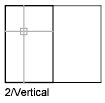
-
Divides the current viewport in half.
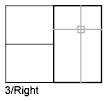
- 3
-
Divides the current viewport into three viewports.
Horizontal and Vertical split the area into thirds. The other options create one large viewport in half the available area and two smaller ones in the other half. Above, Below, Left, and Right specify where the larger viewport is placed.
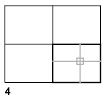
- 4
-
Divides the current viewport into four viewports of equal size.