You can temporarily suppress running object snaps when prompted to specify a point by using an override key.
For example, if running object snaps are turned on, but you want to turn all of them off for a single point, you can hold down F3. When you release this key, running object snaps are restored.
Temporary override keys are also available for specific running object snaps.
Hold down Shift plus one of the listed keys on a U.S. English keyboard to use a temporary override. For example, press Shift+E or Shift+P to temporarily suppress the Endpoint object snap.
| Temporary Override Key | Description | Temporary Override Key | Description |
|---|---|---|---|
|
E or P (1) |
Suppresses the Endpoint object snap |
D or L (5) |
Suppresses all snapping and tracking |
|
S or ; (2) |
Enforces object snap selection |
C or , (6) |
Suppresses the Center object snap |
|
Q or ] (3) |
Suppresses object snap tracking |
V or M (7) |
Suppresses the Midpoint object snap |
|
A or ' (4) |
Suppresses all object snaps |
The keyboard illustration shows the default locations of the temporary override keys on U.S./Japan and European keyboard layouts.
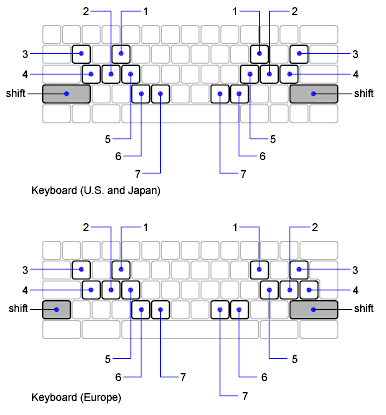
Temporary override keys are also available for other drawing aids, such as Polar Tracking and Ortho mode, that can be configured in the Drafting Settings dialog box.