Creates and manages menus and menu items in the Mac OS menu bar, including select shortcut menus.
CUI (Command)
Menu: .
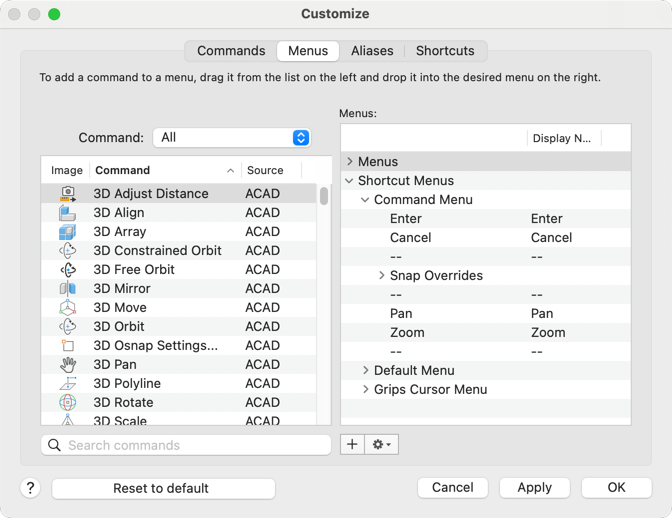
List of Options
The following options are displayed.
Commands List
Displays a list of the standard and custom commands that can be added to menus. You must be on the Commands tab if you want to create or edit a command.
Drag the command to the location in the menu you want it positioned and drop it. The location of the command is indicated by the horizontal bar. If you hover over a menu or sub-menu while dragging a command, the menu or sub-menu will expand after a short interval.
- Search Commands
-
Filters the commands displayed in the Commands list. Click the ‘X’ in the text box to clear the current filter.
Enter a text string to control which commands are displayed in the Commands list. Only the names of the commands that contain the text string are displayed in the Commands list.
Menus List
Lists the menus available on the Mac OS menu bar and the shortcut menus that can be customized. Expand a menu or shortcut menu to view its assigned commands and sub-menus.
- Create New Element (+)
-
Displays options that let you create a new menu or sub-menu.
-
Add Menu - Creates a new parent menu under the Menus node. The new menu is displayed directly on the Mac OS menu bar.
Note: You cannot create a new shortcut menu.
- Add Sub-menu - Creates a new sub-menu to organize related commands within a menu or shortcut menu.
-
Add Menu - Creates a new parent menu under the Menus node. The new menu is displayed directly on the Mac OS menu bar.
- Options

-
Displays a menu which allows you to manage the commands and sub-menus in a menu.
- Insert Separator - Adds a new separator after the selected command or sub-menu in the Menus list. When inserted, a solid horizontal line is displayed on the menu when displayed from the Mac OS menu bar or the shortcut menu.
- Duplicate - Creates a copy of the command, sub-menu, or separator currently selected in the Menus list.
- Delete - Removes the selected command, sub-menu, or separator from the Menus list.
Reset to Default
Resets the commands and user interface elements back to their initial installed default settings.