Ability to customize several shortcut menus has been added in this release. This enhancement allows you to tailor frequently used shortcut menus so that commonly used commands are easier to access.
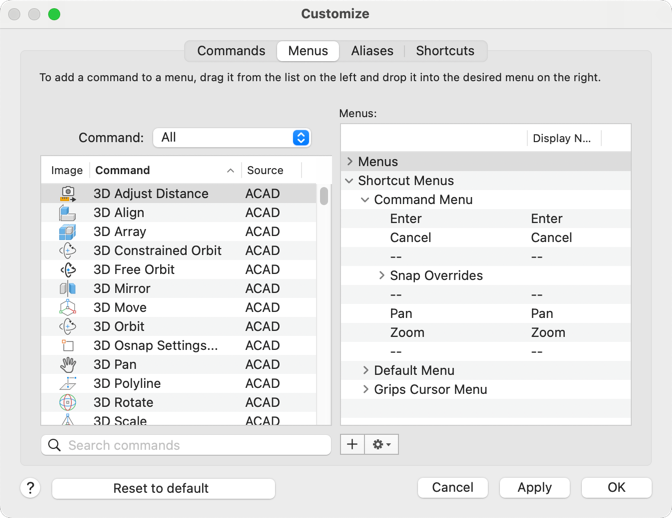
You can customize shortcut menus in the Customize dialog box. To display the Customize dialog box, do any of the following:
- At the Command prompt, enter CUI.
- Click Tools menu
 Customize Interface (CUI).
In the Customize dialog box, Menu tab, expand the Shortcut Menus node under the Menus section to access the shortcut menus that can be customized:
- Command Menu: Defines the menu that appears during the execution of certain commands. For example, you can add snap options when drawing a line.
- Default Menu: Defines the menu that appears when you right-click directly in the canvas. You can add commands such as QSAVE or ZOOM.
- Grips Cursor Menu: Defines the menu that appears when one or more grips are selected. You can add snap options to support grip-based editing.
These new customization options improve access to the most frequently used shortcut menus and allow you to place important tools directly in the top level of the menu.
Changed Command
- CUI - Manages the commands, menus, shortcut menus, command aliases, and keyboard shortcuts in the product.