Geometry Cleanup scans drawings to fix common geometry errors.
Geometry Cleanup scans drawings to find common geometry errors including gaps, overshoots, undershoots, and misaligned angles. It highlights errors directly in the drawing window with visual markers. Additionally, Geometry Cleanup offers several options for each error, allowing you to choose the best fix. You can also choose to ignore suggestions and keep the geometry as designed when needed. Geometry Cleanup is fast, visual, and precise.
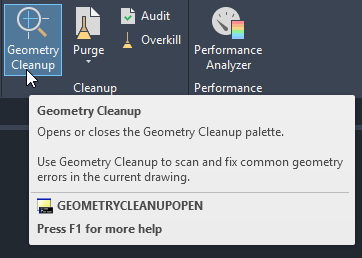
To use Geometry Cleanup, start by opening the palette. You can do this by typing GEOMETRYCLEANUPOPEN at the Command prompt, or from the ribbon, click Manage tab > Cleanup panel > Geometry Cleanup.
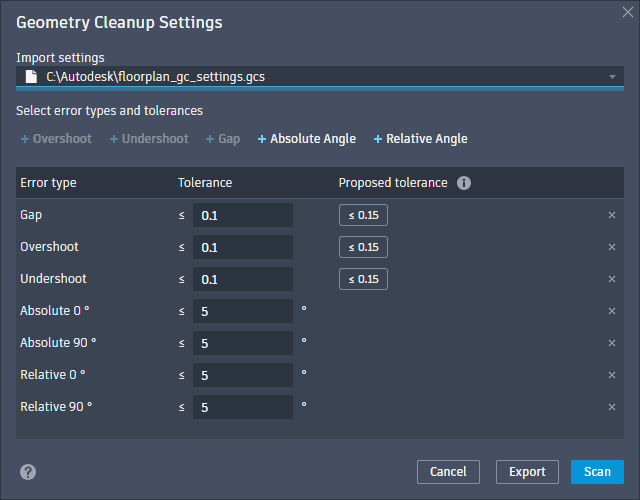
Next, select the objects you want to scan. Customize the settings by selecting the error types and setting the tolerances from the Geometry Cleanup Settings dialog box. You can also export tolerance settings and import template files for consistency across drawing or project types.
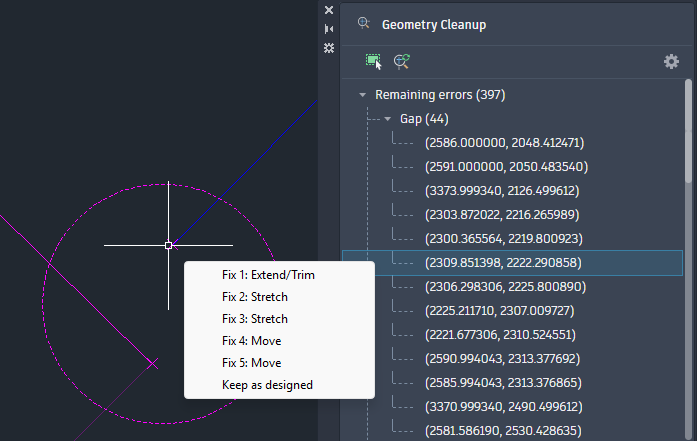
Finally, review and fix the found errors by clicking through them. Hovering over the visual marker will display fix options, and hovering over a fix option will allow you to preview the fix in real time on the canvas. Click on a fix option to apply it to the drawing. Use "Keep as designed" for intentional cases.
Subtle geometry errors can disrupt your design workflow and impact your productivity. Improving drawing accuracy is one of the key benefits of this tool. It saves time by streamlining the cleanup process while giving you control over what gets fixed.
New Commands
- GEOMETRYCLEANUPOPEN - Opens the Geometry Cleanup palette.
- GEOMETRYERRORREVIEWCLOSE - Exits the Geometry Cleanup review mode.
- GEOMETRYCLEANUPCLOSE - Closes the Geometry Cleanup palette.
New System Variables
- GEOMETRYCLEANUPSTATE - Indicates whether the Geometry Cleanup palette is open or closed.
- GEOMETRYCLEANUPZOOMPAN - Controls whether clicking on a node in the tree view of the Geometry Cleanup palette auto-zooms to the highlighted instances.