Tool palette and authoring palette files can be shared with others working on the same Autodesk project stored on Forma Data Management.
When configuring an Autodesk project on Forma Data Management, you can specify the locations for the project's tool palette and authoring palette files. For more information on setting up an Autodesk project for use with Connected Support Files, see To Set Up an Autodesk Project to Use Connected Support Files.
If you are new to tool palettes and authoring palettes, the following provides a brief description of each:
- Tool palettes: Provide access to project-related blocks, hatch patterns, custom commands, and many other tools that help enforce CAD standards. When loaded, these palettes appear on the Tool Palettes window.
- Authoring palettes: Provide tools for creating and modifying dynamic blocks. When loaded, these palettes appear on the Block Authoring Palettes window within the Block Editor.
Configure Tool Palettes and Authoring Palettes for an Autodesk Project
After Connected Support Files have been set up for an Autodesk project, follow these steps to configure tool palettes and authoring palettes for the project:
- Upload your project-related tool palette (ATC) files to the Autodesk project.
For information on uploading files to an Autodesk project, see the Autodesk Desktop Connector help documentation.
- In AutoCAD, open a drawing from the Autodesk project of which you want to configure tool palettes and authoring palettes.
- In the drawing area, right-click and choose Options. Find
- In the Options dialog box, click the Files tab and expand the Project Settings node.
- Expand Tool Palettes File Locations and then click Add a Location under the node.
- In the Browse for Folder dialog box, browse to and select the folder containing the uploaded tool palette files, and then click Open.
- If you uploaded authoring palettes, repeat steps 5 and 6 for the Authoring Palette File Locations setting.
- Click OK to save the changes.
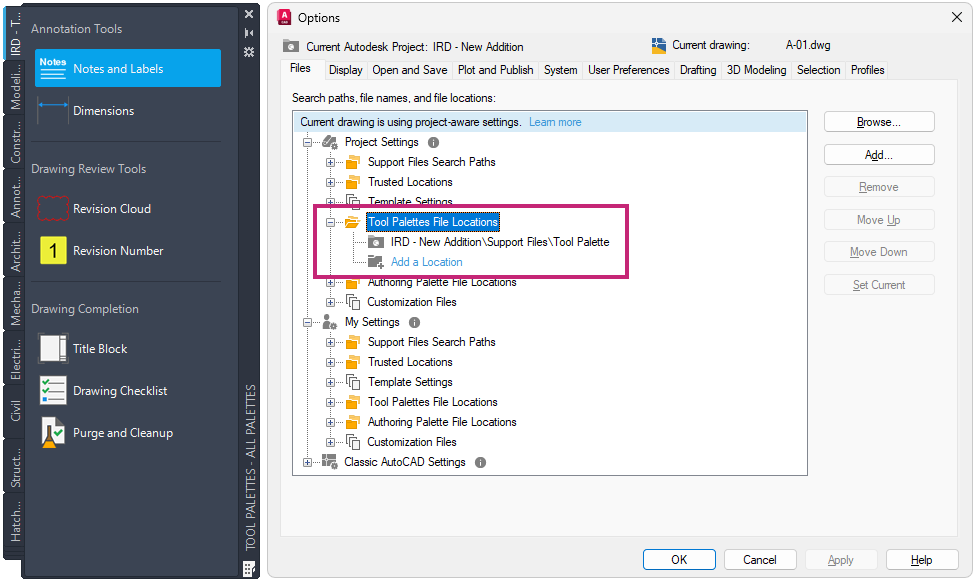
Display and Use Tool Palettes from an Autodesk Project
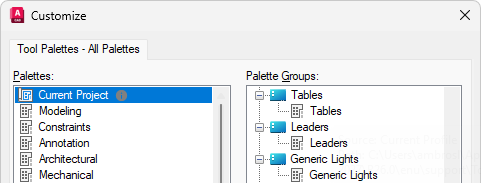
A special tool palette named Current Project is available on the Tool Palettes window and the Customize dialog box. This palette represents the tool palettes loaded from an Autodesk project on Forma Data Management when the project is configured to use Connected Support Files. Use this palette to access project-related tools or to add project-related tool palettes to a tool palette group.
Changed Commands
BAUTHORPALETTE - Opens the Block Authoring Palettes window in the Block Editor.
CUSTOMIZE - Customizes tool palettes and tool palette groups.
OPTIONS - Customizes the program settings.
TOOLPALETTES - Opens the Tool Palettes window.