The compatibility icon appears in the status bar and indicate whether the drainage objects in the drawing match the current Civil 3D version. Hover over the icon to display a tooltip explaining the compatibility status.

- Version matches
- When the drainage objects match the current Civil 3D version, the tooltip displays "The version of drainage objects matches the current Civil 3D version." and the compatibility icon appears in an off state.

- Objects are older
- When the drainage objects were created in an older version of Civil 3D, the tooltip displays "The drainage objects in this drawing do not match the current version of Civil 3D." Click the compatibility icon
 to start the command and upgrade the drainage objects in the drawing.

- Objects are newer
- When the drainage objects were created in a newer version of Civil 3D, the tooltip displays "The version of drainage objects does not match the current product." The compatibility icon
indicates a warning. You must install a newer version of Civil 3D to edit the objects.

Compatibility Badge (Property Dialog)
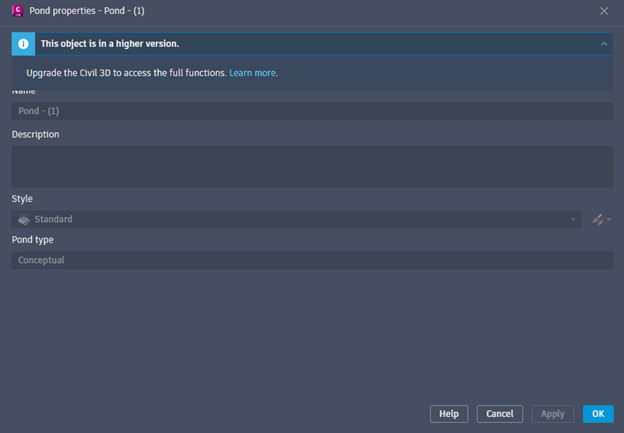
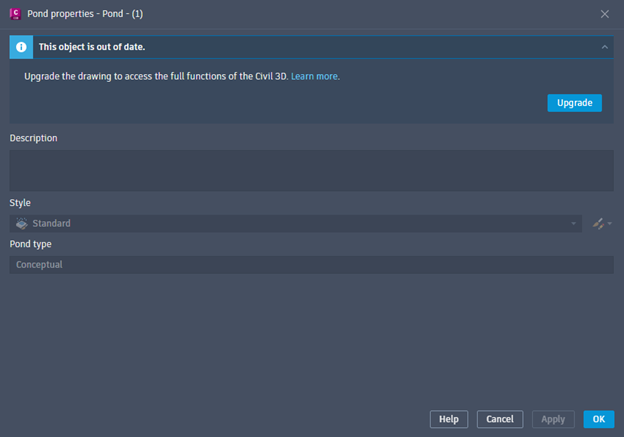
The compatibility badge is a blue information banner that appears at the top of the Pond properties, Underground Storage properties, or Channel properties dialog when the object you are viewing is not in a compatible version for full editing.
- This object is out of date
- When the object was created in an older version of Civil 3D, the badge displays "This object is out of date." Upgrade the drawing to access the full functions of Civil 3D. Click the Upgrade button to upgrade the object to the current version. After upgrading, you can edit the object fully.
- This object is a higher version
- When the object was created in a newer version of Civil 3D, the badge displays "This object is in a higher version." Upgrade Civil 3D to access the full functions. In this case, the Upgrade button is not available because the drawing cannot be downgraded. You must install a newer version of Civil 3D to edit the object.