Adjust the geometry of your conceptual ponds in the drawing.
To Quick Edit Pond Geometry
Select the pond and click Pond tab  Edit Geometry panel Quick Edit Pond
 . Hover the cursor over the side slope to edit the slope. The direction of the arrow indicates which direction to edit the slope. To edit the elevation of a contour, hover the cursor over that contour, then click to specify a new value.
To Add Pond Contour
Select the pond and click Pond tab Edit Geometry panel Add Contour
 . Hover the cursor between the top and bottom of the pond. A preview of the new contour will be shown at the cursor location, along with a tooltip of the contour elevation. Click to add the new contour, or specify an elevation in the command window.
To Delete Pond Contour
Select the pond and click Pond tab Edit Geometry panel Delete Contour
 . Select the contours to delete, then press Enter. There is a restriction when deleting contours: the pond must always have at least 2 contours.
To Add Side Slope
Select the pond and click Pond tab Edit Geometry panel Add Side Slope
 . Use the keywords S to change the slope, G to change the grade, or click to specify the width value.
Grip Editing
Manually editing the location and general shape of the pond is achieved through grips. Select your pond to expose the editing grips.
The blue grips along the perimeter of the pond can change the surface shape of your pond.
Vertex Grips
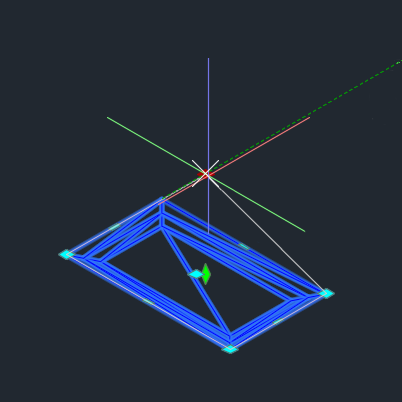
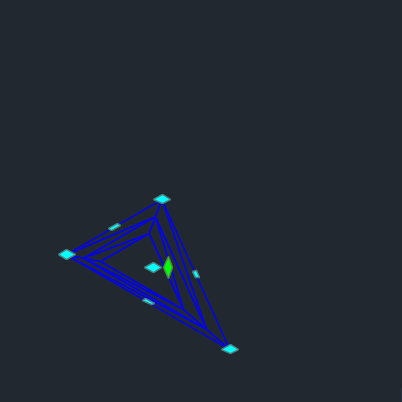
Click and drag grips at the vertices of segments to adjust the position of the vertex.
Additional options are available if you place the cursor over a grip for a contextual menu. You can then Stretch the vertex (the default click and drag behavior), Add Curve (see To Add Curves to Pond Geometry below), or Remove Vertex.
The pond geometry adjusts to the new location.
| Stretch | Remove Vertex |
|---|---|
|
|
Segment Grips
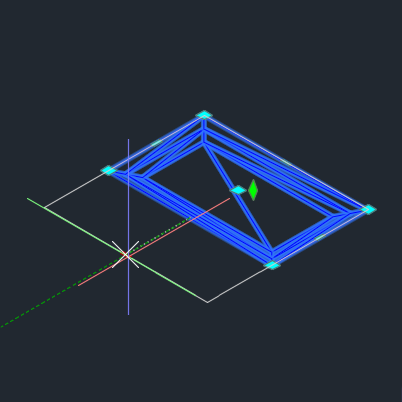
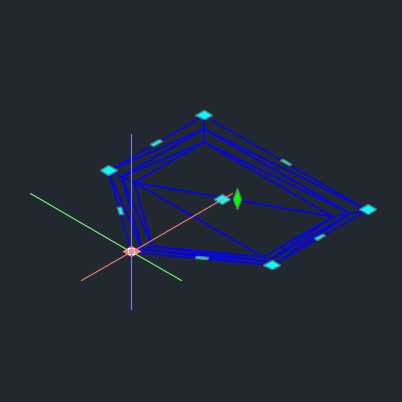
Click and drag the grip at the center of a segment to adjust the position of the segment.
Additional options are available if you place the cursor over a grip for a contextual menu. You can then Stretch the segment (the default click and drag behavior) or Add Vertex which converts the segment grip to a vertex for placement.
The pond geometry adjusts to the new location.
| Stretch | Add Vertex |
|---|---|
|
|
Center Grips
The blue grip in the center of the pond horizontally adjusts adjusts the location of the current pond geometry. Click and drag the location grip to move the whole pond in the drawing. You can also specify the stretch point at the command line.
The green diamond grip in the center of the pond adjusts the elevation or vertical offset of the pond. Place the cursor over the grip to select either Elevation or Offset. Movement of this grip is locked to the z-axis.
| Location | Vertical Offset |
|---|---|
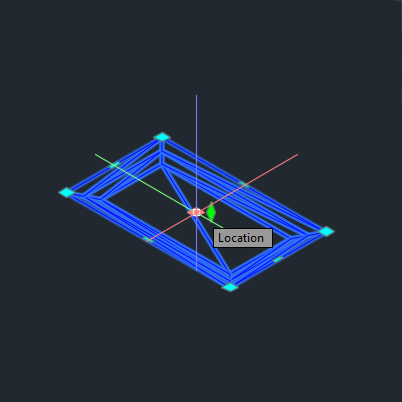
|
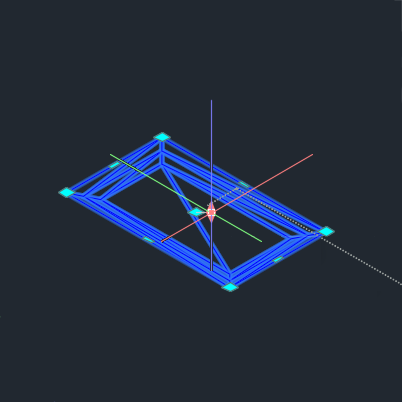
|
To Add Curves to Pond Geometry
Add curves to pond geometry for a smoother and more natural appearance. Curves adjust how segments join at the vertices of the pond.
There are two methods to add curves to a pond.
Add Curves to the Whole Pond
- Select the pond.
- Click Pond tab Edit Geometry panel Fillet Pond
 .
.
- Type a curve radius value and press Enter.
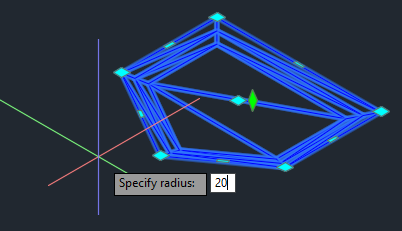
The curve radius is applied to each pond vertex.
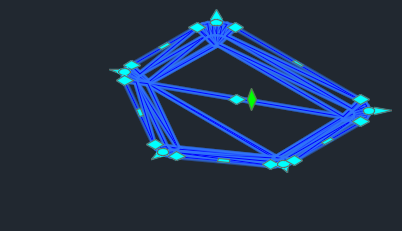
This method applies a curve to every vertex in the pond.
Add Curves to a Single Vertex
- Select the pond
- Place the cursor over the vertex grip and pause for the contextual menu.
- Select Add Curve.
- Type a curve radius and press Enter.
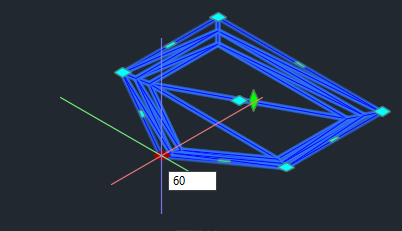
The curve radius is applied to the selected pond vertex.
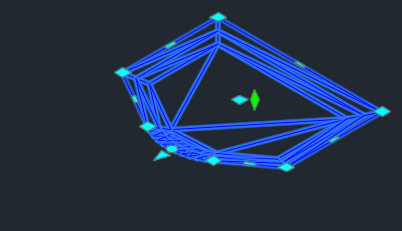
This method allows individual curve specification for each vertex in the pond.