InfoWorks ICM produces a log report and a standard-format PRN results report when a simulation is carried out.
- The log report contains information on the input data for the simulation and the performance of the simulation.
- The PRN report (InfoWorks networks only) contains a summary of the maximum results for nodes and links.
If the InfoWorks network includes SUDS control objects in a subcatchment, then control and performance summaries of their associated SUDS/LID structures during a simulation can be viewed in a SWMM SUDS/LID report. Any errors related to SWMM5 will also be included in the report.
Log report
To view a Log report:
- In the Explorer Window, right-click on the simulation object and select Open As from the popup menu.
- Select Log results (text) from the Select Results dialog.
- Click OK. The window that is now displayed depends on the size of the file:
- If the log results file is less than 4MB, the file is opened in the general Text File View.
- If the file is between 4MB and 2GB, a progress window is initially displayed, enabling you to cancel the loading operation if required:
If you want to cancel the operation:
- Click Cancel to terminate the loading process.
A message is displayed informing you that the operation has been cancelled.
- Click OK. The Text File view is then displayed, which contains all the logging data that had been loaded before the process was cancelled.
If you do not cancel the loading operation and the log file does not contain any coordinate based warnings, the log results will be opened in the Text File view.
However, if you do not cancel the loading operation and the log file contains any coordinate based warnings, then after the logging information has been loaded, InfoWorks ICM will then format the X,Y coordinate references as hyperlinks. A formatting progress window will initially be displayed, which can be used to cancel the formatting operation if required.
If you want to cancel the formatting operation:
- Click Cancel to terminate the formatting process.
A message is displayed informing you that the operation has been cancelled.
- Click OK. The Text File view is now displayed. The X,Y coordinates, which had been formatted before the process was cancelled, appear as hyperlinks. Unformatted coordinates will be displayed as text enclosed by <xy> and </xy> HML tags.
Example
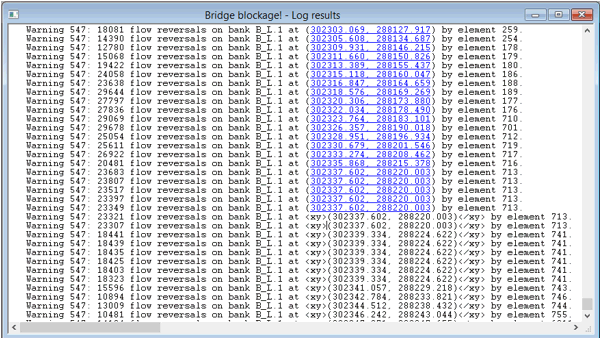
If you do not cancel the formatting operation, the log results with hyperlinked coordinates will be opened in the Text File view.
- Click Cancel to terminate the loading process.
- If the log file is larger than 2GB, or if there has been an issue opening a smaller file, such as insufficient memory on your computer, then the log file cannot be opened in the Text File view, and a message is displayed asking if you would like to use another application to open the file:
- Click Yes, and an Open with window is displayed, allowing you to select which application you would like to use to view the log file. Alternatively, click No to cancel the operation.
The results file contains a log of the progress of the simulation. Additional information will be displayed if Timestep Control options have been set for dry weather flow mode.
If you are viewing a log report of a simulation whose results have been downloaded from the cloud, then the 'Proxy Engine Log' section of the downloaded report will contain less information than a locally stored report that was generated by the simulation. This is because the progress of the download is being reported and not the progress of a simulation.
The information in the Text File view can be saved as a text file by right-clicking and then selecting the Export To file option. Choose a directory, enter a filename and click Save.
If the simulation has failed, the only results available will be the Log Results. They will allow you to analyse why the simulation has failed. Choosing Open or Open As from the popup menu will both automatically display the log file in the Text File view.
PRN report
To view a PRN report:
- In the Explorer Window, right-click on the simulation object and select Open A from the popup menu.
- Select PRN summary results (text) from the Select Results dialog.
- Click OK. The window that is now displayed depends on the size of the file:
- If the summary results file is less than 4MB, the file is opened in the general Text File View.
- If the summary results file is between 4MB and 2GB, a progress window is initially displayed, allowing you to cancel the loading operation if required.
If you do not cancel the operation, the summary results will be opened in the Text File view.
If you want to cancel the operation:
- Click on the Cancel button to terminate the loading process.
A message is displayed informing you that the operation has been cancelled.
- Click on OK. The Text File view is then displayed, which contains all the summary results data that had been loaded before the process was cancelled.
- Click on the Cancel button to terminate the loading process.
- If the log file is larger than 2GB, or if there has been an issue opening a smaller file, such as insufficient memory on your computer, then the summary results file cannot be opened in the Text File view, and a message is displayed asking if you would like to use another application to open the file:
- Click Yes, and an Open with window is displayed, allowing you to select which application you would like to use to view the summary results file. Alternatively, click No to cancel the operation.
The report contains a summary of the run, followed by more detailed information for each event.
The information in the Text File view can be saved as a text file by right-clicking and then selecting Export To file. Choose a directory, enter a filename and click on Save.
RPT report
To view an RPT report:
- In the Explorer Window, right-click on the simulation object and select Open As from the popup menu.
- Select Report file (text) from the Select Results dialog.
- Click OK.
- If the report file is less than 4 MB, it opens directly in the Text File View.
- If it is between 4 MB and 2 GB, a progress window is displayed, allowing you to cancel loading if required.
- Files larger than 2 GB, or those that cannot be opened due to limited memory, can instead be viewed using another application.
As with other text reports, the information in the view can be exported by right-clicking and selecting Export to File.
SWMM SUDS/LID report
To view a SWMM SUDS/LID summary report for an InfoWorks network:
- In the Explorer Window, right-click on the simulation object and select Open As from the popup menu.
- Select SWMM SUDS/LID report (text) from the Select Results dialog.
- Click OK. The window that is now displayed depends on the size of the file:
- If the summary report file is less than 4MB, the file is opened in the general Text File View.
- If the summary results file is between 4MB and 2GB, a progress window is initially displayed, allowing you to cancel the loading operation if required.
If you do not cancel the operation, the summary report will be opened in the Text File view.
If you want to cancel the operation:
- Click Cancel to terminate the loading process.
A message is displayed informing you that the operation has been cancelled.
- Click OK. The Text File view is then displayed, which contains all the report data that had been loaded before the process was cancelled.
- Click Cancel to terminate the loading process.
- If the log file is larger than 2GB, or if there has been an issue opening a smaller file, such as insufficient memory on your computer, then the summary report file cannot be opened in the Text File view, and a message is displayed asking if you would like to use another application to open the file:
- Click Yes, and an Open with window is displayed, allowing you to select which application you would like to use to view the file. Alternatively, click No to cancel the operation.
The report contains the LID Control Summary and the LID Performance Summary as well as any SWMM5 related errors such as such as:
ERROR 187: LID area exceeds total area for Subcatchment SWALE3.
Example
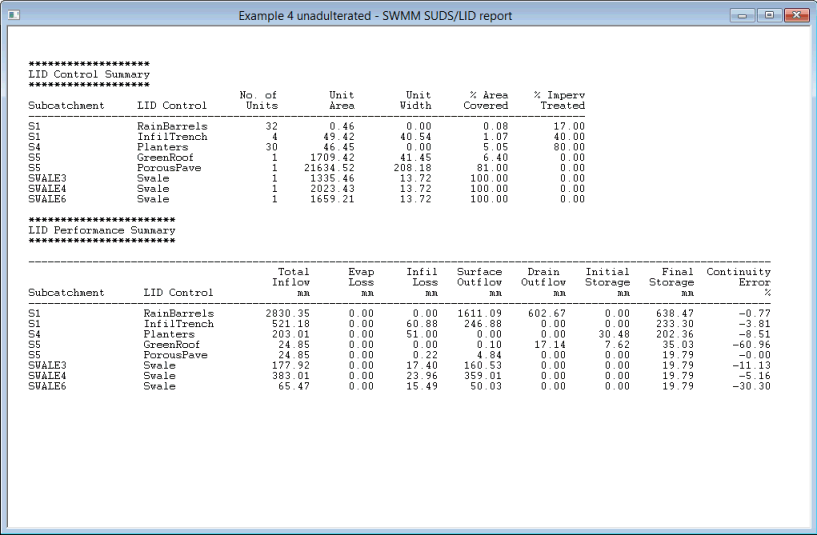
The information in the Text File view can be saved as a text file by right-clicking and then selecting Export To file. Choose a directory, enter a filename and click Save.