To Add Hole, Slot, or Thread Notes to a Drawing View
What's New: 2027
Annotate a drawing with dimensions or other instructions.
On the ribbon, click Annotate tab
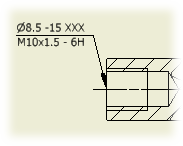
 Feature Notes panel Hole and Thread.
In the graphics window, click an edge or a circular edge to specify the hole or slot.
In a side view (base, projected, detail, and section views), you can also click non-circular edges to place a hole, slot, or thread note.
Move the cursor and click to place the note.
When you are finished placing hole, slot, or thread notes, right-click and select Done.