To Attach and Edit an Attached Point Cloud
What's New: 2027, 2027.1
Before a point cloud can be used by Inventor, the scan file from which it was derived must first be indexed. This is accomplished using the Autodesk ReCap command. After indexing the file in Autodesk ReCap, use the Attach command to place, orient, or scale the point cloud in the Inventor graphics window. Point cloud density can also be decreased.
 On the ribbon, click Manage tab
  Point Cloud panel Attach. The Select Point Cloud dialog displays.
Navigate to the folder than contains the indexed file (.rcs or .rcp) you wish to attach. Select the file and click the Open button to close the dialog.
Pick a point in the graphics window to place the point cloud. The Attach Point Cloud dialog appears.
In the Attach Point Cloud dialog Position group
Align : select a coordinate system to use with the data. You can select from the Model Origin or any UCS you have created in the model.
Note: Point Clouds use Z-Up coordinates. You may want to reorient the ViewCube to keep viewing orientation simple.Use the 0/0 button
 to set the position to the active origin.
Specify an offset from the attach point using the X, Y, and Z Offsets. These are available only with the Model Origin UCS.
In the Rotate along Axis group, specify rotation value if you wish to rotate the point cloud about one or more axes.
In the Adjust density group, use the Density gradient setting to adjust the density of the point cloud. The number of attached points and total points decreases with a decrease in point density.
Increase or decrease the scale of the point cloud as necessary using the Scale text box.
Click the OK button to close the dialog.
Attaching a point cloud creates a new Point Clouds node in the browser  . Expand the browser node to see all of the point clouds attached to the current part or assembly file.
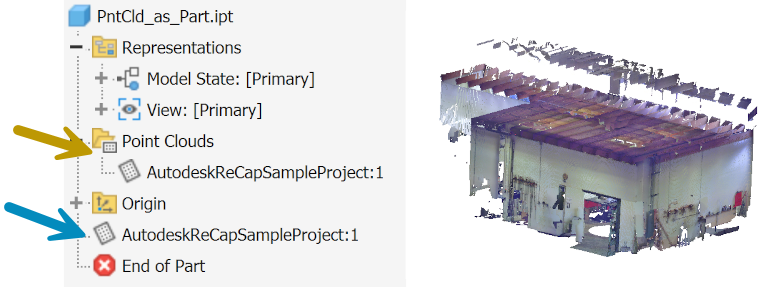
A point cloud (top-level) node also populates the model browser. This is the functional node. It enables reordering the point cloud within the context of other part features and participates in rollback behaviors.
Edit attached point cloud
Do the following if you wish to edit an attached point cloud.
- Locate the point cloud node you wish to edit in the browser.
- Right-click over the node and select Edit Attached Data from the pop-up context menu. Or, double-click the browser node.
- The Attach Point Cloud dialog appears showing the current values for the selected point cloud.
- Make any required changes and click OK to close the dialog and end the command.
Extract a plane from a set cloud points
You can use extracted planes as reference or build features on the work planes.
- Ribbon: Manage tab Point Cloud Panel Cloud Plane.
- Press SHIFT to switch to another point cloud plane when doing distance or angle measure or creating point plane.
Change visibility of a Point Cloud
- Ribbon: Manage tab Point Cloud Panel Navigator
- Click the
 /
/  icon to change the visibility of the respective Point Cloud entry off and on in the Point Cloud Navigator dialog.