To Place and Insert Parts
You no longer need to insert components individually. After selecting the target geometry, the chosen component is automatically inserted, placed, and constrained to the selected geometry.
Browse for the component which you want to place, then, select the target geometry. Click individual edges to select them or click-drag a diagonal window to select multiple edges. You can restrict the target geometry by size.
To restrict selectable geometry to a specific part, select Pick Part First in the dialog box, and then click the component you want to constrain. Clear Pick Part First to restore normal selection mode.
What's New: 2026.2, 2027.1, 2027.2
On the ribbon, click Assemble tab
 Component panel Place and Insert.
In the Place and Insert panel, locate the component you want to place and insert.
Optional. To place multiple components in one operation (for example, a bolt and washer), in the Input Geometry section, turn on Place constrained components at the end of the source selector. Select the components in the source list, then select target geometry as usual. Constraints between the placed instances and the selected source are preserved. The toggle is off by default and retains the last setting between sessions.
Note: If you clear the source selection, all placed instances and constraints from that operation are removed. If you clear a target geometry selection, placed instances and constraints related to that target are removed.Select the target geometry. Click individual edges to select them, or drag a selection window to select multiple edges together. Arcs and circular edges are supported target geometry.
Use the selection tools to narrow the geometry selection:
 Restricts selectable geometry to a specific part.
 Filters selectable geometries by the specified diameter. The diameter of the first selected target edge is set automatically. You can also enter a value manually — the preview updates after a one-second delay. Edges already selected that do not match the updated diameter are de-selected.
 Use the filter to exclude target edges that are outside the specified size.
 Use the filter and select the face to choose the edges that meet the requirements. By default, all circular edges on the face are selected. This option can be used together with the size filter to exclude circular edges that do not meet the size requirements.Note: To select partial circular edges such as slot ends as target geometry, click the Advanced Settings menu and select Partial circular edge target selection. This option is off by default — when off, only fully circular edges can be selected as target geometry.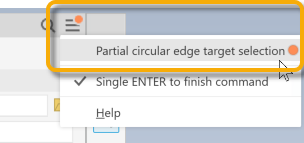
Specify the solution for the direction of the constraint:
 Reverse the direction of the constraint.
 The selected edge on the component is aligned with the chosen target geometry.
If desired, specify the offset.
Select Lock Rotation to lock the rotational degrees of freedom on a component. This option prevents the part from rotating when placing an insert constraint.
Click OK to insert and mate the component.