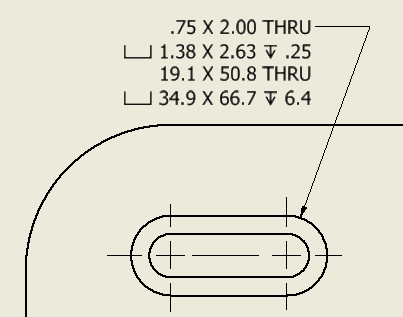
To Edit a Slot Note
Revise text, dimensions, or symbols as required.
In the graphics window, right-click the slot note, and select Edit Slot Note from the menu.
In the Edit Slot Note dialog, edit the slot note text and other properties:
- Select Use Default to use the default slot note format.
- Tap Drill and Right Handed Thread are not available for slots.
- Select Part Units to use model units. Remove the check mark to use the measurement units specified by the dimension style.
- If appropriate, add stacked text. For more information, see To Stack Text in a Drawing. Type a correct stacking sequence, select it, right-click and choose Stack. If Auto Stacking is enabled, fractional numbers with a valid stacking trigger followed by a neutral character are stacked automatically as you type.
- To add tolerance information to values included in the slot note or to override the precision settings, click Precision/Tolerance Settings.
- To create a custom configuration of the quantity note (QTYNOTE property), click Edit Quantity Note.
Edit the slot note text in the edit field. In the Values and Symbols section, click a slot value or a symbol to add the corresponding property to the slot note text.
Click OK to save the changes and close the Edit Slot Note dialog box.
Hide values in a slot note
You can hide the note dimensions and any symbols, values, and text that are added to the slot note by the dimension style.
In the graphics window, right-click the slot note, and then select Hide Value from the menu.
To restore visibility, right-click the slot note, and clear the check mark from Hide Value.
Display or hide alternate unit dimensions
slot notes can display dimension values both in primary and in alternate measurement units. Edit the Dimension style to change the settings.
Select the Group Dual Values Together option to use adjacent placement of dual dimensions within slot notes.