Assembly Enhancements
Learn about the assembly enhancements for Inventor 2027.1.
Content Center Enhancements
Batch rename for duplicate files when placing a Content Center assembly
A new batch renaming option, Rename all documents, is available in the Duplicate Filename dialog which displays when placing a duplicate subassembly into a higher level assembly. You can include a prefix or suffix in the renaming process.
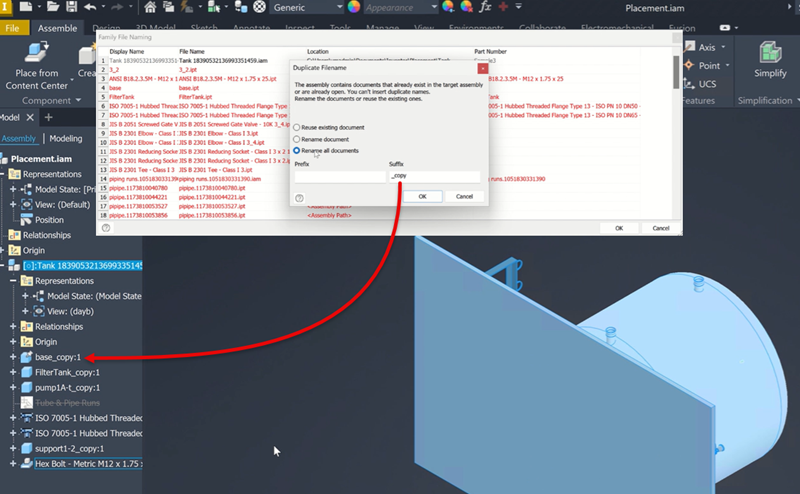
For more information see To Insert a Content Center Part Manually and To Publish a Part, an iPart or an Assembly to a Content Center Library.
 An Inventor® Feedback Community submission
Open from Content Center
Open from Content Center now supports opening content center assemblies.
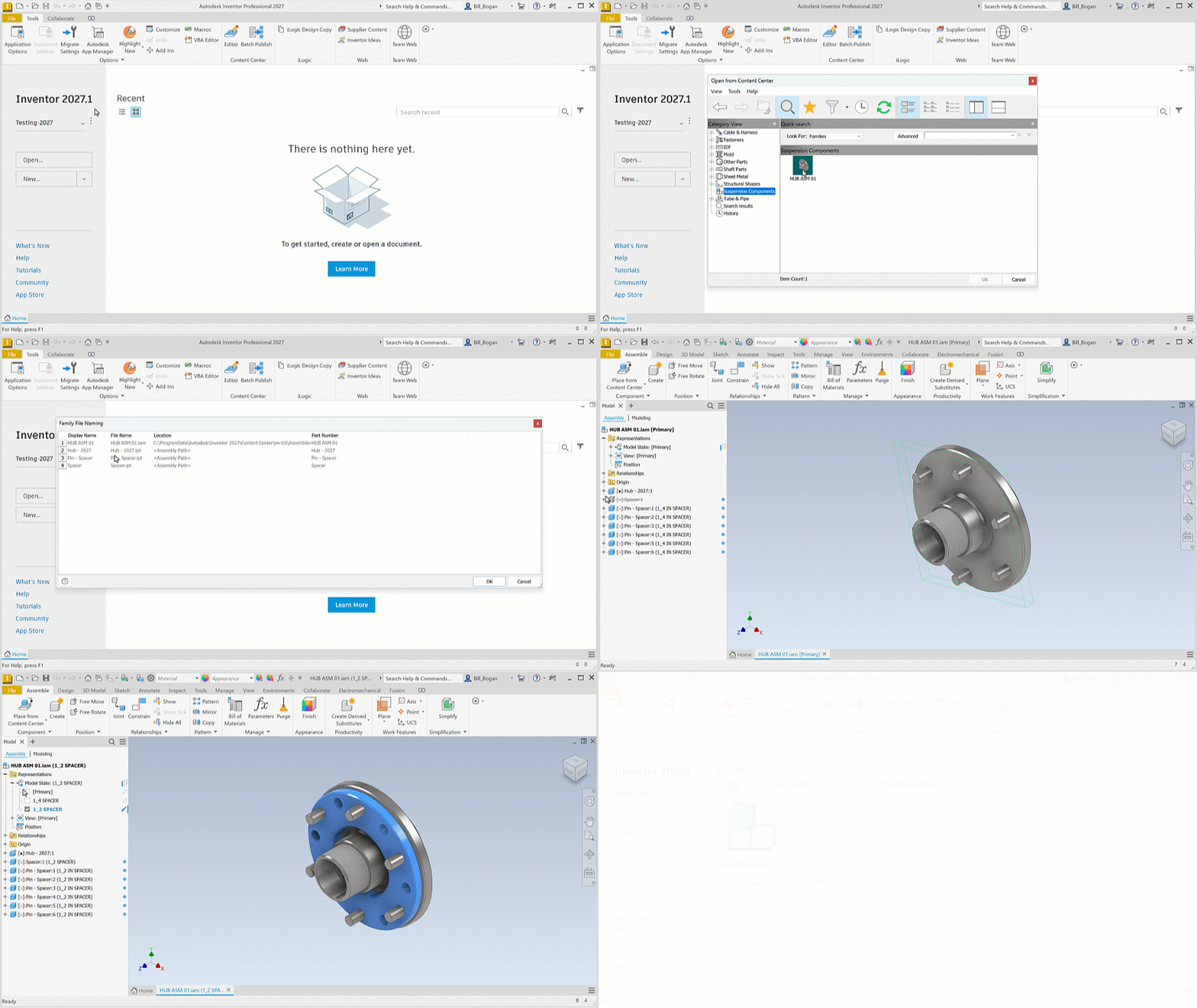
For more information see To Open an Assembly From Content Center
Constraint Enhancement
Temporarily display all Origin geometry (workplanes, axes, and Origin point) of the active component while using the constrain command. This action toggles the visibility of work geometries that are hidden. When the command is finished or a selection is complete the work geometries that were made visible return to being hidden.
Access work geometry when adding constraints
And Pick Component First deselected, press the ALT key to display Origin geometry. You can select any Origin geometry as a constraint input.
- While pressing the ALT key, press the CTRL key to display Origin geometry without holding down any keys. Press ALT again to cancel the temporary display of all work geometry.
With Pick Component First selected, click the desired component then press the ALT key to display the Origin geometry for the selected component.
Note: Pressing ALT while Pick Component First is selected does not display work geometry.
Access work geometry when editing constraints
- Edit an existing constraint.
- Click the constraint input you want to redefine.
- Press the ALT key to temporarily display the work geometries. Use Pick Component First to access a components work geometries.
For more information see Assembly Constraints.
Model State Enhancements
Preview
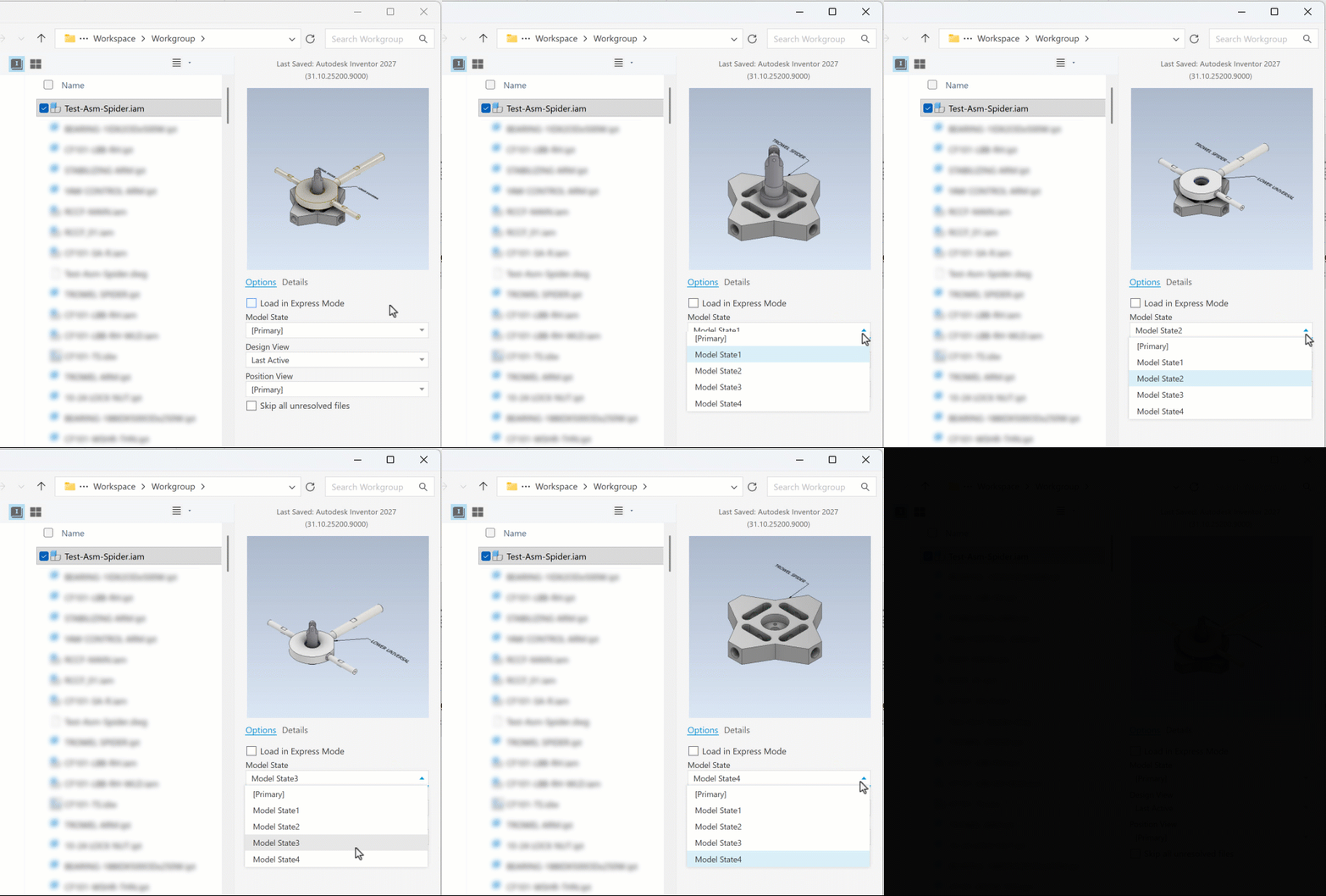
Model States preview in the Open and Save As dialogs and in the Home tab. To display a model state preview you either save the model with the desired model state active or right-click the model state and select Generate This Model State on Save. The process is the same for part or assembly models.
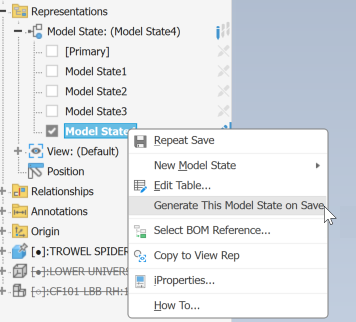
Home
Model state previews show in the grid elements and are included in the part name.
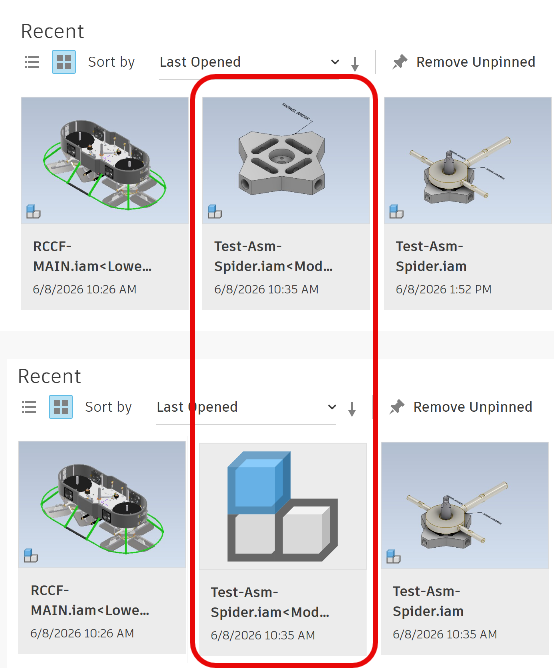
Open or Save As Dialog
If you generate a model state preview, the Open and Save As dialogs display the preview in the options pane. If no preview was generated, a placeholder image is displayed.
Primary Model State
The Primary model state no longer appears in the model browser until a second model state or substitute model state exists. This change reduces number of displayed browser items, simplifying browser display.
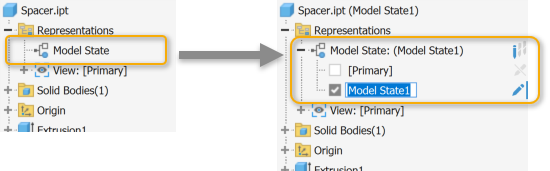
For more information see To Create Model States
Model States when publishing to Content Center
Publishing assemblies to Content Center requires each model state to have been generated. You are prompted to generate a model state before publishing if model states do not satisfy the requirement. You can choose to Generate and Save ensuring all model states are prepared for publishing and then proceed or you can Continue Without Generate and Save, which continues without generating and saving and displays a warning about doing so.
Bill of Materials (BOM) Enhancement
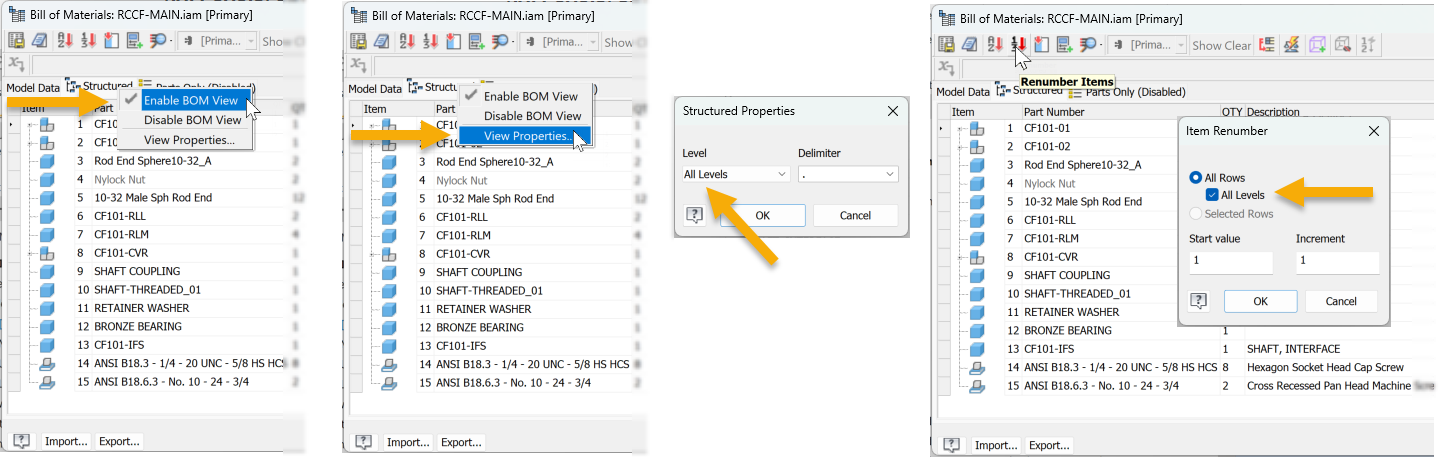
You can now renumber all Item numbers in a BOM structured view. The default behavior is the same as it was in the previous release. To enable access to the All Levels do the following:
- BOM View enabled (right-click Structured and select Enable BOM View)
- (BOM) View Properties must have the Level set to All Levels. (right-click Structured and select View Properties...)
- In the Level dropdown select All Levels.
- In the Item Renumber dialog, select All Rows to enable All Levels. Select All Levels if you want renumber all levels of the BOM.
Improved In-product Messaging
Various in-product messages have been improved to provide more useful information.
Bill of Materials Editor
The in-product messaging, tooltips, for controls related to zero quantity components is improved.
For more information see To Work with Bill of Materials and Bill of Materials Reference.
Legacy Substitutes
When opening a document with legacy substitutes the status icon messaging is improved to say "Substitute status unknown, activate to update."
For more information see About Model States, To Create Model States, Create Derived Substitutes.
Place and Insert Enhancements
The following improvements are included:
- Use window select when specifying input geometry.
- Arcs or partial circular edges are valid input geometry
- The first selected input sets the Target Diameter value. Alternatively, you can manually set the value.
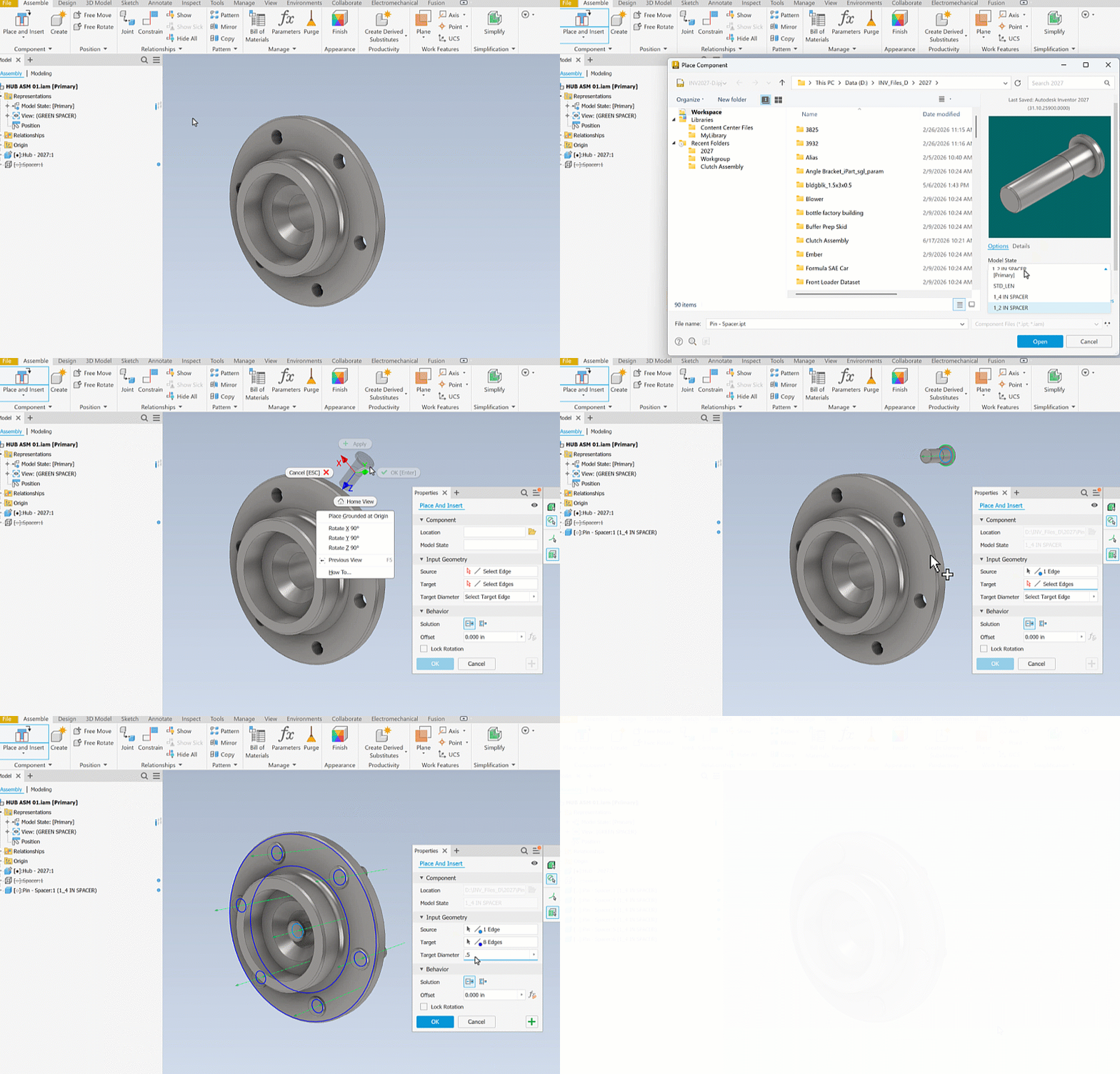
For more information see To Place and Insert Parts.