General Enhancements
Learn about general enhancements in Inventor 2027.2, including parameters and file dialog improvements.
Parameter autocomplete in value fields
You can now insert existing parameter names as you type in a value field. A drop-down lists names that match your text and narrows as you type more characters.
Autocomplete is available in the following locations:
- The sketch and feature dimension edit box
- Property panel value fields, such as the Fillet distance box
- Dialog boxes value fields, such as the Chamfer distance box
- The Equation column of the Parameters dialog box
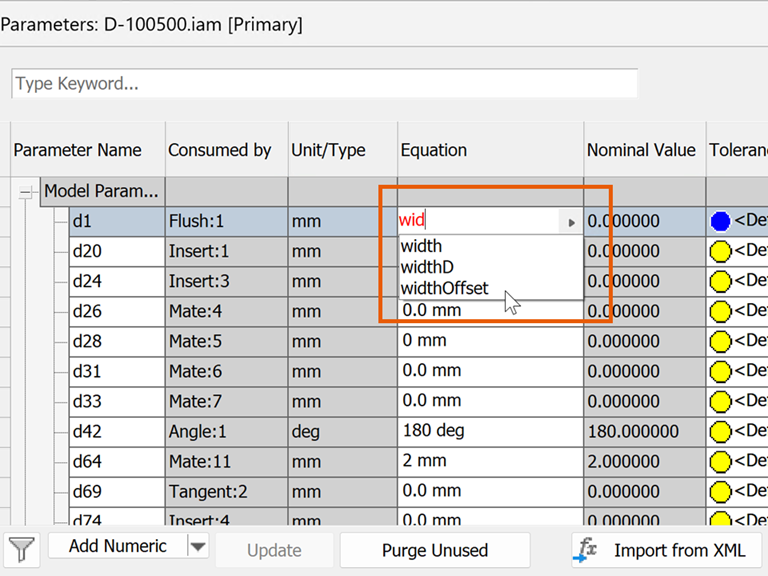
Type the first letters of a parameter name to open the list. Use the Up and Down arrow keys to preview each name in place, then press Enter or click a list entry to accept it. Press Esc to dismiss the list. Pressing Up past the top entry restores the text you originally typed.
The list offers user-defined parameters and model parameters you renamed. Automatically named parameters (for example, d0 and d1) and internal parameters are omitted to keep the list short. Autocomplete is not available in drawings or in read-only fields.
For more information see To Work with Parameters in Models.

Default file dialog tab
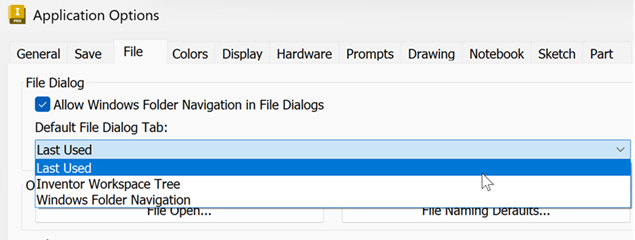
You can now choose which tab the Open and Save As dialog boxes display first. In Application Options, on the File tab, under File Dialog, select Default File Dialog Tab:
- Last Used (default): opens the dialog on the tab you used last.
- Inventor Workspace Tree
- Windows Folder Navigation
The Allow Windows Folder Navigation in File Dialogs check box still controls whether you can use Windows folder navigation. When cleared, Default File Dialog Tab is unavailable and the dialog shows only the Inventor workspace tree.
For more information see File Tab Reference (Application Options) or To Open or Import a File.
Custom Add-ins and Inventor Read-Only Mode
You can now run your custom add-ins while in Inventor Read-Only mode.
To enable this feature, as a developer, you must add the following line to your .addin file:
<SupportedProductEditions>1536</SupportedProductEditions>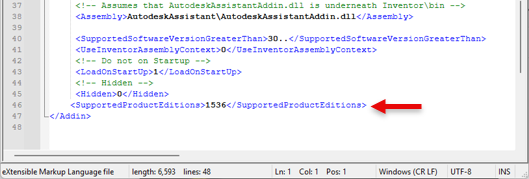
For more information see To Load and Unload Add-ins.
Retired Fusion simulation commands
The following Fusion add-in commands are removed from the ribbon:
- Dynamic-Event Simulation
- Quasi-static Event Simulation
- Nonlinear Stress
- Shape Optimization
- Fluid Path
If a customized ribbon or toolbar still references one of these commands, the button does not start the retired workflow.
For more information see About Inventor and Fusion Interoperability.