Point Cloud Enhancements
Learn about point cloud workflow enhancements in this release of Inventor.
Align (coordinate system) replaces Insert at Origin
You can now choose from the following when attaching a point cloud:
Model Origin: Aligns the point cloud coordinate system with the model origin coordinates.
Any UCS: Choose from an alphabetical list of UCS’ in the model. The point cloud aligns with the selected UCS coordinates.
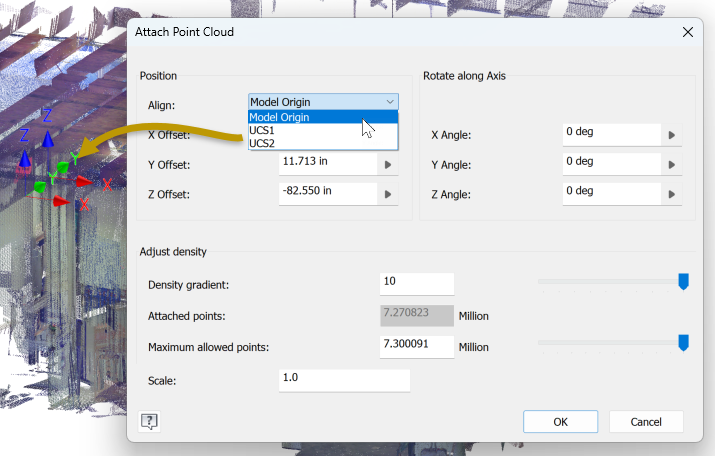
You can switch between the attach choices when editing the point cloud. When switching to Model or UCS, previous coordinate parameters are deleted unless used elsewhere. Preserved parameters are converted to User Parameters. When switching to Offset from Origin from Model or UCS, new parameters are created for the coordinates.
For legacy files, point cloud position is absorbed into the Offset from Origin option using the point cloud position values.
For more information see To Attach and Edit an Attached Point Cloud
Uncrop Last
Use Uncrop Last to restore the most recently cropped area of a point cloud. Access the command from the Ribbon > Manage tab > Point Cloud panel.
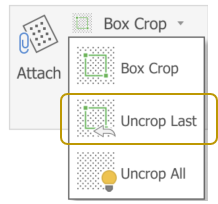
For more information, see To Restore a Cropped Portion of Point Cloud
Section View
Point clouds now respond to the Section View command enabling you to look inside a point cloud and see internal aspects of the point cloud. Access the section view command from the Ribbon > View tab > Visibility panel.
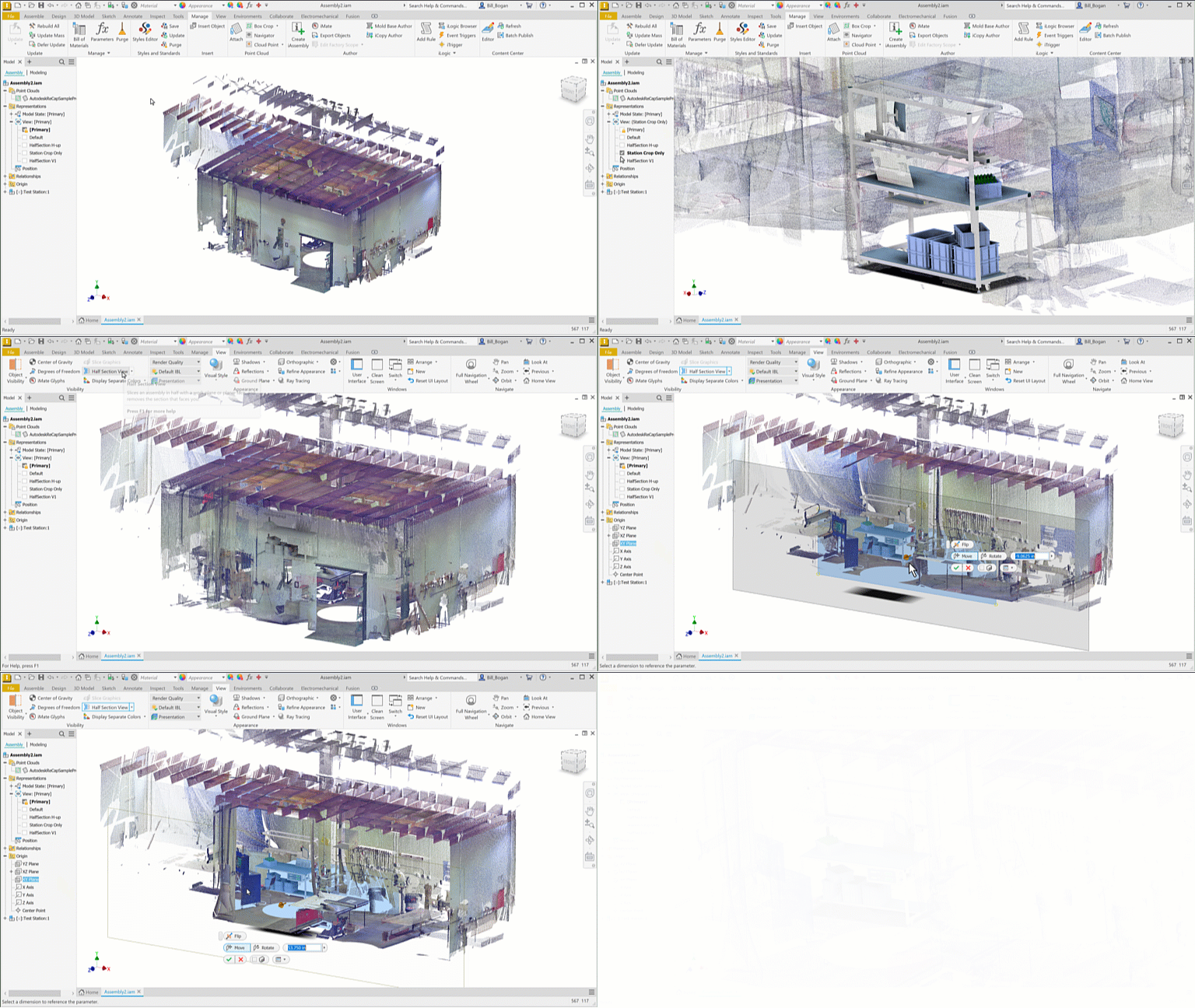
For more information, see To Work with Section Views.
 An Inventor® Ideas submission An Inventor® Ideas submission
Point Cloud Navigator
Use the control in the Point Cloud Navigator dialog to change the Point Size setting. Choose from 1-10, where each increment increases the point size. The default setting is 1.
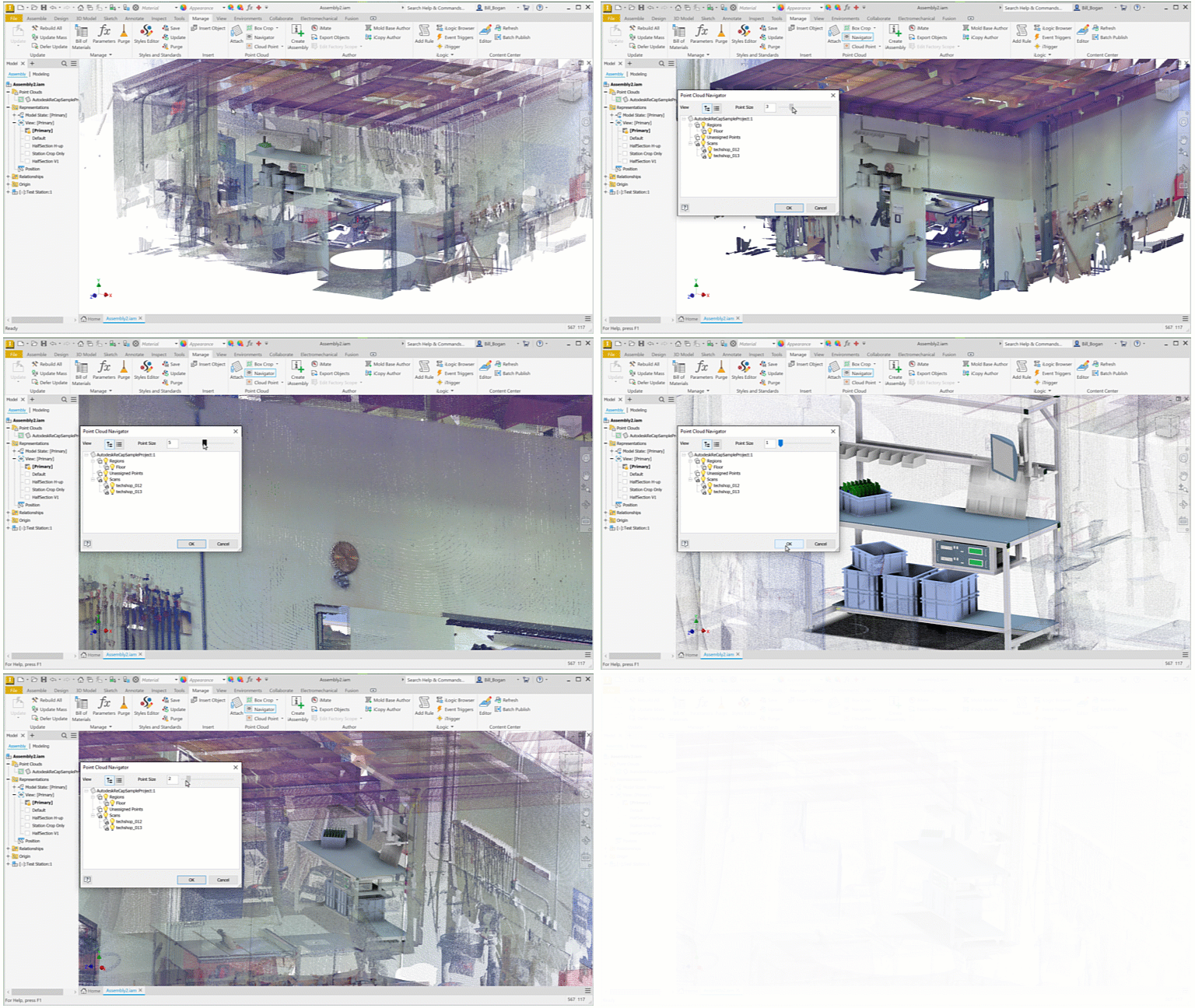
For more information see Point Cloud Navigator
Browser nodes for Point Clouds
Point clouds in normal and sheet metal parts now have a model browser node. This enhancement enables flexibility in how the imported data is computed in relation to other model features.
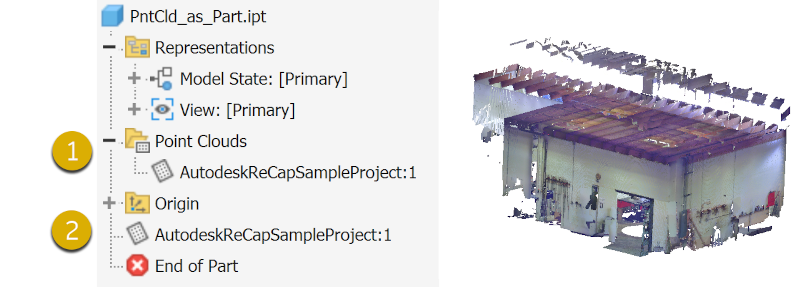
With the two nodes you can:
Point Cloud Folder Node
- Interact with it as in previous releases.
- Is now a reference node for the model node. The node order follows the order in the model browser.
- Manage point cloud visibility.
- Always remains in the Point Cloud folder, can't be dragged elsewhere.
Point Cloud Top Level Node
- Used to determine the computation order like other part features.
- Can be reordered, dragged, as with other feature node reordering.
- Does NOT consume a dependent UCS.
- Editing a Point Cloud does a rollback, related to end of part node.
- Legacy models with point clouds get the new browser node upon model migration.
Edit Crop
Edit Crop is added to the browser node context menu. The crop area manipulators display and you can use these or explicit values to edit the crop boundary. Right click and select Finish or press Enter. Use Esc to cancel the operation.
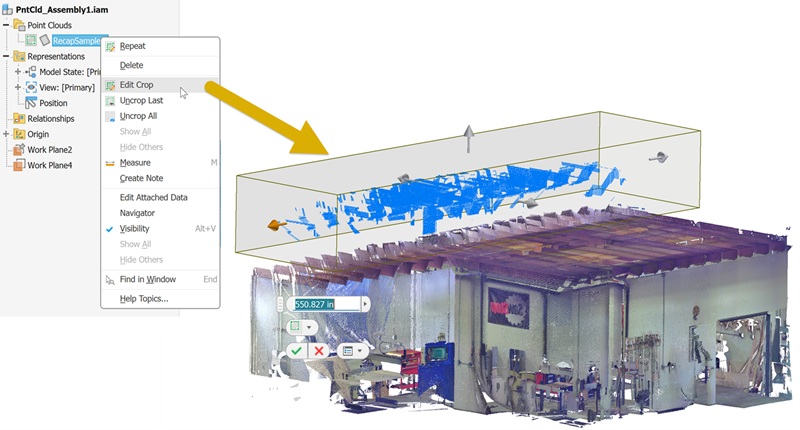
For more information see To Attach and Edit an Attached Point Cloud
Point Clouds in Drawing Views
See also What's New 2027  Drawings Drawing View Enhancements