Placed Feature Enhancements
Learn about improvements made to Placed Feature workflows in this release of Inventor.
Slot Command
With this release, the Slot Command is added. Through the property panel you define slot parameters. For frequently used slots, you can save a preset which populates the property panel when selected and adjust any parameters to meet the design requirement. The slot command workflow is similar to the Hole command workflow. Some of the helpful property panel controls for the command are:
- Fillets or Sharp Corner slots.
- Simple or Clearance Hole enables specifying the slot in relation to a fastener size.
- Direction controls orientation relative to faces or edges.
- Rotation orients a slot explicitly by angle value or implicitly by referencing a linear edge or face. You can orient at an angle to a reference geometry.
- Seat types include counterbore, spotface, and countersink.
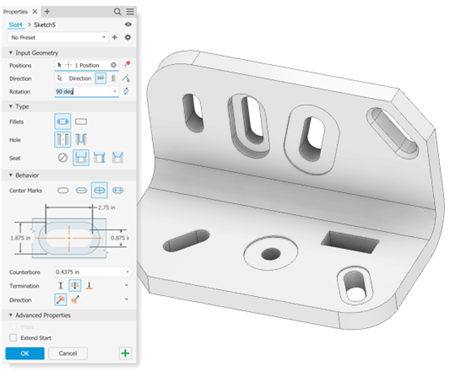
Other aspects of the Slot feature include:
Slot browser nodes can present extended information.
Creating and editing occurs through the property panel, breadcrumb, and in-canvas manipulators.
Termination options similar to the Hole command.
When editing a slot, a wireframe version is visible in the canvas.
Create rectangular slots.
3D Annotation Hole/Thread Note command annotates the feature.
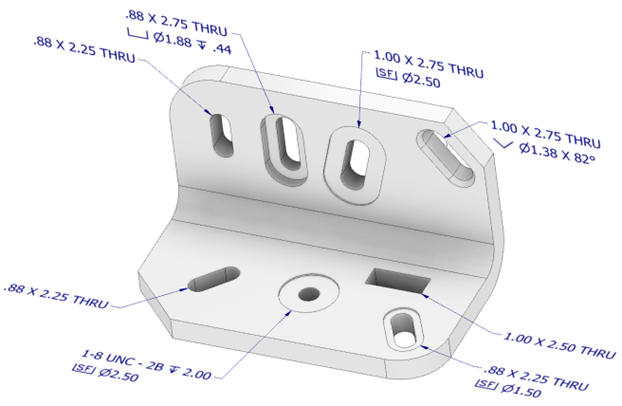
Slots participate in Insert and iMate constraints.
Slots can be created as assembly features.
Holes can be converted to slots.
Option for drawing views to use the feature center mark selection.
Slot presets can be created and saved.
Positioning slots on cylinders referencing cylindrical edges.
Slots can be removed when simplifying a model. In the Simplify property panel, under Remove Features, select Tunnel to remove slots.
For more information see To Create Slots, Create a Simplified Part from an Assembly.
And, be sure to take a look at the slot related Drawing Style Enhancements.
Hole Command
With the introduction of slots you can convert holes into slots quickly by right-clicking the hole browser node and selecting Convert to Slot. Or, set selection priority to Features and right-click a hole in the canvas and select Convert to Slot. The Slot property panel displays so you can modify parameters as needed.
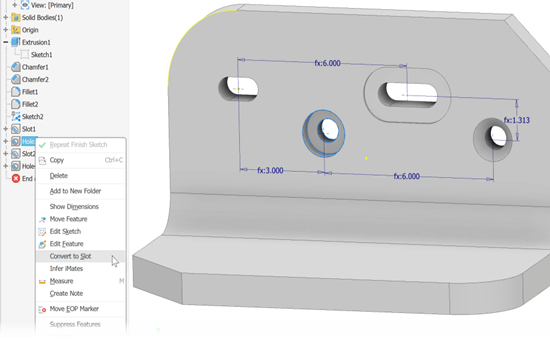
For more information see To Create Holes