Text Codeblocks Reference
What's New: 2027
The Text category provides blocks for creating and manipulating strings, plus iLogic snippets for combining text and comparing strings with optional case sensitivity. Use these blocks to handle all your text-processing needs within Codeblocks.
Text
The Text codeblock is used to enter a string of characters. The text can contain letters (lower-case or upper-case), numbers, punctuation marks, symbols, and blank spaces. Carriage returns are not supported.

Create Text With
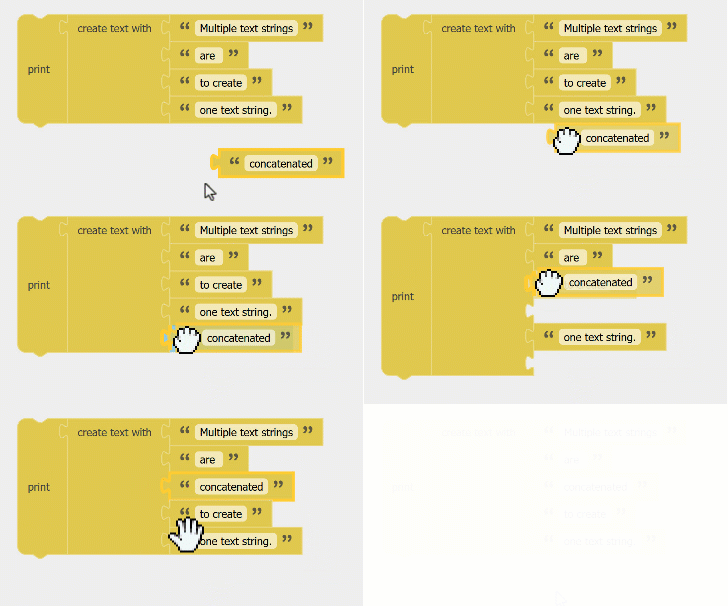
The Create Text With codeblock is used to combine (concatenate) multiple text strings.

Drag and drop text inputs as needed to the input side of the codeblock and additional input connections are added.
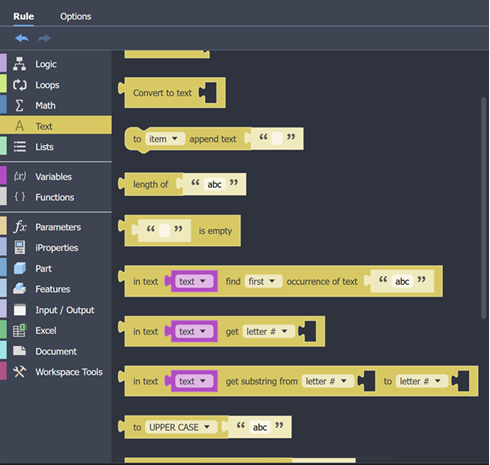
Convert to Text
The Convert to Text codeblock converts a number or object to a text string.

Append Text
The Append Text codeblock adds a text string to the text held in a variable.

The variable 'item' is used by default, and is created if the variable doesn't exist.
Count Text
The Count Text codeblock returns the number of characters, including spaces, in the provided text.

Is Empty Text
The Is Empty Text codeblock returns true if the input contains an empty text string.

In Text
The 'in text' codeblock is used to look for text strings within a text string. The search is case sensitive.

The in text codeblock returns a number, indicating where the input string appears in the text.
Use the control to find the first, or last position of the string to be searched, within the text.
Get Character
The ‘get character’ Codeblock extracts a single character (letter) from a string (some text), by position.

The string is interpreted as a list of characters, and characters can be extracted from the list using their position, or number in the list.
The letter returned includes the case of the letter.
The get character Codeblock has the following options:
- letter # returns a letter counting from the beginning of the string; the first letter is position number 1.
- letter # from end returns a letter counting from the end of the string; the last letter is position number 1.
- first letter returns the first letter in the string
- last letter returns the last letter in the string
- random letter returns any letter from the string with equal probability
Get Substring
The ‘Get substring’ Codeblock extracts a consecutive series of characters (letters) from a string (some text).

The string is interpreted as a list of characters, and characters can be extracted from the list using their positions, or numbers, in the list.
The letters returned include the case of the letters.
The get substring Codeblock has the following options:
Get substring from:
- letter # starts counting from the beginning of the string; the first letter is position number 1.
- letter # from end starts counting from the end of the string; the last letter is position number 1.
- first letter counts from the first letter in the string
To:
- letter # starts counting from the beginning of the string; the first letter is position number 1.
- letter # from end starts counting from the end of the string; the last letter is position number 1.
- last letter counts from the last letter in the string
Case
The Case codeblock returns the input text in a different case.

The Case codeblock has the following options:
- UPPER CASE returns all letters upper-case
- lower case returns all letters lower-case
- Title Case returns the first letters upper-case, other letters lower-case
Trim Spaces
The trim space codeblock removes space characters (blanks) from the ends of a string (text).

The trim space codeblock has the following options:
- both sides removes space characters from both ends of the string
- left side removes space characters from the beginning of the string
- right side removes space characters from the end of the string
The print codeblock prints text to the iLogic Log. To make the log visible, select the following option from the ribbon: View  Windows User Interface iLogic Log.

Prompt for Message
The Prompt for codeblock enables prompting for text or number with the provided message.

Count Text
The Count Text codeblock returns the number of times the first provided text occurs within the second provided text.

Replace Text
The Replace Text codeblock searches within a provided text for a specified substring. When it finds the substring, it replaces it with a provided substring.

Compare
The Compare codeblock evaluates two text strings to see if they are equal. Click the plus (+) to access case options.