You can connect to many raster image files using Data Connect.
Use Raster Extension features to insert and align raster images with formats not supported by Data Connect or to specify correlation information for images that do not include this data in their files.
Some image-editing applications, such as AutoCAD Raster Design toolset, store image location information in an associated correlation source file.
When you insert a raster image using the Insert An Image command (click Home tab Data panelInsert An Image
Find),
AutoCAD Map 3D toolset reads coordinate correlation information and places the image at the precise coordinate location in the drawing.
Data panelInsert An Image
Find),
AutoCAD Map 3D toolset reads coordinate correlation information and places the image at the precise coordinate location in the drawing.
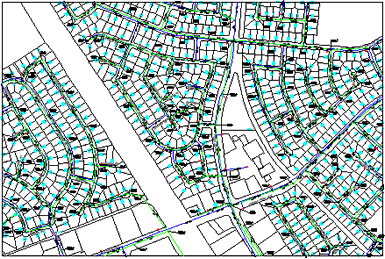
Inserting a raster image into a city map. Move your cursor over the image to see the results.
After you insert the image, you can change the image display order to have the features and drawing objects display on top of the image.
When you insert an image, AutoCAD Map 3D toolset links the image to the drawing file through a path name or a data-management document ID. When you update a linked image, the changes appear in the drawing. Because the image itself is not stored in the drawing, it does not increase the drawing size.
After inserting an image, you can reinsert it multiple times as if it were a block. Each insertion has its own clip boundary and settings for brightness, contrast, fade, and transparency. A single image can be divided into multiple pieces and rearranged in the drawing.
Supported Image Formats
AutoCAD Map 3D toolset supports common image file formats used in computer graphics, document management, mapping, and geographic information systems (GIS). Images can be bitonal, 8-bit grayscale, 8-bit indexed color, or 24-bit true color.
Several image file formats support transparency. When image transparency is on, AutoCAD Map 3D toolset recognizes those transparent pixels and allows graphics in the drawing to show through. In bitonal images, background pixels can be treated as transparent.
You can also select the transparent color for grayscale or color images and set raster image opacity.
AutoCAD Map 3D toolset supports the following raster file formats. Some formats, such as ECW, are supported as OLE objects and not as image files. AutoCAD Map 3D toolset determines the file format from the file contents, not the file extension.
| Type | Description and version | File extension |
|---|---|---|
| BMP | Windows and OS/2 bitmap format | .bmp, .rle, .dib |
| CALS-I | Computer Aided Acquisition and Logistics Support | .rst, .gp4, .mil, .cal, .cg4 |
| DOQ | Digital orthophoto quadrangle raster image format (used for aerial photos that are processed to remove distortion) | .doq |
| ECW | Enhanced Compressed Wavelet (a highly compressed multiresolution image format from ER Mapper | .ecw |
| FLIC | Autodesk digital animation format | .flc, .fli |
| GeoSPOT | SPOT Image Corporation format with georeferencing information | .bil |
| GeoTIFF | TIFF with georeferencing information | .tif |
| GIF | Graphics Interchange Format (a raster image format from CompuServe) | |
| IG4 | Image Systems Group 4 | .ig4 |
| IGS | Image Systems Gray Scale | .igs |
| IKONOS | 8- or 16-bit satellite imagery | |
| JFIF | JPEG File Interchange Format | .jpg |
| JPEG and JPEG 2000 | Joint Photographics Expert Group | .jpg |
| LANDSAT FAST L7A | Multispectral image format used by the Landsat 7 satellite | |
| NITF | National Imaging Transmission Format (a multiframe image format commonly used by US federal agencies and NATO) | |
| PCX | PC Paintbrush Exchange | .pcx |
| PICT | Macintosh PICT1, PICT2 | .pct |
| PNG | Portable Network Graphics | .png |
| Quickbird TIFF | Multispectral image format from DigitalGlobe’s Quickbird Satellite | |
| RLC 1 and 2 | Run Length Encoding format (version 1 has no header; version 2 has IST headers) | .rlc |
| TARGA | TrueVision image file format | .tga |
| TIFF | Tagged Image File Format | .tif |