Autodesk Assistant for Maya
Have a quick question as you get started with Maya? Starting in Maya 2027, you can use Autodesk Assistant to ask questions about Maya functionality and receive clear guidance to help you learn and work faster. Autodesk Assistant and Maya Help are the two easiest ways to get answers efficiently so that you can get to work.
Open Autodesk Assistant
Click the Autodesk Assistant icon
 in the main status line to open Autodesk Assistant.
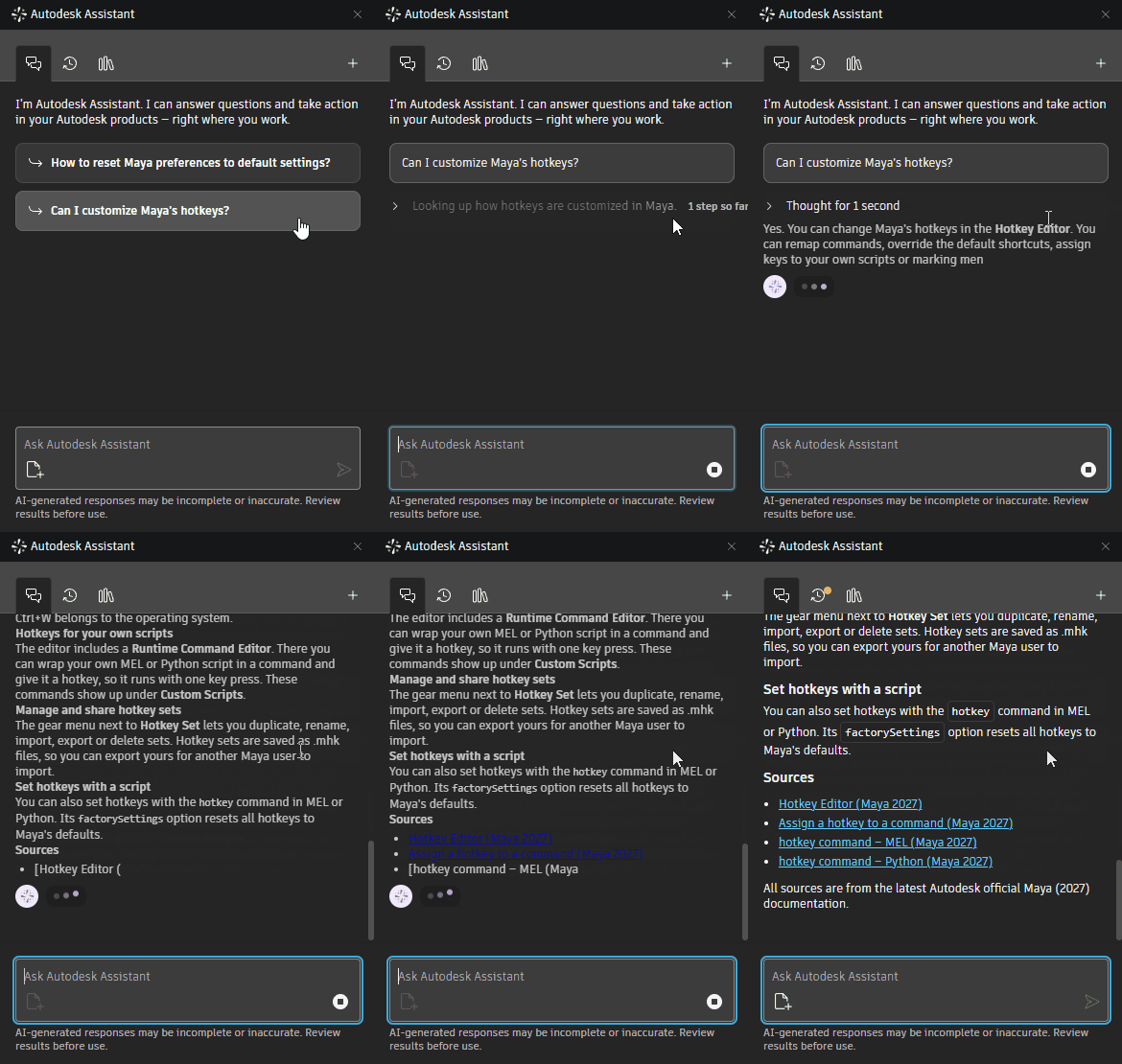
When Autodesk Assistant opens, ask a question, or try one of the default starter prompts by clicking them.
Autodesk Assistant for Maya with MCP server tools (Tech Preview)
Starting in Maya 2027.3, you can ask Autodesk Assistant to do more than answer questions. With Maya MCP server tools enabled, it can look at your scene and setup, and make changes for you. Set what it can do on the Autodesk Assistant preferences window. See the special terms.
Choose how Autodesk Assistant helps you
Autodesk Assistant works at three levels. Each level builds on the one before it.
| What Autodesk Assistant can do | Use it to | Setup | Example prompts |
|---|---|---|---|
| Level 1: 'Help me' - Answer general questions about Maya and help you get support, like finding documentation and tutorials. | Learn Maya and find what you need | None | "Help me find the Bevel tool." "What is the Maya equivalent of Blender's Extrude tool?" "Why do multiple vertices move when I'm trying to move just one?" |
| Level 2: 'Analyze my scene' (Read-only) - Everything in level 1, plus find, identify, or summarize information about your Maya setup and scene. These requests don't change your scene. | Inspect your scene and setup | None. Read-only is selected by default in the Autodesk Assistant preferences. | "Do I have any textures referencing the wrong folder or project?" "Where can I optimize mesh topology?" |
| Level 3: 'Do work for me' (Read-write) - Everything in level 2, plus plan a task, show you the MEL or Python script it intends to run, and run it after you approve. | Have Autodesk Assistant complete a task | Select Read-write in the Autodesk Assistant preferences. Important: Restart Maya after selecting Read-write for changes to take effect. Note: Autodesk Assistant checks in after 10 tool steps in a row and stops at 25 steps. |
"Rename the joints on this character." "Apply materials to the selected objects." "Fix my broken textures." |
Want to use an external client that you already use with Maya? See Connect an external MCP client to Maya.
Enable Maya MCP server tools
By default, Autodesk Assistant works at level 1 and 2, where it answers general questions about Maya or summarizes information about your Maya setup and scene. To enable Maya MCP server tools for level 3:
- Open the Autodesk Assistant preferences.
- Set Maya MCP server tools to On.
- Under Enabled tool capabilities, choose:
- Read-write: Allows tools that can modify your scene, for example tools that write and execute MEL or Python scripts.
- Restart Maya for changes to take effect.
Review scripts before they run
When you use the Read-write capability, Autodesk Assistant shows you each MEL or Python script and waits for your approval before it runs. Show script preview is turned on by default. Turning it off isn't recommended.
Maya also blocks some MEL commands and Python functions and modules from running in scripts that Autodesk Assistant proposes. You can't change these checks.