Quick Access Toolbar
At the top of the Navisworks window, the Quick Access toolbar displays frequently used commands.
| Navisworks | Navisworks Freedom |
|---|---|
 |
 |
The Quick Access toolbar can be positioned above or below the ribbon. You can add an unlimited number of buttons to the Quick Access toolbar to the right of the default commands, and add separators between the buttons. Commands that extend past the maximum length of the toolbar are displayed in a flyout button  .
.
Customize the Quick Access Toolbar
To add, remove, and organize the buttons and commands shown on the Quick Access Toolbar:
Click the Customize Quick Access Toolbar drop-down button
 .
.Click Customize to show the Customize Quick Access Toolbar dialog box:
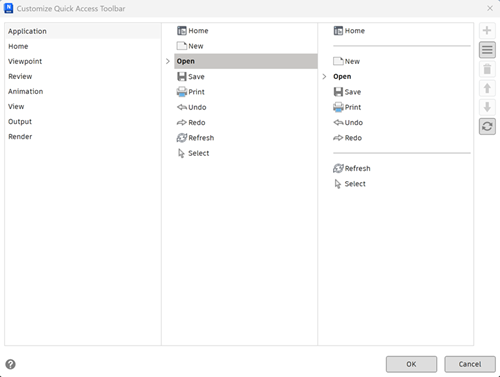
Use the left and middle panels to navigate between the ribbon tabs and panels, to find and select the button or command you want to add.
Click the plus button
 on the right to add the selected command to the Quick Access Toolbar.
Commands that have been added to the Quick Access Toolbar are shown in the right panel.
Use the other buttons on the right to manage the commands on the Quick Access Toolbar:
 - Adds a separator to the Quick Access Toolbar, so you can group related commands together.
  - Deletes the selected command from the Quick Access Toolbar.
 - Moves the selected command up or down to change the order of the commands on the Quick Access Toolbar.
 - Resets the Quick Access Toolbar to the default settings.
Add and Remove Ribbon Buttons
In addition to using the Customize Quick Access Toolbar dialog box, you can also directly select buttons and commands on the ribbon and add them to the Quick Access Toolbar.
- On the ribbon, navigate to the tab and panel that contains the button you want to add to the Quick Access toolbar.
- Right-click the button and click Add to Quick Access Toolbar.
- To remove a button from the Quick Access toolbar, right-click the button and click Remove from Quick Access Toolbar.
Move the Quick Access Toolbar
Click the Customize Quick Access Toolbar drop-down button
.Choose either Show Below the Ribbon or Show Above the Ribbon.
Tip: You can also right-click any button on the Quick Access toolbar and the select Show Quick Access Toolbar above/below the Ribbon.