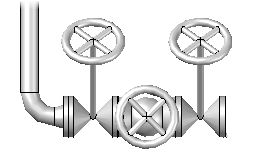
- At the Command prompt, enter
plantfittingadd.
Tip: While creating a pipe route with PLANTPIPEADD, enter f (Pipe Fitting) after specifying the start point to place a valve or other component at the end of the route.
- In the Part Placement dialog box, click the Valves Category icon.
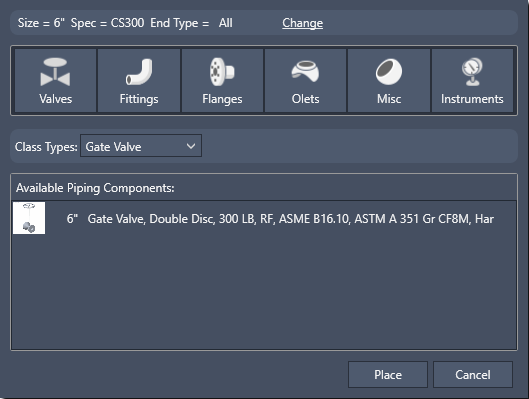
- In the Class Types list, click a component description (for example, Gate Valve).
- In Available Piping Components, click component (for example, Gate Valve, Solid Wedge, 300LB, RF).
- Click Place.
- At the Command prompt, enter
f (Fitting-to-fitting).
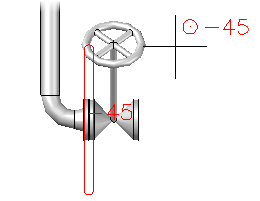
- Click to specify a component rotation or press Enter for zero (for example, 45).
- At the Command prompt, enter i (Insert).
- In the Class Types list, click a component description (for example, Globe Valve).
- In Available Piping Components, click a component (for example, Globe Valve, 300LB, RF).
- Click Place.
- Click to specify a component rotation or press Enter for zero.
- Repeat steps 8 to 12 for additional fittings (for example, another gate valve).