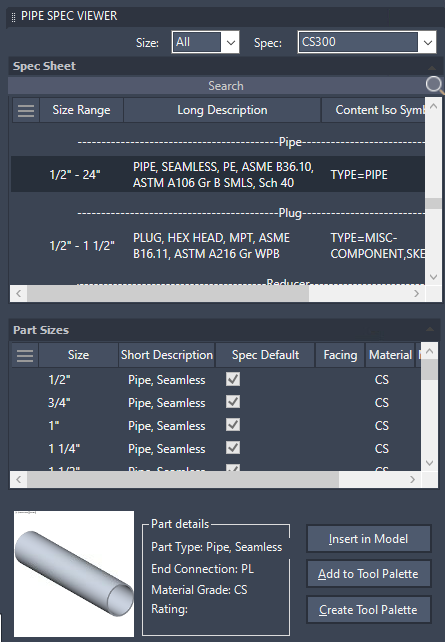
The Spec Viewer allows you to add pipe and pipe fittings to a model.
The Spec Viewer uses spec files to control part sizes, part selection, and routing priorities. After opening a spec file, you can view spec sheets, add items to a 3D model, and customize tool palettes.
You can view all parts available for a selected size in the current spec. The Autoselect option in the Size drop-down list controls whether size and spec selections are synchronized between the Pipe Spec Viewer and the Part Insertion panel on the ribbon.
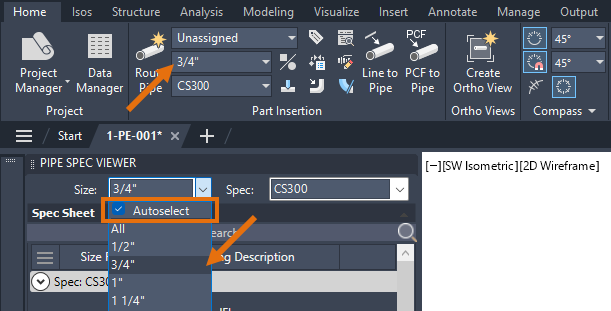
When Autoselect is selected, changes to the size or spec in either location are automatically reflected in the other. When Autoselect is cleared, size selections can be modified independently in each location.
You can insert either sized or unsized parts. When you use an object snap to connect to an open port, the port size is automatically used. You can also configure the program to update a 3D model when changes are made to the spec file.
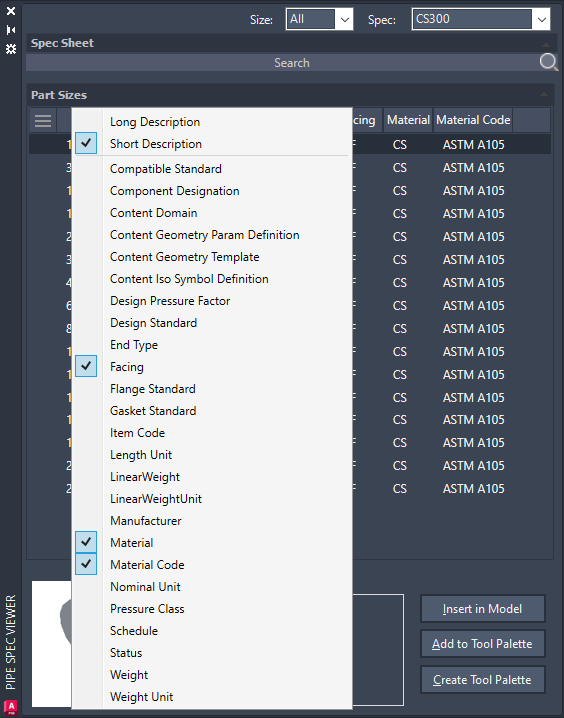
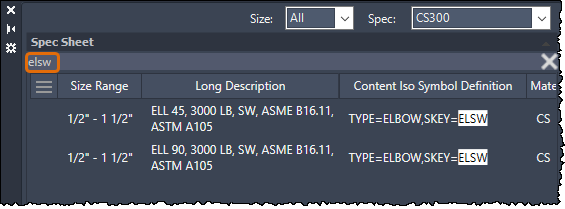
The Pipe Spec Viewer allows you to customize columns and search non-display properties.
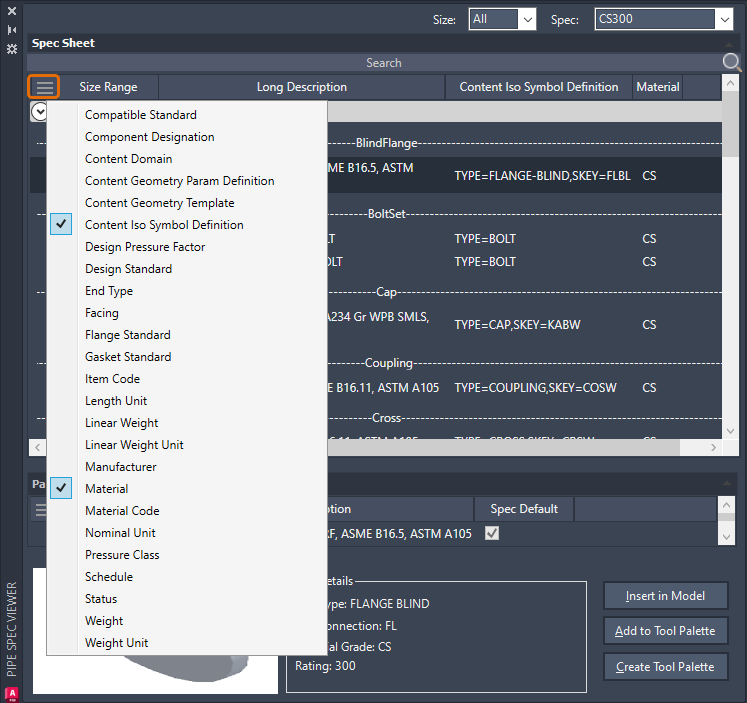
If you have already added custom properties from Spec Editor, they are displayed in the property list flyout. Custom part family properties are displayed in the Spec Sheet property list, while the custom part size properties are displayed in Part Sizes.
You can choose whether to display the long description or the short description for part sizes.