- Open the project you want to upload as a collaboration project.
- Click Collaborate tab
 Plant Collaboration panel Share Project.

- In the Collaboration for Plant 3D dialog box, click Get Started.
- If you're not already logged in to Forma Data Management, sign in using your Autodesk ID and password.
Note: You may be prompted to close all open drawings and your existing accounts in Forma Data Management.
- A drop-down list shows the Forma Data Management accounts you belong to. Select the Forma Data Management project folder you want to work on.
Note: As you type in the search box, terms that match your search are displayed in bold.
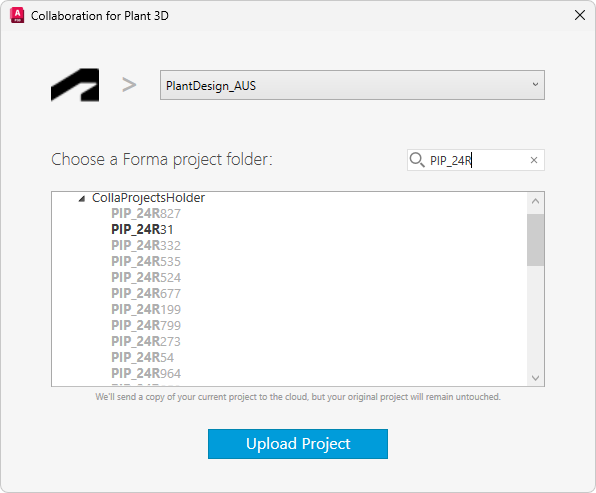
- Click Upload Project.
Note: Your project, including the database, is copied to the Forma (Autodesk) project folder. Your existing project is not changed and remains intact.
- Once the upload is complete, you can invite team members to the collaboration project.
Clicking Invite My Team takes you to the Forma project folder on the web.
The Forma Data Management account is displayed.
- Click Invite and enter their email addresses.
- Click Send Invitations.