Autodesk Assistant in Revit
How can I access Autodesk Assistant?
- In Revit, sign in with your Autodesk account.
- Click (Autodesk Assistant) next to Help in the title bar to open the Autodesk Assistant panel.
Note: In versions prior to Revit 2027.3, the Autodesk Assistant icon is:
Alternatively, you can click View > User Interface > Autodesk Assistant.
Can I move the Autodesk Assistant panel to another location?
The Autodesk Assistant panel behaves just like any other panel or palette in Revit:
- To move the panel, drag its title bar
- You can drag the panel to another location within the application window, stack it with the Properties palette and Project Browser, or dock it in another location
- You can also drag it outside the application window to a second screen
- You can assign a keyboard shortcut to it
What can Autodesk Assistant do for me?
Assistant can currently support Contextual Help (e.g., “How do I create a section view?”), Model Query (“Find all doors on Level 1”), and Model Modification (“Create a floor plan for Level 2”) prompts. Just click the suggested prompt “What can you do for me?” to learn more.
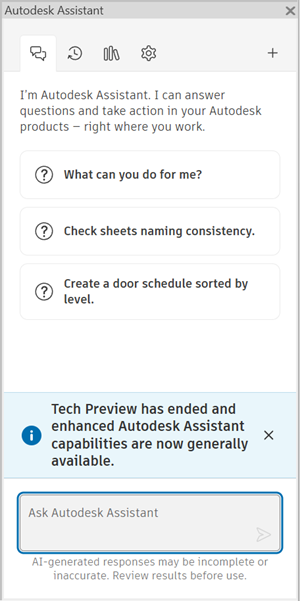
Autodesk Assistant is always available to answer Learn/How To questions or access other information from Autodesk Help. (If you don’t want to use Autodesk Assistant, simply close the Assistant panel.)
The capabilities of Autodesk Assistant will improve and expand over time. Autodesk Assistant in Revit can receive targeted updates independently of the broader Revit release cycle, allowing new capabilities and important fixes to be delivered without waiting for the next Revit release.
The following video demonstrates an AI‑driven workflow in which a Level 2 floor plan is generated, refined using an appropriate view template, automatically room‑tagged, and then fully reused to automate the creation of equivalent plans for Levels 3 and 4. The process concludes with automated sheet creation, naming, layout, and final PDF export.
Here are the prompts used for Autodesk Assistant in this video:
- Create a new floor plan for Level 1 named “L1‑AI.”
- Apply an appropriate view template.
- Tag all rooms in the view.
- Repeat the same process from the beginning for Levels 2 and 3.
- Create new sheets and place each new plan on its own sheet.
- Add “Demo” to the beginning of each sheet name.
- Print the new sheets to a PDF file.
Attach Files in Autodesk Assistant
You can attach supported files to a conversation in Autodesk Assistant in Revit to provide additional context for your questions.
Attachments allow you to provide information outside the Revit model, such as specifications, standards, reference documents, images, and spreadsheets. Autodesk Assistant can use the attached content as additional context in your conversation.
To attach a file:
Use one of the following methods:
- Click Add files in the bottom-left corner of the Autodesk Assistant chat box.
- Drag and drop a file anywhere within the Autodesk Assistant panel.
Supported file formats
Autodesk Assistant in Revit supports the following file formats:
| File type | Supported formats |
|---|---|
| Images | PNG, JPG, JPEG |
| Documents | PDF, DOC, DOCX |
| Spreadsheets and data | CSV, XLS, XLSX |
| Web and text files | HTML, TXT |
Supported MCP Tools
Autodesk Assistant in Revit added support for MCP (Model Context Protocol) architecture. This switch gives users more reliable and faster answers.
There are 6 groups of MCP tools Assistant currently supports:
- Model Query — understanding and analyzing Revit model
- Export — project deliverable generation
- Sheet Management & Documentation — organizing project deliverables
- Room Management — architectural space planning and coordination
- Schedules & Data Management — project data organization and reporting
- Element Operations & Manipulation — direct element control and modification
Features not available in Autodesk Assistant in Revit
- You can’t connect with a support agent
What about trust and privacy when using Autodesk Assistant in Revit?
Autodesk Assistant uses:
- Your conversation — The questions you ask during your session
- Autodesk product documentation — Official help content from help.autodesk.com
- Your work — In some products, context from your model or design when you ask questions about your work
Your Prompt Library and Chat History are stored in the cloud and linked to your Autodesk account. None of this data, nor any customer privacy data, is used to train LLM models. For more information, refer to Trust, privacy, and your data.