Getting Started with the Revit Personal Accelerator
The Revit Personal Accelerator is installed with Revit. To update to the latest version, install the version of Revit that has been released most recently.
Once installed, it will automatically run when your machine is turned on. If the RevitAccelerator.exe process has been terminated, you can restart the application by either restarting your machine or manually running the executable file located at:
C:\Program Files\Autodesk\Personal Accelerator for Revit\RevitAccelerator.exe
- In Windows Settings
 Applications Installed applications (Control Panel Programs and Features in older versions of Windows), click Personal Accelerator for Revit and choose the Uninstall option.
- When prompted, click Yes to confirm that you want to uninstall.
Using the Revit Personal Accelerator
With the Revit Personal Accelerator installed and running, the icon
 appears in the Windows system tray. Click on the icon to display a pop-up dialog with details on the amount of disk space currently allocated for the Revit Personal Accelerator cache (stored in the PacCache folder) and how much of that storage space is currently available.
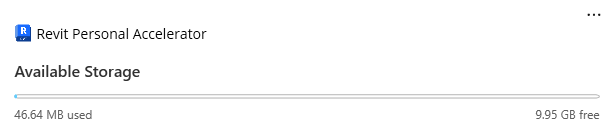
To access the settings dialog, click the ellipsis button (…) in the upper right corner. Here you see three pages:
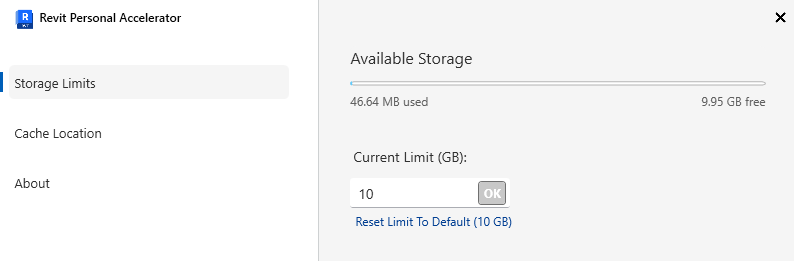
- Storage Limits: Here you can view the same Available Storage details as well as change the Current Limit value. The Current Limit default value is 10 GB, which you can increase or decrease in whole number increments. The minimum allowed value is 1 GB and the maximum allowed value is determined by the size of the disk drive where the PacCache folder is stored. Click the “Reset Limit To Default” button to quickly reset the Current Limit to the default value.
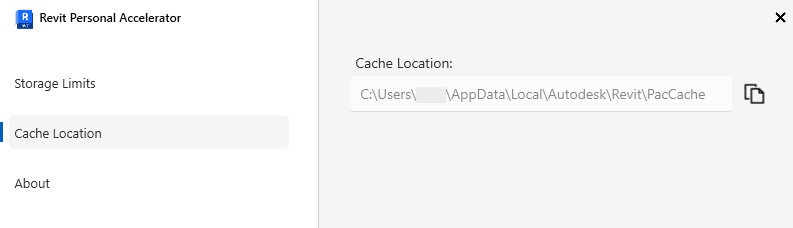
- Cache Location: Here you can view the PacCache folder location and copy that path to the clipboard so you can easily navigate to it in Windows Explorer if needed.
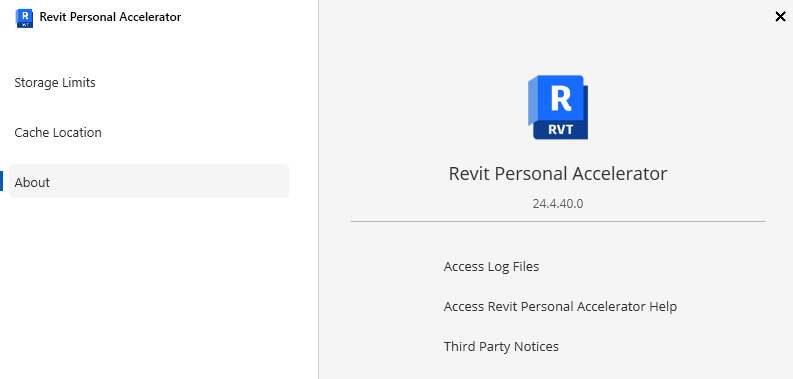
- About: On this page, you can find the currently installed version number, access diagnostic log files for troubleshooting issues, access this help document, and view Third Party Notice information.
Cache Status
When the PacCache folder has free space available, the system tray icon and Available Storage bars display blue. When the PacCache folder is full, the icon and bars change to yellow. This is simply a warning that you may want to increase the Current Limit value if you are experiencing slow performance on models you are actively working on. No changes to the model contents are lost when the cache is full, and there is no need to manually clear the cache.Cache Operation
The Revit Personal Accelerator cache (PacCache) is separate and different than the Cloud Model Collaboration Cache. The Cloud Model Collaboration Cache is where your local file is stored when opening Revit cloud models, while the Revit Personal Accelerator cache only contains data that are prefetched from the central model.When opening a Revit cloud model, Revit will first check the Cloud Model Collaboration Cache to see if the latest model version is already available on the user’s computer. If it is, the Revit Personal Accelerator doesn’t need to do anything as Revit already has the latest information available on the local machine. If there is a newer version of the model available, the Revit Personal Accelerator works collaboratively with Revit to download the latest information to optimize performance when opening and working in that model.
While a model is registered in the PacCache, the Revit Personal Accelerator monitors the Sync events on the central model and pre-downloads the updates to the local computer so you do not need to download them each time you open that model. This is a benefit of the Revit Personal Accelerator being a Windows background process. The Revit Personal Accelerator can only keep your models optimized while it’s running, so it’s important to keep your computer on as much as possible.The Revit Personal Accelerator can register up to 200 models by default (inclusive of host and linked Revit cloud models), however it will only take up the amount of disk space set by the Current Limit setting. Once either limit is reached, the Revit Personal Accelerator will begin to remove models from the cache on a first-in, first-out (FIFO) basis. This process is automatic and ensures that the most recently accessed models are always available in the cache for optimal performance.
Handling Disk Space Limitations
If the Current Limit value exceeds the amount of free space on the disk drive, the Available Storage bar updates to display the amount of space available on disk, rather than the Current Limit value. When the PacCache folder is full, the Revit Personal Accelerator begins to remove models from the cache on a first-in, first-out (FIFO) basis.Modifying Additional Settings with the Configuration File
In addition to the user interface, the Revit Personal Accelerator includes a configuration file (config.json) that can be used to modify additional settings. This file can be useful for deploying the same settings to multiple users within an organization. The configuration file resides at this location:
C:\Users\<username>\AppData\Local\Autodesk\Revit\Revit Personal Accelerator\
Available Parameters
Use the configuration file to modify the following settings parameters:
-
DiskCacheLimitGB: This parameter updates the Current Limit value in the user interface and sets the maximum amount of disk space that the PacCache can use.
- This field allows only whole number values, with a minimum permissible value of 1. The maximum value is determined by the size of the disk drive where the PacCache folder is stored. The default value is 10.
- QueueDepth:
This parameter sets the maximum number of models that can be registered in the PacCache.
- The minimum and maximum permissible values are 1 and 1000, respectively. The default value is 200.
- This value cannot be viewed or managed in the user interface, only in the configuration file.
Note: If the queue depth limit is reached before the disk cache limit, the least recently accessed models will be removed from the cache, and the UI will reflect the new Available Storage space.
How to Modify the Configuration File
To modify these settings, open the config.json file in a text editor and adjust the values for DiskCacheLimitGB or QueueDepth as needed. Save the changes and restart the Revit Personal Accelerator for the changes to take effect.
Example Configuration
Here’s an example of what the config.json file might look like:
{
  "Settings": {
    "DiskCacheLimitGB": 20,
    "QueueDepth": 150
  }
}
In this example, the PacCache is limited to 20 GB of disk space and can store up to 150 models.
Changes made to the configuration file take effect when the application is restarted. If invalid values are entered in the configuration file, the application uses the default values.
Remember to always backup your original config.json file before making changes. This allows you to restore the original settings if needed.