In order to include user defined property sets when exporting to IFC, map Revit parameters to IFC property sets using the Manage Property Sets dialog.
In this dialog, you can search and filter the existing properties, edit them, or add new properties.
Note: this enhanced IFC export parameter mapping is available starting with Revit 2026.3. Previous versions require creating a TXT file to structure the data in a meaningful way in the IFC export, as described below. The TXT files previously created can be imported and exported in the enhanced mapping workflow.
Steps to create a TXT file for exporting user defined properties in IFC
- Download the Sample Template for user defined parameter sets.
- With a text editor Start a new line and create custom property set. (i.e #PropertySet:)
- Press 'Tab' and provide a name for the property set. (i.e ColumnPSet)
- Press 'Tab' define the level, instance [I] or type [T]. In 2024.1 and beyond this is not required, use [I].
- Press 'Tab' and define the IFC classes to include these properties. Each class included is separated with a comma. In our example (i.e.
IfcColumn, IfcColumnType)
This gives you a parameter set definition that looks like the example shown.
#PropertySet: ColumnPSet I IfcColumn, IfcColumnType
- Add another line to the text file.
- On the line create 3 columns, separated by tabs, as follows:
- Property name in the exported IFC file. (i.e. CommentsProp)
- Data type. Supported types are listed in the sample template. (i.e. Text)
- Property name as it appears in Revit. (i.e. Comments)
- Repeat step 6 for as many properties to be included in the IFC export.
The complete definition for user defined properties will look like this:
#PropertySet:	ColumnPSet	I	IfcColumn, IfcColumnType
#	CommentsProp		Text	Comments
#	TypeCommentsProp	Text	Type Comments
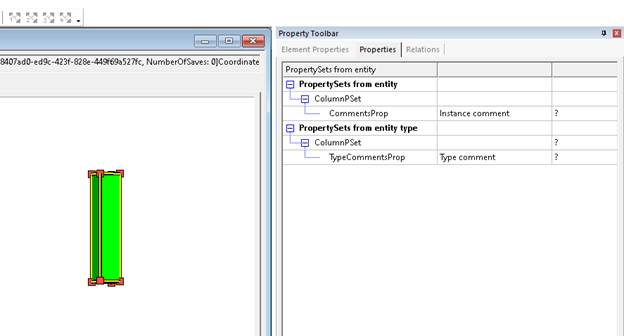
The example above results in column elements from Revit exported to IFC appearing with properties as shown.