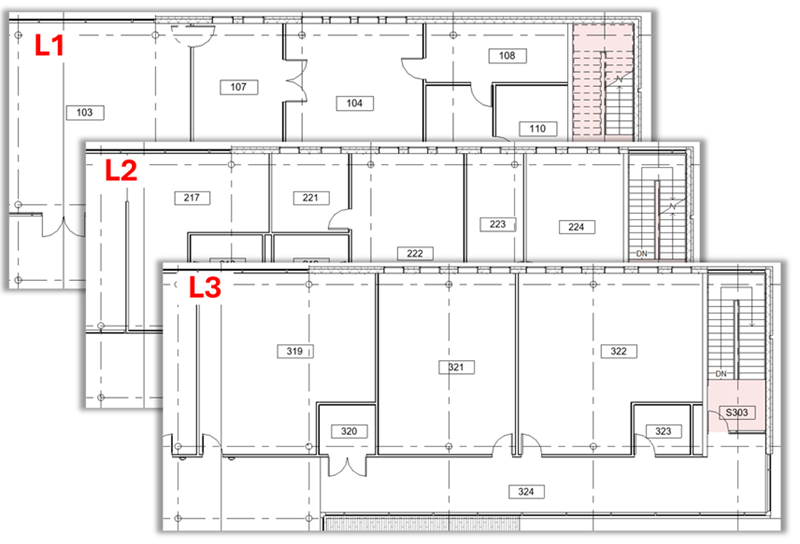
Create a numbering template to number rooms based on the level they are located on. The starting number is defined for each partition.
Steps:
- Open numbering options and create a new template called Doors by Room.
-
Filter - click Filters to open the Filters dialog.
- Create a filter for the Rooms category.
- Optionally, in filter rules, select the Department parameter and set the rule "does not equal" and value "Stairs". In the project, rooms which have this value set for Department will be excluded from this template and can be numbered by a second template where you can set Department = "Stairs".
- Numbering parameter - select Number.
-
Partitioning - click Edit next to Partitioning to open the Partitioning dialog.
- In the Partitioning dialog, check the box next to Partition by parameter value.
- The Select parameters from drop-down shows the Rooms category.
- In the list of parameters, select Level and add it to the list on the right. This will define partitions or number sequences based on the Level each room is located on.
- Element matching - OFF.
- Number formatting - No changes.
- Click Apply in the Numbering Options dialog to apply the template.
-
Set the starting number - Click the Number Sequence button to go to the Number Sequence dialog.
- Set the starting value for each level, for example, 101, 201, 301 and click Apply.
| Partition | Starting Value | In Use | Count |
|---|---|---|---|
| 01 - Entry Level | 101 | 101 - 128 | 28 |
| 02 - Floor | 201 | 201 - 230 | 30 |
| 03 - Floor | 301 | 301 - 324 | 24 |
Optionally, you can create another template for rooms representing stairwells, by repeating steps 1 through 8, with the following changes.
- Filter for Rooms with Department equals "Stairs".
- Same output parameter and same partitioning settings.
- In number formatting, add S as the prefix for <Number>.
- Same starting numbers for each partition.
- The results are below.