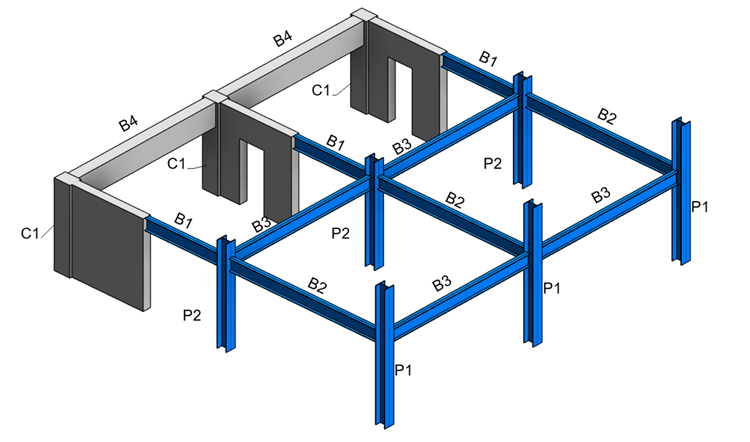
Create a template to number structural columns and structural framing, matching by element geometry and defining a prefix by element type.
See how elements are numbered within the same sequence and how changing the partition options splits the scope into multiple sequences.
Steps:
- Configure the parameter to use as prefix.
- For each structural column and structural framing type, go to edit type and set the following values for the
Type Comments parameter.
- C for concrete columns.
- P for steel columns.
-
B for both steel and concrete beams.
Note: You can also use another built-in parameter or define a shared type parameter to use for the prefix.
- For each structural column and structural framing type, go to edit type and set the following values for the
Type Comments parameter.
- Open numbering options and create a new template called Beams and Columns.
-
Filter - click Filters to open the Filters dialog.
- Create a new filter and select the Structural Framing and Structural Columns categories.
Note: To create separate templates for steel and concrete elements, you can include other criteria when defining the filters.
- Create a new filter and select the Structural Framing and Structural Columns categories.
- Numbering parameter - select Mark.
- Partitioning - OFF.
-
Element matching - click Edit next to Element matching to open the Element Matching Rules dialog.
- Check the box next to Matching by element geometry.
-
Number formatting - click Edit next Number formatting to open the Number formatting dialog.
- In the Number label formatting section, select Type Comments and click the right arrow to add it to the right column.
- Move it up, such that it's positioned before <Number>.
- You can add a relevant Sample Value, so that the label preview displays a realistic value.
- Click Apply in the Numbering Options dialog to apply the template.
- Optionally, review the identified partitions by going to the Number Sequences dialog.
Partition Starting Value In Use Count <Unassigned> 1 P1 - B7 7 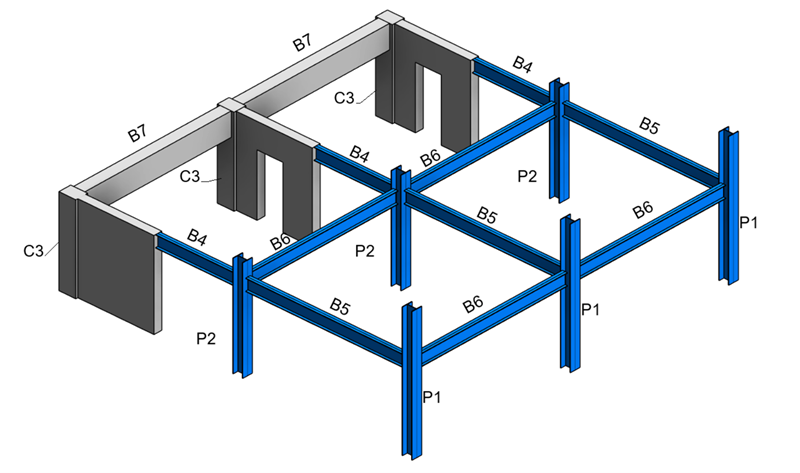
The elements are numbered in the same sequence and use the prefix defined by the type parameter. For this example, you can enable partitioning based on the same Type Comments parameter and check the identified numbering sequences.
- Go back to step 4 and click Edit next to Partitioning to open the Partitioning dialog.
- In the Partitioning dialog, check the box next to Partition by parameter value.
- In the list of parameters, select Type Comments and add it to the list on the right. This will define partitions or number sequences based on the same values used as prefix.
- Click Apply in the Numbering Options dialog to apply the template and go to Number Sequences.
Partition Starting Value In Use Count B 1 B1 - B4 4 C 1 C1 - C1 1 P 1 P1 - P2 2