You can align multiple tags at once, or one element at a time.
Multiple alignment
Select the elements, click Modify | Tags tab > Multiple Align panel, and select an alignment option:
- Vertical alignment:
 Align Elements Top
 Align Elements Middle
-
 Align Elements Bottom
- Horizontal alignment:
 Align Elements Left
-
 Align Elements Center
-
 Align Elements Right
- Distribute:
-
 Distribute Vertically
 Distribute Horizontally
-
Align one element at a time
To align tags one by one, drag them in a view. For example, a room tag can align with another room tag, and a generic annotation can align with another generic annotation.
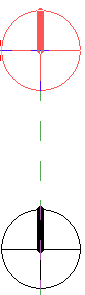
As you drag a tag, dashed blue lines display to show when the tag is aligned with another tag:
Avoid overlapping
To prevent tag overlap
- On the Annotate tab, click
 (Isolate Annotation).
- Select the tags you want to optimize.
Note: If you don’t select any tags, the next step applies to all tags.
- On the Modify | Isolate Annotations tab, click
 (Optimize Annotations). The tool repositions the tags to improve placement and reduce overlap.
- Review the new tag placement and make manual adjustments if needed.
- Click Finish to accept the changes, or click Cancel to discard them.