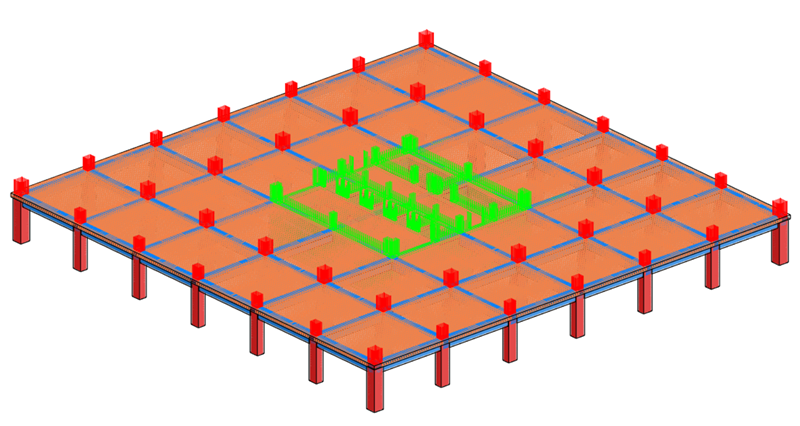
Create a template to number rebar with partitions defined based on the Host Category.
Steps:
- Open numbering options and create a new template called Rebar Numbering.
-
Filter - click Filters to open the Filters dialog.
- Create a new filter and select the Structural Rebar category.
- Numbering parameter - select Rebar Number.
-
Partitioning - click Edit next to Partitioning to open the Partitioning dialog.
- Select the Host Category parameter and add it to the list on the right.
-
Element matching - click Edit next to Element matching to open the Element Matching Rules dialog.
- Check the box next to Default Matching for Structural Rebar.
- Number formatting - Default.
- Click Apply in the Numbering Options dialog to apply the template.
- Optionally, review the identified partitions by going to the Number Sequences dialog.
| Partition | Starting Value | In Use | Count |
|---|---|---|---|
| Floor | 1 | 1 - 10 | 10 |
| Structural Column | 1 | 1 - 13 | 13 |
| Structural Framing | 1 | 1 - 52 | 52 |
| Wall | 1 | 1 - 29 | 29 |
Note: Since the rebar numbering template is created automatically when upgrading older projects to Revit 2027 or newer, you can just skip directly to step 4, remove the Partition parameter which is used by default, and add the Host Category parameter.
The image below shows rebar with colors assigned based on the host category.