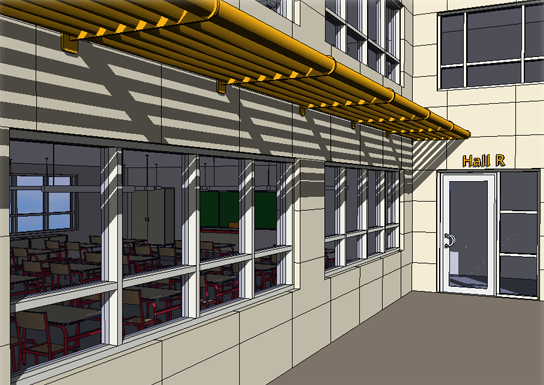
The Perspective option controls whether a 3D view displays as perspective instead of orthographic.
 Video: Create a Perspective View
Video: Work with Uncropped Perspective Views
To create a perspective view
- Open a plan, section, or elevation view.
- Click View tab
 Create panel3D View drop-downCamera.
Note: If you clear the Perspective option on the Options Bar, the view that is created is an orthographic 3D view and not a perspective view.
Create panel3D View drop-downCamera.
Note: If you clear the Perspective option on the Options Bar, the view that is created is an orthographic 3D view and not a perspective view. - Click in the drawing area to place the camera.
- Optional: When placing a camera in a plan view, set the offset and the level of the camera position. This sets how high the camera is in relation to the model.
- Drag the cursor to the desired target and click to place it.
Revit creates a perspective 3D view and assigns a name to the view: 3D View1, 3D View2, and so on. To rename the view, in the Project Browser right-click it, and select Rename.
Note: In existing views, you can right-click the ViewCube and select Perspective from the context menu to specify the projection mode.
Note: When used in a workshared project, the 3D view command creates a default 3D view per user. The assigned name to this view is {3D - username}.
You can use a section box to limit the viewable portion of a 3D view.