Before exporting a model to IFC, you can create or modify an export setup to meet your needs.
You can customize the setup options when you export a model to IFC.
In the Export IFC dialog, click Modify setup. See IFC Export Setup Options.
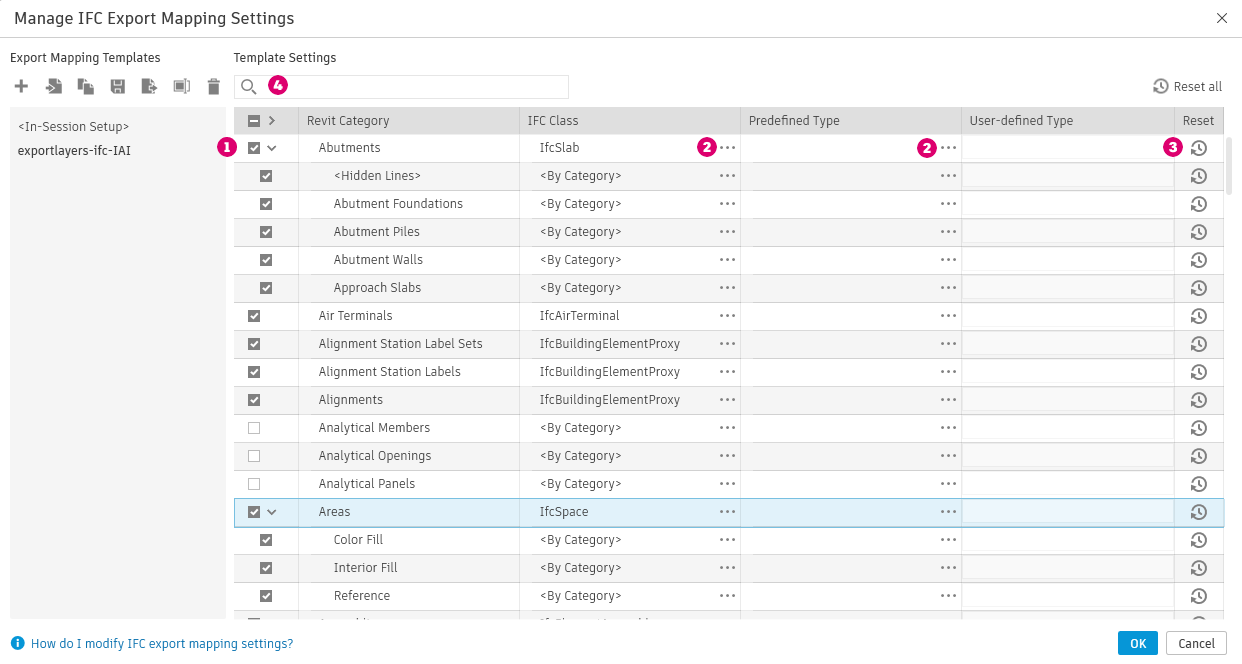
In the Modify Setup dialog, for Category Mapping, click the dialog launcher to open the Manage IFC Export Mapping Settings dialog and make changes to the IFC Class and Predefined Type assigned to Revit categories.
Export Category Mapping Templates
Select the mapping template for use when exporting to IFC. Use the default templates, or duplicate, edit, and save custom templates. IFC category mapping files (.txt) can be imported and exported from the dialog.
 (Create new template) - Create a new template for IFC export category mapping.
-
 (Import template) - Import an IFC category mapping file (.txt) for use when exporting a model.
 (Duplicate template) - Create a duplicate of the selected template.
-
 (Save changes) - Save changes made to the selected template. Default mapping templates are read only.
-
 (Export template) - Export the selected template to an external .txt file.
 (Rename template) - Rename the selected template.
 (Delete template) - Delete the selected template. Default templates can not be deleted.
Template Settings
Make changes to the IFC Class and Predefined Types mapped to each Revit category when exporting an IFC file.
 - Select to include category in the IFC export. Clear to exclude from export. Use the arrow control to expand or collapse the view of sub-categories. The control at the top of the column will select or clear all of the category selections.
 - Use the dialog launcher to open the IFC Entity Selection dialog. Select the IFC Class and Predefined Type for use when the category is exported. Set the Predefined Type to USERDEFINED to enable the user defined type column.
 - Use the reset control to reset the IFC Class and Predefined Type to default values. Use the control at the top of the column to reset all values to the default.
 - Use the search bar to filter the category list.