Add Line Boundary Conditions

Place a line boundary condition along analytical elements.

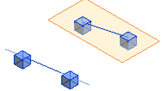
Place a line boundary condition on a host

  1. In the Analyze tab Structural Analytical Model panel (Boundary Conditions).
  2. In the Modify | Line Boundary Condition contextual ribbon Boundary Conditions panel, select (Line) and from the Line Boundary, select (On Host).
  3. Select the end of an analytical member or a corner of an analytical panel to place the boundary condition.
  4. The boundary condition is placed along the entire length of the element edge.
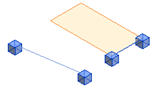

Place a line boundary condition by defining a path

  1. In the Analyze tab Structural Analytical Model panel (Boundary Conditions).
  2. In the Modify | Line Boundary Condition contextual ribbon Boundary Conditions panel, select (Line) and from the Line Boundary, select (Define Path).
  3. Select the host. Only supporter elements will be highlighted. A tooltip will indicate the supported element type.
  4. Select the start and the end points on the analytical member/panel to place the Boundary Condition. The Boundary Condition is placed along the defined path.


    The host will be highlighted during placement, while the pointer is within the limits of the selected host.