Place individual rebar instances in valid hosts by expanding the rebar shape to fill the space provided within the concrete element host.
 Video: Place Rebar - Expand to Host
- Click Concrete tab
 Settings panel
 Reinforcement Settings. Determine if rebar shape matching references hooks. This is important to specify before any rebar is placed in a project because it cannot be changed later in the design process. Close the dialog when complete.
- Click Concrete tab Reinforcement panel
 (Rebar).
Note: The tool is also available on the selection Contextual Tab for elements that are valid rebar hosts.
(Rebar).
Note: The tool is also available on the selection Contextual Tab for elements that are valid rebar hosts. - Click Modify|Place Rebar Placement Methods panel
 (Expand to Host).
- In the Type selector at the top of the Properties palette, select the desired rebar type.
- Optional.
If necessary, click Modify | Place Rebar tab Family panel
 (Load Shapes) to load additional rebar shapes.
- In the Rebar Shape Browser, select the desired rebar shape.
- Select the placement plane. Click one of the following placement planes from Modify | Place Rebar tabPlacement Plane panel
 (Current Work Plane)
 (Near Cover Reference)
 (Far Cover Reference)
The plane defines where the rebar is placed in the host.
- Select the placement orientation or perspective.
Planar rebar
-
 (Parallel to Work Plane)
 (Parallel to Cover)
 (Perpendicular to Cover)
For rebar placed using the Expand to Host placement method, click one of the following placement orientations from Modify | Place Rebar tab
Placement Orientation panel
The orientation defines how the rebar is aligned when placed in the host.
Tip: Use the brackets "[" or "]" to quickly toggle between orientation options.Multi-planar rebar
 (Top)
(Top)
 (Bottom)
 (Front)
 (Back)
 (Right)
 (Left)
To place multi-planar rebar, go to a section view through the host and click one of the following placement perspectives from Modify | Place Rebar tab
Placement Perspective panel
The perspective defines which side of the multi-planar rebar family is parallel to the work plane.
-
- Click to place the rebar in the host.
In 2D views, the bar is aligned according to the view plane.
This example shows placement of a single bar (A) in a section through the beam using the Parallel to Work Plane orientation in each of the placement planes: Near Cover (1), Current Work Plane (2) and Far Cover (3) placement planes, with the resulting bar shown in the plan view of the beam. When placing the same bar with a Maximum Spacing layout(B), the rebar set expands to fill the host regardless of the placement plane used.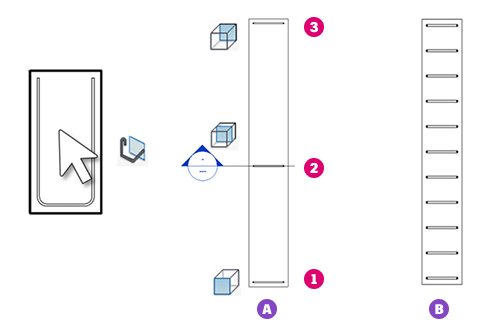 Note: You can press the Spacebar during placement to rotate the orientation of the rebar shape within the cover reference. Orientation can be shifted after placement by selecting the rebar and using the Spacebar similarly.
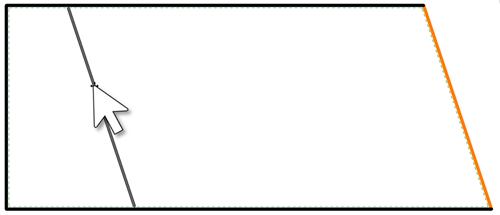 Note: If you need to place rebar parallel to a distant edge of the host, place your cursor near the edge, then press and hold Shift. The edge will highlight. Continue to hold Shift and place the rebar where needed.
In 3D views, the bar is aligned to the face of the concrete host you hover over.
You can use the placement plane options to select the nearest or the farthest face with respect to the view direction. You can also press Tab to toggle between multiple potential hosts that are overlapping when hovering to place.
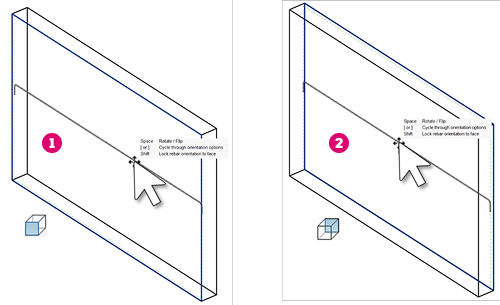
This example shows the placement of a single bar in a 3D view using the Parallel to Work Plane orientation and the placement plane option of Near Cover (1) and Far Cover (2).
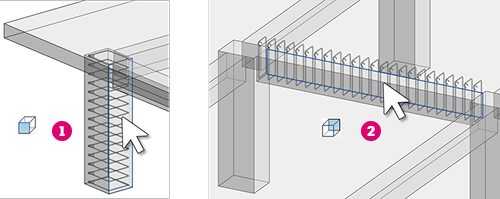
This example shows the placement of a rebar set in a 3D view using the Perpendicular to Cover orientation and the placement plane option of Near Cover (1). For placement of the stirrups in the beam, we are using Far Cover (2) and pressing Tab to cycle the host from the Floor, which is the first host candidate, to the beam, where the far face is highlighted.
 Note: To rehost a rebar shape, select it and click Modify | Structural Rebar tabHost panel
 (Pick New Host). Then select a new rebar host.
If you place standard style rebar adjacent to stirrup/tie style rebar, the standard bar snaps along the edge of the stirrup/tie bar. This includes the straight edges as well as the fillets and hooks of the stirrup/tie rebar.