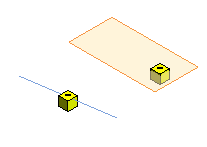
Place a point boundary condition on an end point
- In the Analyze tab
 Structural Analytical Model panel
 (Boundary Conditions).
- In the Modify | Point Boundary Condition contextual ribbon Boundary Conditions panel, select
 (Point) and from the Point Boundary panel, select
 (On End-Point).
- Select the end of an analytical member or a corner of an analytical panel to place the boundary condition.
- The boundary condition is placed by the selected reference.
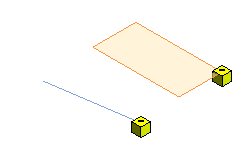
Note: The box next to the Is constrained on host parameter is automatically checked in the Point Boundary Conditions properties palette. The boundary condition is constrained to the selected element's reference. You can remove the constraint of this boundary condition by unchecking the box.