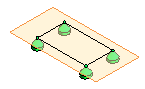
Place an area boundary condition on a host
- In the Analyze tab
 Structural Analytical Model panel
 (Boundary Conditions).
- In the Modify | Area Boundary Condition contextual ribbon Boundary Conditions panel, select
(Area) and from the Area Boundary, select
 (On Host).
- Select an analytical panel to place the boundary condition.
- The boundary condition is placed on the entire area of the panel.
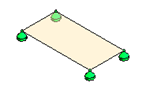
 (Define Boundary).
 (Finish Edit Mode) to save changes and exit sketch mode.