Reworked Variant Sets Module
Variant Sets 2.0 delivers a redesigned, modern UI with hierarchical organization, advanced search, and flexible thumbnail and content views to make complex variant setups easier to manage and navigate. Powerful workflow improvements, including cascading variants, metadata-driven control, multi-selection editing, real-time validation, and improved reference handling, help teams work more efficiently and confidently. Expanded scripting, XR, and automation support further enable scalable, production‑ready variant workflows across VRED.
Enhanced User Experience
The Variant Sets module has been completely rewritten to better support the complexity of modern visualization projects, incorporating many improvements requested by customers over the years.
The redesign and new UI approach introduces a split tree, vertical tabs, extended tree view, and enhanced filter options. The updated vertical tab layout incorporates many features already familiar from other editors, helping to reduce mouse movement and create a more streamlined workflow.
The interface now provides a top-level overview of Variant Set content that was previously hidden within separate tabs, allowing users to locate specific content such as geometry, materials, or script variants more quickly and efficiently.
The Variant Sets module now follows a layout similar to the VRED Material Editor. It provides list, thumbnail, and content views. VRED removed the previous toggle between the simple thumbnail view and the list view with variant configuration. You can access these view options directly from the Variant Sets menu bar. The Tree View also supports multiple sorting modes: alphabetical ascending, alphabetical descending, and free sorting.
Preview Thumbnails
The Thumbnail presentation now offers more control, with options for Thumbnail Only, Icon Only, or Thumbnail with Icon. For Variant Sets where viewport thumbnails are less suitable, such as scripts, animations, or render layers, you can still use custom images, and you can now choose from a dropdown of predefined icons.
Synchronize Over Connector
This option lets you exclude individual Variant Sets when synchronizing with Connector. You must still enable Variant Set synchronization in Connector Settings. If a Variant Set contains viewpoints, Connector still synchronizes those viewpoints separately. In that case, the Variant Set triggers the viewpoints in the Camera Editor, and Connector synchronizes them from there.
Reset DLSS History
Previously, switching variants reused temporal DLSS history from a prior state, leading to smeared transitions from inconsistent geometry, materials, and reflections. Until now, this could only be avoided using the Python command resetDLSSHistory(). To improve this workflow, we added a new Reset DLSS history option to Variant Sets, enabled by default. For Variant Sets triggering animations, we recommend disabling this option, as resetting the history can reduce temporal stability during animated transitions.
 For more information, see the following:
Workflow Improvements
Nested Variants, Group Hierarchy and Favorite Groups
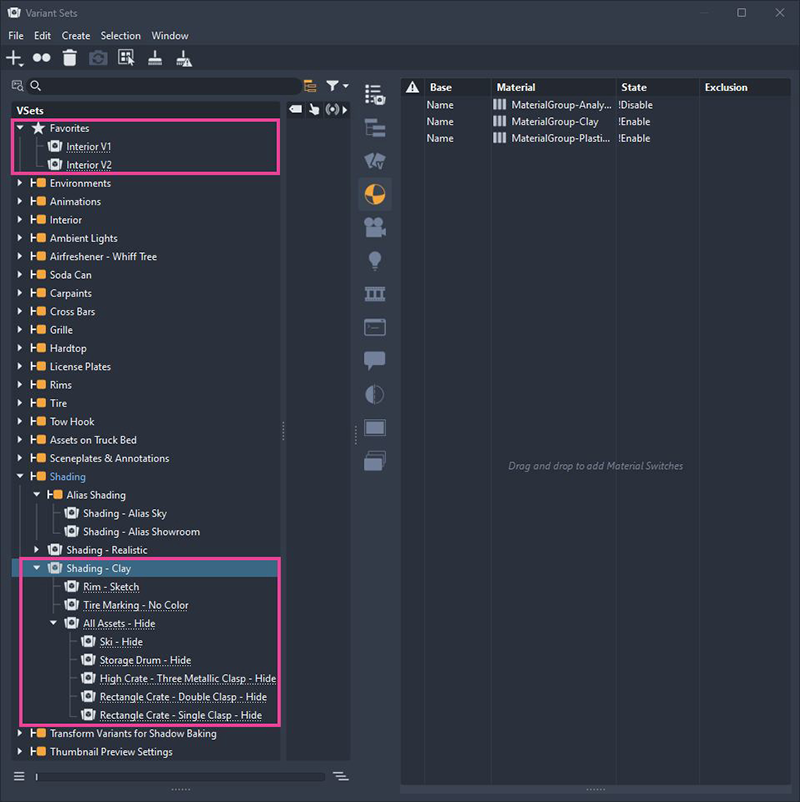
Variant Sets can now be nested inside other Variant Sets. Nested Variant Sets are created as references and displayed with a dotted line, similar to the behavior in the Material Editor. This enables reusable setups, such as scripts, that only need to be updated once across multiple Variant Sets.
In addition, hierarchical groups can now be created for better organization and clarity. The new Favorite Groups behave like normal Groups, but are always displayed at the top of the Tree View.
For more information, see the following:
Improved Metadata-based Workflows
Previously, Variant Sets relied on name-based switching, which worked well for stable object names but could break after renaming scene objects in the Scenegraph or other editors. It also allowed multiple scene objects with identical names to be controlled together within a single Variant Set.
To address this, an ID-based workflow is now available. When this option is enabled, scene objects can be renamed at any time without affecting the Variant Set setup. However, IDs are unique and change when geometry, materials, lights, or other scene objects are deleted, replaced, or recreated.
Therefore, Variant Sets can now also be built using metadata or search queries based on metadata. As long as the metadata attachment remains unchanged, metadata-based Variant Sets provide a flexible alternative to both name- and ID-based workflows.
Since workflows vary and no single approach is required, you can combine all three methods within the same Variant Set.
For more information, see Work with Metadata for Variant Sets.
Exclude States by Tags
An Exclusion column in the Scenegraph, Material, Camera, and Sceneplates attribute views of the Variant Sets module allows you to skip specific states within a switch by using Tags.
For example, assign a Tag named Skip to all scene objects that should be ignored within a switch. Then, enter the tag name Skip in the Exclusion column of the Variant Sets module.
For more information, see Work with Metadata for Variant Sets.
Real-Time Validation
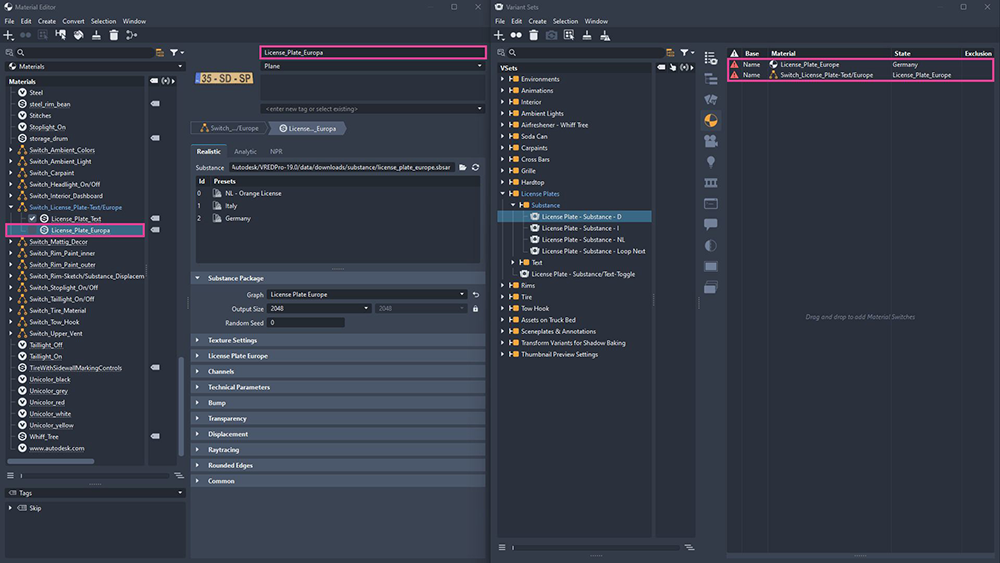
An icon in the Attribute View now indicates in real time whether Variant Set content is valid and remains linked to the corresponding scene objects. In many cases, you can restore broken connections by renaming objects, re-adding them to the set, or selecting the correct state.
Additionally, the Remove Invalid Variants and Remove Empty VSet(s) functions help keep the Variant Sets module clean and organized. Before removing content, it is recommended to use the Validate and Filter function from the context menu to review which variants are no longer fully functional.
For more information, see Work with Metadata for Variant Sets.
Enhanced Variant Sets Functionality and Multi-selection Editing Support
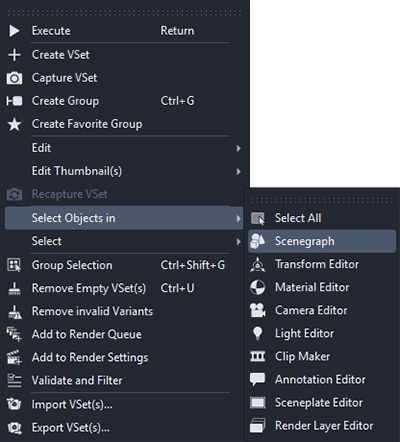
Many useful new features, such as Select Objects in the corresponding Editor, Select All Occurrences, Group Selection, Lock Variant Sets, and Validate and Filter, are available in the module and context menus of the Tree View, Preview View, and Attribute View.
Multi-selection property editing and copy/paste between Variant Sets are especially useful. Be sure to explore these menus to discover tools that can help speed up repetitive tasks and improve your workflow efficiency.
Enhanced Functionality in Related Editors
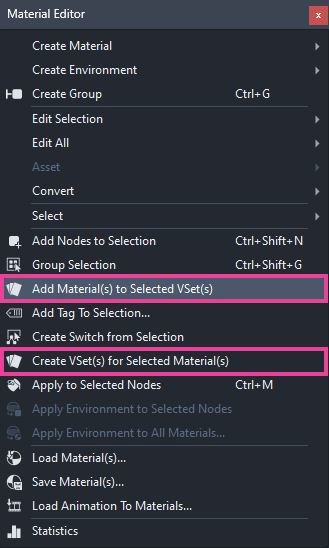
To improve usability between Variant Sets and related editors, VRED adds new context menu actions to editors whose objects can be used in Variant Sets, including the Scenegraph, Transform Variants, Annotations, Sceneplates, Clip Maker, Render Layers, Camera Editor, Material Editor, and Light Editor.
Scene objects from related editors no longer need to be dragged into the corresponding Variant Set tab explicitly. Instead, they can now be dropped directly onto the Variant Set in the Tree View and will automatically be assigned to the correct category, such as Geometry, Material, or Light.
Improved Annotation, Render Layers, Material Group, and Clip Plane Support
We’ve introduced two new tabs that let you control annotation visibility and manage render layer activation directly within Variant Sets. These actions can now be handled directly through the UI in a more intuitive way, removing the need for Python scripting.
Handling of Material Groups has also been simplified. Dragging a Material Group from the Scenegraph into the Material tab now controls the enable and disable state of the material override behavior. When a Material Group is dragged into the Scenegraph tab, it will instead control the visibility of the corresponding node and its children within the Scenegraph and Viewport.
Dragging a Clip Plane node from the Scenegraph into a Variant Set will now toggle the enabled or disabled state of the clip plane, instead of controlling the visibility of its child nodes.
For more information, see the following:
Animation Playback Options
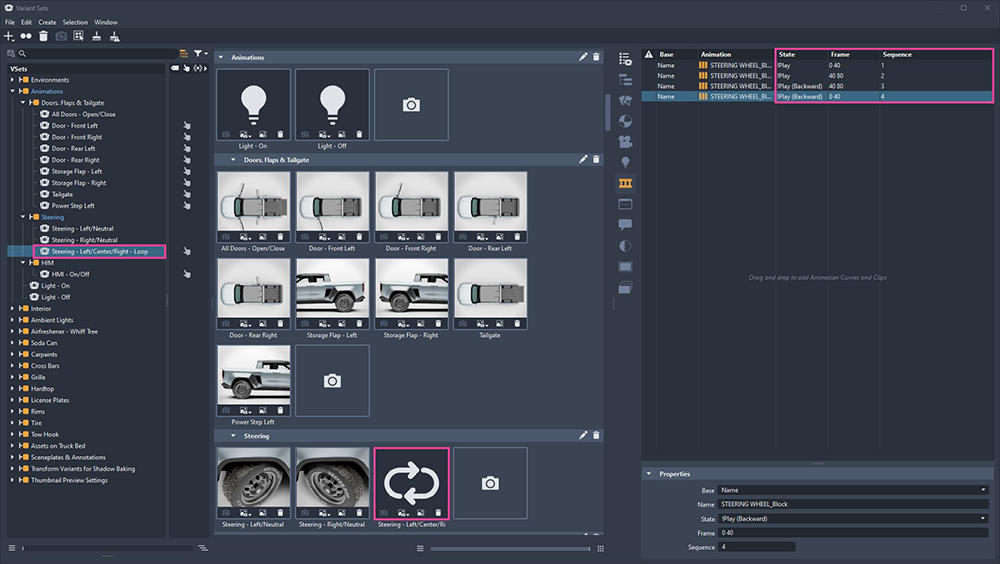
We've also reworked the Animation tab to provide more control over Animation Curves and Clip playback. These can now be controlled with Play, Play (Backwards), Pause, Resume, Stop, Loop, and Loop (Backwards) options.
Also, custom frame ranges can now be defined. For example, entering 0 50 will play frames 0 through 50. Multiple animations can also be played simultaneously or sequentially. For sequential playback, simply assign the desired numeric order in the Sequence field.
For more information, see the following:
Deprecated Editors and Their Replacements
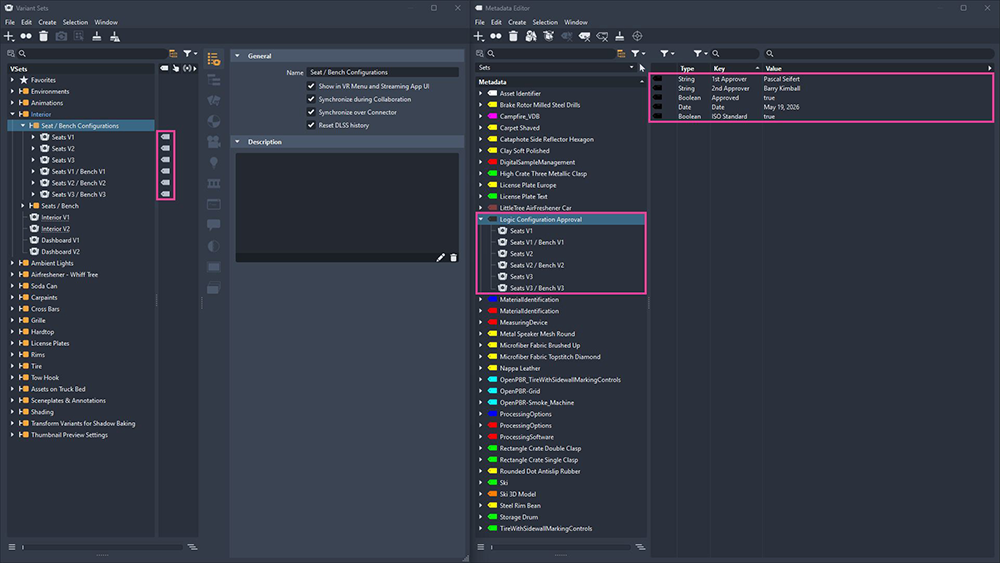
The legacy Value tab and Variants module have been deprecated and replaced with updated workflows. Variant Sets that previously used Values are now automatically converted during the import of older scenes, with Metadata attachments added automatically. This is part of the new support for attaching Key/Value pairs or Metadata Sets from the Metadata Editor directly to Variant Sets, making it easier to search and filter them.
Variants that previously used keyboard shortcuts are also automatically converted into Variant Sets during import, while preserving their assigned shortcuts. The old Variants module itself no longer exists.
The legacy Touch Sensor module is still available for compatibility reasons, but it is now recommended to assign Touch Sensors for Variant Sets directly in the General tab of the Variant Sets module. This provides a clearer overview and simplifies the handling of Variant Sets that use multiple Touch Sensors as triggers.
Improved Smart and Live Reference Handling
Variant Sets stored in Smart References or Live References and assembled within a parent scene are now imported as read-only and clearly identified in the Variant Sets module. This allows them to be triggered and integrated into the Variant Set logic directly within the assembly scene.
Improved Capture and Recapture Workflow
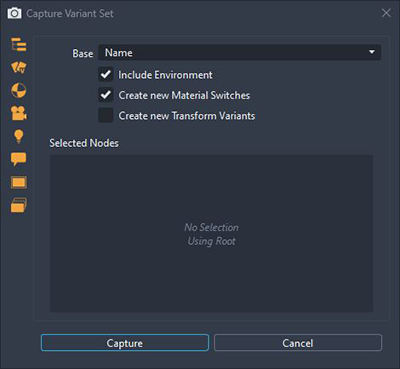
For users who prefer capturing the current scene state instead of building complex Variant Set logic, we have further improved the Capture workflow. Variant Set Captures can now be created directly from the Tree View context menu or, as before, from the Thumbnail Preview view.
An improved dialog now provides a clearer overview of which properties are being captured. Please note that while the Capture workflow is useful for simpler setups, it can quickly reach its limits in increasingly complex scenes.
For more information, see Capture or Create Variant Sets.
Streaming App Support
We updated the Streaming App to support the new group hierarchy and favorites in the Variant Sets module.
For more information, see VRED Streaming App.
XR Menu
The XR menu has been further refined with general improvements and now supports cascading Variant Sets and hierarchical grouping. See XR Improvements for more information.
Scripting
The Variant Sets module is now fully decoupled and supports the object-oriented Python v2 API and Web API, enabling advanced automation workflows and improved external access for developers.