The Skin Tools menu bar provides access to layer management, influence operations, file operations, and display options.
UI menus
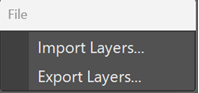
| File menu: Provides options for importing and exporting skin layer data. | |
 |
|
| Import Layers |
Imports skin layer data onto the current skinCluster. |
| Export Layers |
Exports the current skin layer data for reuse or transfer. |
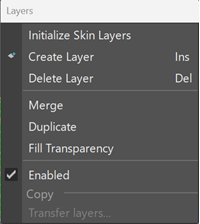
| Layers menu: Provides tools for creating, modifying, and managing skin layers. | |
 |
|
| Initialize Skin Layers |
Initializes the Skin Tools layer system on the current skinCluster. |
| Create Layer |
Creates a new skin layer. |
| Delete Layer |
Deletes the selected layer. |
| Merge |
Combines selected layers into a single layer. |
| Duplicate |
Creates a copy of the selected layer. |
| Fill Transparency |
Fills transparent areas of the selected layer. |
| Enabled |
Toggles whether the selected layer contributes to the final skin weights. |
| Copy |
Copies the selected layer data. |
| Transfer Layers |
Transfers layer data between supported targets. |
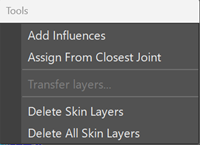
| Tools menu: Provides operations related to influences and layer management. | |
 |
|
| Add Influences |
Adds influences to the current skinCluster. |
| Assign From Closest Joint |
Assigns weights based on proximity to the nearest joint. |
| Transfer layers |
Transfers layer data between supported targets. |
| Delete Skin Layers |
Removes skin layers from the current skinCluster. |
| Delete All Skin Layers |
Removes all skin layers and resets the skinCluster to standard skinning behavior. |
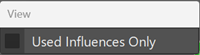
| View menu:
Controls display options in the Skin Tools interface. |
|
 |
|
| AUsed Influences Only |
Displays only influences that affect the current selection. |
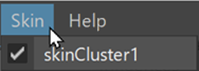
| Skin menu:
Lists all skinClusters associated with the selected mesh. |
|
 |
|
| Each listed skinCluster can be set as the active skinCluster. The selected (checked) skinCluster is used by Skin Tools for all layer and painting operations. |