To automatically smooth the skin weights of your bound character
- Do one of the following:
- Select the bound surface for which you want to smooth skin weights.
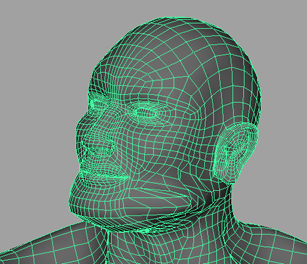
- Select the specific vertices on your bound surface for which you want to smooth weights.
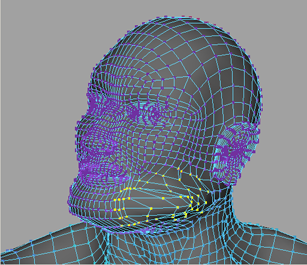
- Select the bound surface for which you want to smooth skin weights.
- Select Skin > Smooth Skin Weights >
 to open the
Smooth Skin Weights Options.
to open the
Smooth Skin Weights Options.
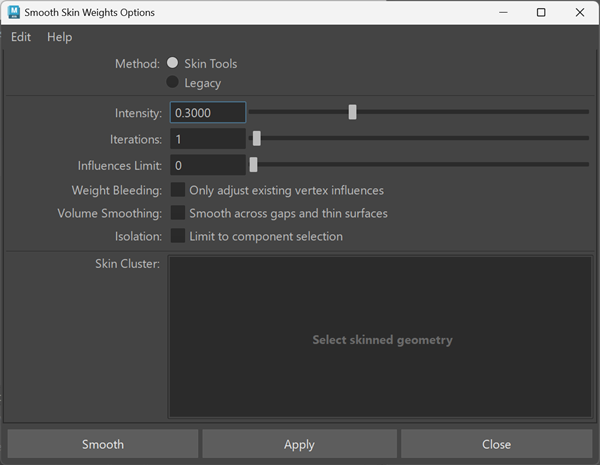
- Adjust the
Required Weight Difference value for Smooth Skin Weights. See
Required Weight Difference in the
Smooth Skin Weights Options .
Note: You need to set a Required Weight Difference value greater than 0.0 when smoothing all the vertices on a bound surface.
- (Optional) Turn on
Preview and then click
Apply to highlight in the scene view the vertices that will be smoothed by the
Smooth Skin Weights operation. The vertices highlight yellow.
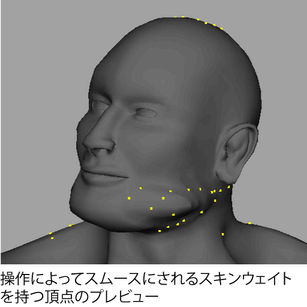 Tip:
Tip:If many vertices highlight yellow on your character (for example, in the above image), then your Required Weight Difference value is too low and should be increased.
- Click
Smooth.
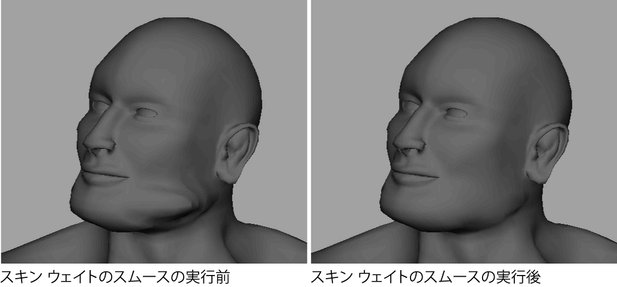
Tip: You can also fix areas with undesirable deformation using the Weight hammer tool. See
Fix smooth weights.