Create Forms from a QR Code on Mobile
You can create a QR code for a form template that when scanned, will immediately create the corresponding form in the Forma app. Your team can then quickly fill out and submit a form while in the field.
Create QR Codes for Form Templates
To start using QR codes for forms, a project administrator or form template manager must create the QR code for the form template on the web.
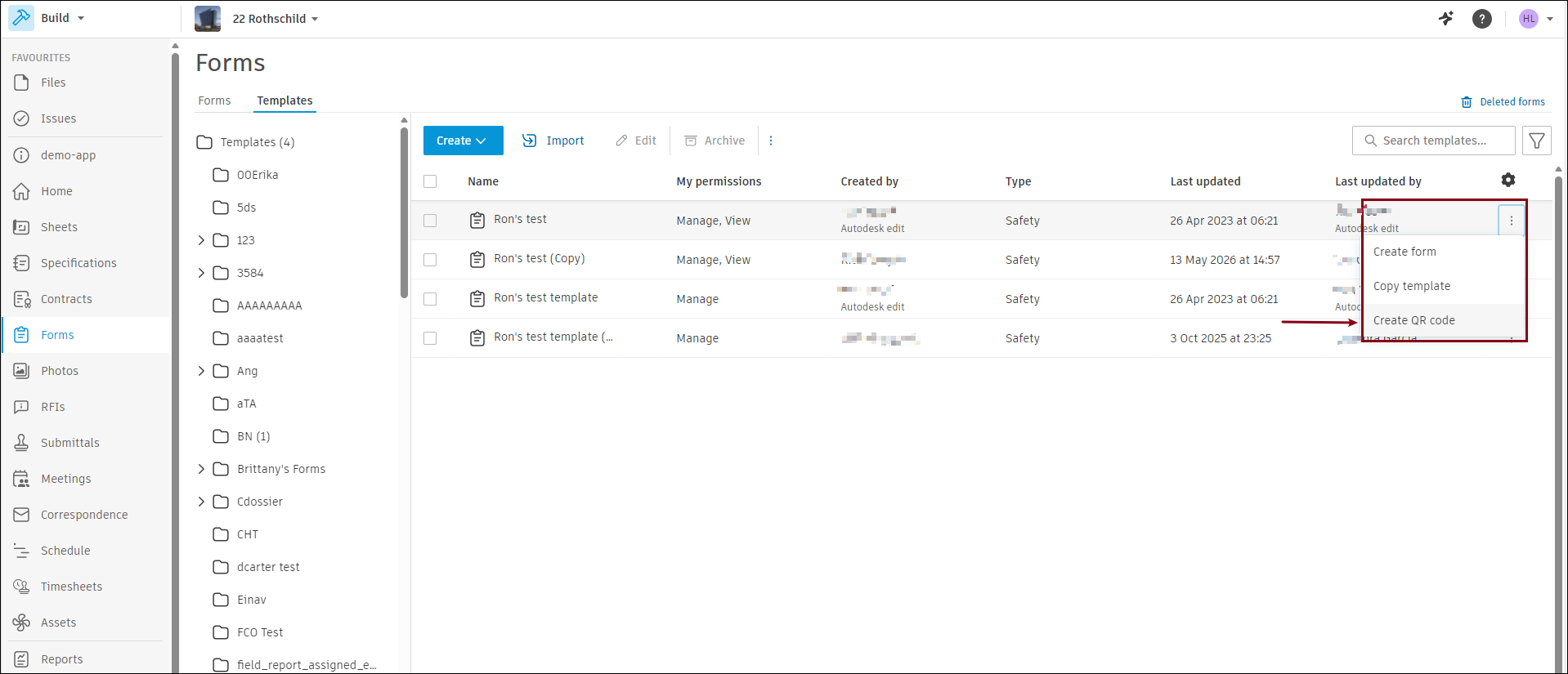
Open the Forms tool on the web.
Click the Templates tab.
Find the form template you want to create a QR code for, then click the More menu icon
 in the row.
Select Create QR code.
A QR code is generated for the form template. Click Download to save the QR code image, then share it with your team.
You can print the QR code and post it in the field, or share it digitally. When your team scans the QR code, they can quickly create a new form using the linked template.
Scan QR Codes to Create Forms
Scan the posted QR code with your device's camera.
Open the link to launch the Forma app.
Note: If you don't have the project in your mobile app or the proper permissions to create a form from that template, you will see a "Unable to open link" message. Check that the project is downloaded to your mobile app or ask a project administrator to check your access and permissions.Fill in the form and submit it when ready. See Fill Out and Submit Forms.