Manage forms on mobile
With the Autodesk Construction Cloud app, you can manage your project forms on your mobile device.
- Filter forms on mobile
- Discard forms on mobile
- Copy forms on mobile
- Reopen forms on mobile
- Archive forms on mobile
- Restore forms on mobile
Filter forms on mobile
In the Autodesk Construction Cloud app, open the Forms tool.
Tap on the Filter icon.
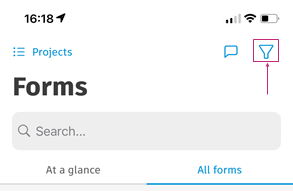
Tap on a filter:
- Status
- Type
- Location
- Assigned to
- Created by
- Form date
- Due date
Depending on the filter that you select, there will be options for you to choose from and you may be able to search for options by name.
To clear filters, tap the Filter icon again and then tap Clear All.
Discard forms on mobile
You can only discard forms in the In progress status, except for forms that are in progress after being reopened. Reopened forms can't be discarded. Discarded forms will no longer be visible in the product.
Only members with certain permission levels can discard a form.
- In the Forms tool on the Autodesk Construction Cloud app, tap on an In progress form to open it.
- (Android) Tap
 at the top of the form or (iOS) scroll to the bottom of the form and tap Discard form.
 - Tap Discard to confirm.
Copy forms on mobile
You can copy forms to fill in similar forms more quickly.
- In the Forms tool on the Autodesk Construction Cloud app, tap on a form to open it.
- (Android) Tap
 at the top of the form or (iOS) scroll to the bottom and tap Copy form.
 - Tap Copy (Android) or OK (iOS) to confirm.
The copied form will appear in the list of forms where you copied the form from.
Reopen forms on mobile
If a form did not have reviewers and you are a project administrator, you can reopen a form to update its information.
Only closed forms can be reopened.
To reopen a form:
- In the Forms tool on the Autodesk Construction Cloud app, navigate to the All forms tab.
- Tap on the template for the form that you want to reopen.
- Tap on the form in the Closed section.
- Tap Reopen at the top-right corner.
- (iOS only) Tap OK to confirm.
The form will return to the In progress status. Editors and anyone who could view the form before it is submitted will be notified by email.
Archive forms on mobile
If you want to keep a record of your forms in a project, you can archive them. Only closed forms can be archived.
Only members with certain permission levels on that form can archive it. Learn more about permissions in Forms Permissions.
To archive a form:
- In the Forms tool on the Autodesk Construction Cloud app, navigate to the All forms tab.
- Tap on the template for the form that you want to archive.
- Tap on the form in the Closed section.
- (Android) Tap at the top of the form or (iOS) scroll to the bottom and tap Archive form.
- Tap Archive (Android) or OK (iOS) to confirm.
Restore forms on mobile
You can restore forms that have been archived. Only members with certain permission levels on that form can restore it. Learn more about permissions in Forms Permissions.
To restore a form:
- In the Forms tool on the Autodesk Construction Cloud app, navigate to the All forms tab.
- Tap on the template for the form that you want to restore.
- Tap on the form in the Archived section.
- Scroll to the bottom and tap Restore form.
- Tap OK to confirm.