Quick Issue Creation on iOS BETA
Use the Quick Create Issue feature to create issues faster on site. This feature lets you capture issues by taking a photo and adding a short description.
Open the Autodesk Construction Cloud mobile app.
Tap the project you want to open.
Do one of these:
Tap Issues from the bottom menu. If you don't see Issues, tap More
 and find Issues. Tap the Quick Create Issue button at the bottom left of the issues list.Tip: If the Quick Create Issue button is not visible, tap the caret icon
 to expand the button. You can choose between the standard issue creation workflow and quick issue creation workflow.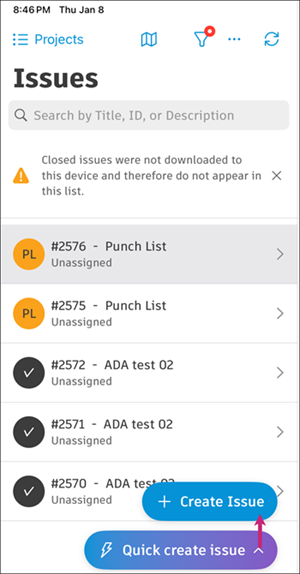
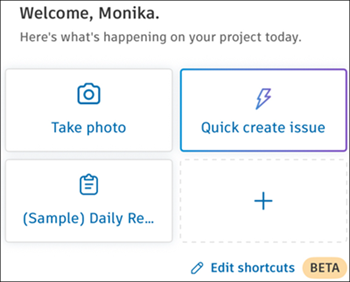
From the Project home page, tap the Quick Create Issue shortcut.
The camera opens automatically. Take a photo of the issue. You can also select images from your device library by tapping
 at the bottom right of the screen.Note: The issue is created when you take or select the first photo.
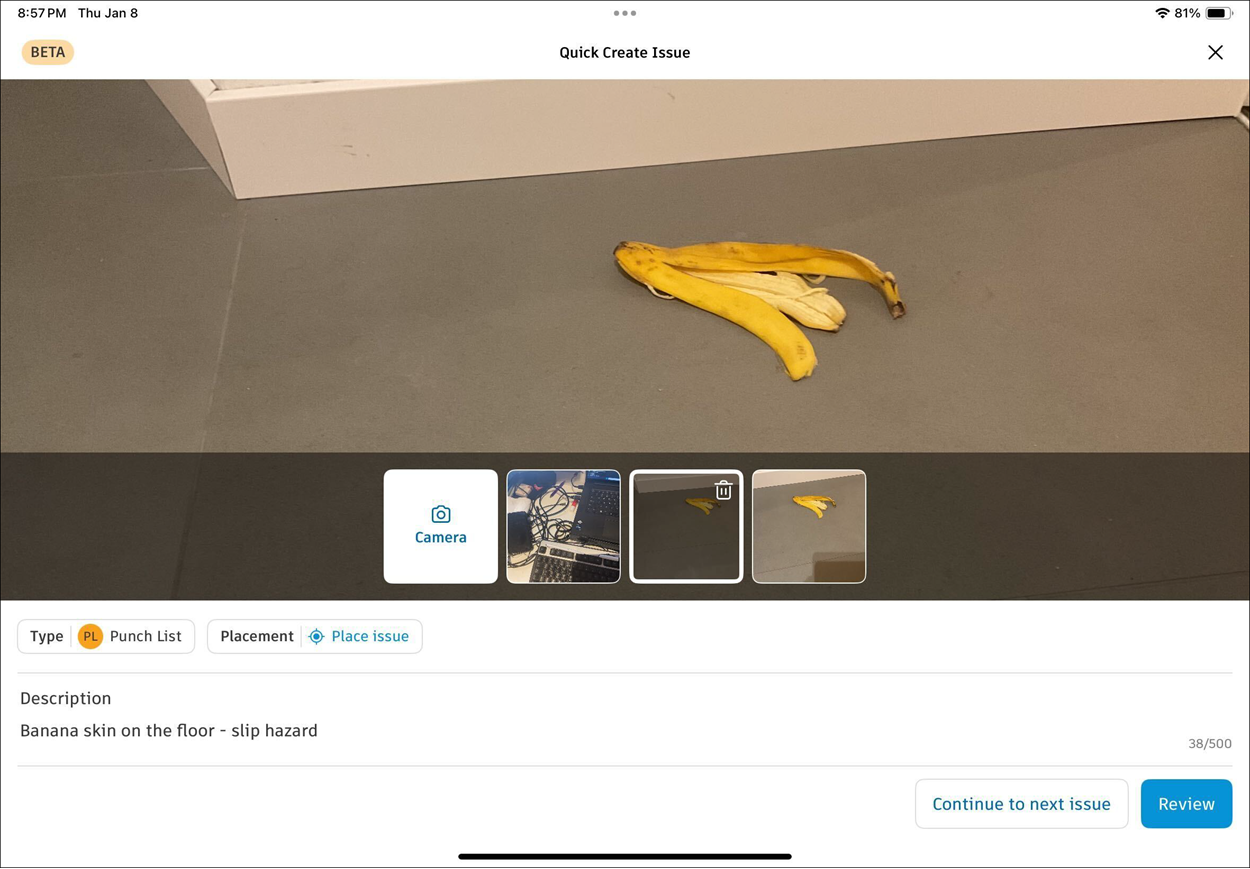
In the Quick Create Issue view, add the following details about the issue:
Photos: Tap the camera icon to add more photos. Tap any attached photo to view or delete it. You must keep at least one photo.
Describe the issue: Enter a short description of your issue.
Type: Select the issue type. The default is Snag List. Your selection stays the same for the next issue you create.
Placement: Add a placement on a sheet or file. The last sheet or file you opened appears by default.
Do one of these:
Tap Continue to next issue to quickly create more issues, one after the other.
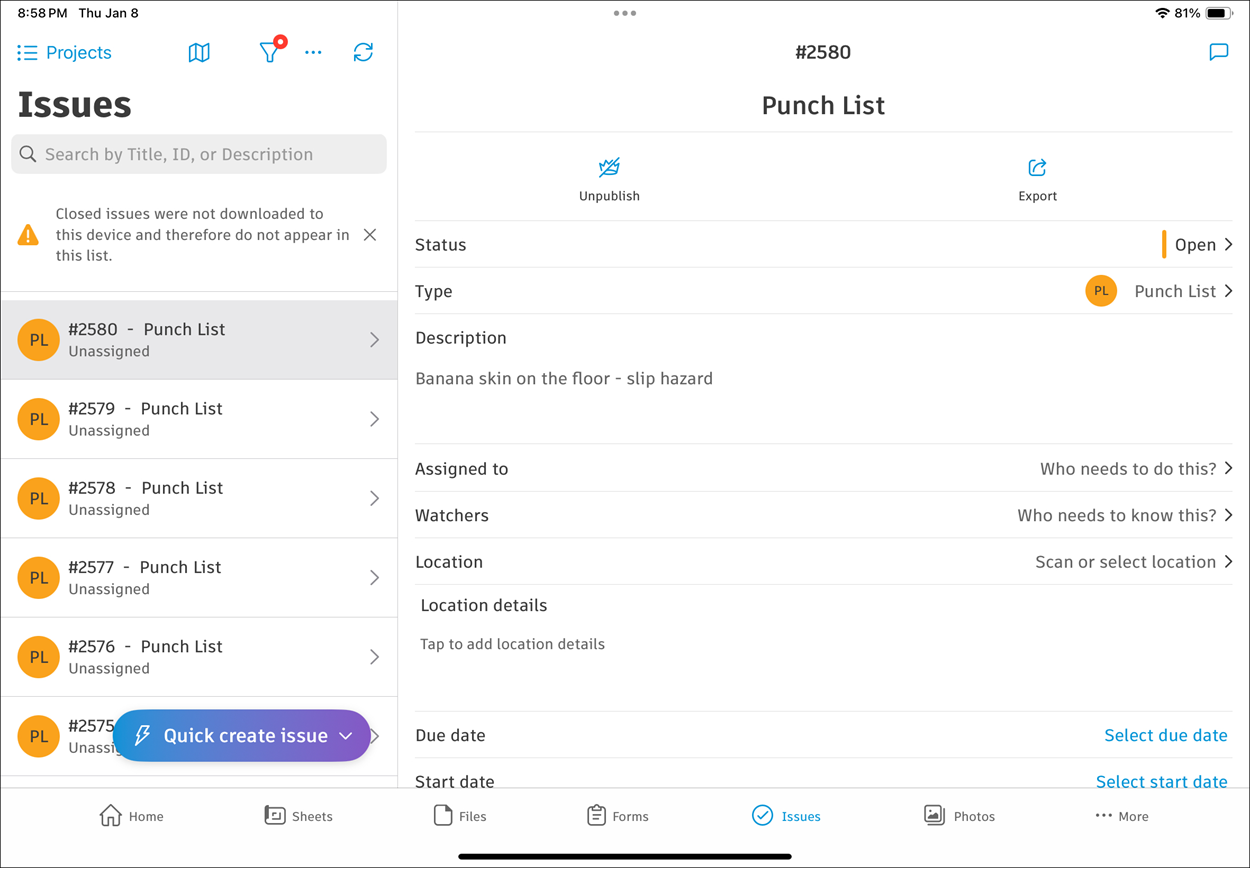
Tap Review to finalise and return to the Issues list, as shown below.