During Meetings
As a meeting starts, go to the Meetings tab in the Meeting tool. In the Meeting series list, open one of the meetings to track attendance and take notes. Export notes as meeting minutes in PDF format at the end of the meeting.
Record Attendance
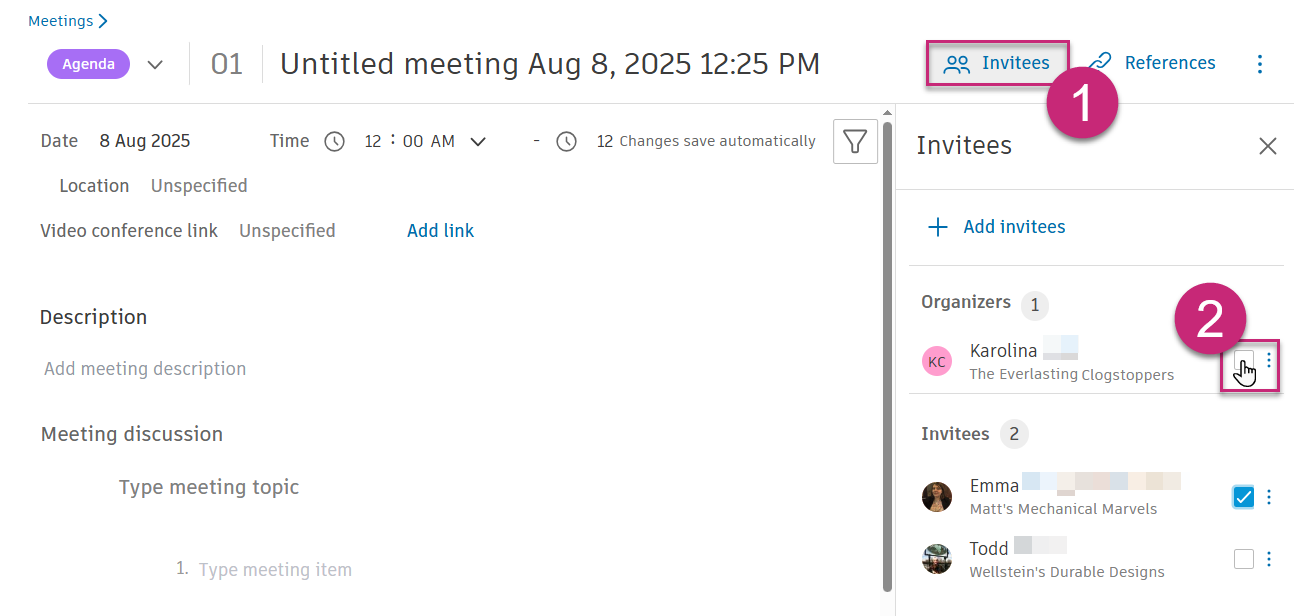
As invitees join the meeting, toggle the tick boxes next to their names in the Invitees list.
Take Notes
During your meeting, you can add notes to any meeting item by clicking the item and pressing Enter to insert a line break.
Within Meeting discussion, you can:
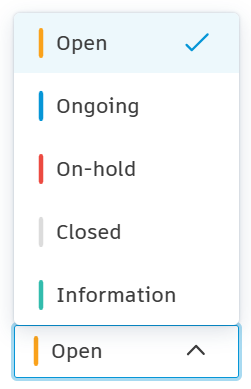
Change the status or flag for follow-up meetings. Use the status drop-down menus to close items during the meeting. Follow-up meetings won't include closed items.
Delete items and topics. To do so, hover the cursor over the meeting topic or item and click
 .
.Create topics and items. Click + Add topic or + Add item.
Assign follow-up work, due dates, attachments or references for meeting items. To do so, hover the cursor over the meeting item and click the
 icon.
icon. Reorder meeting topics or items. To do so, hover the cursor over the meeting topic or item, then click
 and drag the topic or item as needed. Topic and item numbering updates automatically. Tip: Items can be moved between topics.
You can also write in the meeting summary section. Summary content won't carry over to follow-up meetings, but if you create a follow-up meeting, it will copy the current meeting description, non-closed agenda items, invitees, and location.
Filter Items in a Meeting
To focus on specific items during your meeting, use the filter options to view only relevant action items. For detailed filtering instructions, see Filter Items During a Meeting.
Mark as Minutes
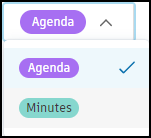
Once the meeting notes are complete, open the drop-down list in the top-left corner of the meeting and select Minutes. Notes are now read-only.
Organisers and administrators can still reopen the meeting and make edits.
Inform attendees that they can export a PDF of the meeting minutes. See Export Meeting Information to learn how to do that.
What's Next
After completing your meeting:
- Mark the meeting minutes to finalise the record
- Create follow-up meetings for ongoing discussions
- Export meeting information to share with stakeholders
- Manage meeting records as needed